Before you start
Installation takes about ten minutes. Check these four things first.
| You need | Details |
|---|---|
| Windows PC or laptop | Windows 10 or Windows 11, 64-bit (x64). To check, open Settings, then System, then About, and read "System type". |
| Internet connection | Needed to download the installer, to sign in and to sync. Counter sales and shifts carry on during an outage once you are signed in. |
| Permission to install programs | On a shared or office PC, use a Windows account that is allowed to install software. |
| Your shop details | Shop name, address, an email address and a password for the shop account. If you already use the Android app, have that email and password ready instead. |
A receipt printer and a barcode scanner are optional and can be added later. Any printer installed in Windows works, including 57/58 mm and 80 mm thermal printers. The program does not run on macOS, ChromeOS or 32-bit Windows.
Part 1: Downloading and installation
Watch: download and install in five steps
Video, 1 min 22 s
If you searched for an optical shop software free download, here is exactly what you get with Asaan Optics: the Windows app is free to download and the first 30 days are free. This video walks through the five steps on Windows 10 or 11, from the official download page to your first sign-in, including the zip file, the setup inside it and the Windows security message that sometimes appears.
Chapters
- 00:00The five steps
- 00:16Download from the website
- 00:33Open the zip, run setup
- 00:44The Windows security message
- 01:01Sign in or open an account
What the video covers
- Where the official download page is, and which button to click (Download for Windows)
- What arrives: one zip file with the setup inside, for Windows 10 or 11
- How to open the zip, run the setup and follow the steps on screen
- What to do if Windows shows a blue security message: More info, then Run anyway, only for the file from the official website
- How to sign in with your existing email and password, or click Open New Account; the first 30 days are free
Transcript
Download Asaan Optics from the website and install it on your Windows computer, in a few minutes.
There are five steps. Open the download page, download the file, open it, run the setup, and sign in. Let us take them one at a time.
In your browser, go to asaanoptics.com/desktop-details. You can also search for Asaan Optics desktop. Click Download for Windows, and the browser saves one zip file, called Asaan Optics Setup. You need Windows ten or eleven.
Open your Downloads folder and double-click the zip file. Inside it is one file, the setup. Double-click the setup, and follow the steps on screen.
Sometimes Windows shows a blue security message before the setup starts. This is normal for an app downloaded from a website. Click More info, then Run anyway, and the installation continues. Do this only for the file you downloaded from the official website.
Open Asaan Optics from the Start menu or the desktop. If you already use the Android app, sign in with the same email and password, and your shop is there. If you are new, click Open New Account. The first thirty days are free.
Step 1: Download the installer package
Open the Asaan Optics desktop page on this site and press Download for Windows. The file is named AsaanOptics_Setup.zip and is saved to your Downloads folder. Download it only from asaanoptics.com, not from a file-sharing site or a copy sent by someone else.
Step 2: Extract the zip file
Open the Downloads folder, right-click AsaanOptics_Setup.zip and choose Extract All, then Extract. A new folder opens containing one file, AsaanOptics_Setup.exe.
Step 3: Run the setup
Double-click AsaanOptics_Setup.exe. If Windows asks whether the app may make changes to your device, answer Yes.
Windows may also show a blue "Windows protected your PC" notice. It appears because the installer is not yet code-signed, so Windows cannot show a verified publisher for it; continue only if you downloaded the file yourself from asaanoptics.com, and if you got it anywhere else, delete it and download it again from this site.
Step 4: Choose the folder and install
The setup suggests the folder C:\Asaan Optics. Keep it or choose another, tick the option for a desktop shortcut and press Install. When the setup finishes, close it.
Step 5: Open the program and sign in
Open Asaan Optics Desktop from the desktop shortcut or the Start menu and sign in to your shop account, as described in the next section. The PC must be online for this step.
Step 6: Set up the shop
In My Shop Profiles, add the shop's logo, currency and tax settings, and link the shop's WhatsApp number if you want receipts and reminders sent to customers. Then add your stock and a login for each staff member.
Part 2: First sign-in and the 30-day free period
Create an account or use the one you have
- New shop: choose Sign Up and enter the shop name, shop address, contact number, email and a password. This creates the shop account that all your devices will use.
- Already using the Android app: choose Sign In and use the same email and password. The desktop opens the same customers, orders and sales.
Keep the password somewhere safe. Staff should not use the owner's sign-in: add a separate login for each person and choose which screens it may open.
Watch: create your account and verify your email
Video, 2 min 3 s
This walkthrough shows how to create an Asaan Optics account on the Windows app, from the Open New Account link to your first sign-in. You will see every field on the sign-up form, what the app tells you once the account exists, and why it will not let you in until the link in your email has been clicked.
Chapters
- 00:00The sign-in screen
- 00:13Open New Account and shop details
- 00:42Email, password and terms
- 01:10Verify your email
- 01:35Sign in for the first time
What the video covers
- Where Open New Account sits on the sign-in screen
- Choosing your country code, and why it matters: it becomes the default for customer phone numbers on that computer
- Entering the shop name, contact number and address
- Setting an email you can open straight away and a password of at least six characters, then accepting the terms
- What Email Not Verified means, and that the app sends the verification link again when you try to sign in too early
- Signing in after verification and landing on your shop's dashboard
Transcript
Open your Asaan Optics account, verify your email, and sign in for the first time. When you start Asaan Optics for the first time, you see the sign-in screen. Every shop begins with one owner account.
Under the Sign In button, click Open New Account.
Start with the country code. Click it, search for your country, and select it. Now type the shop name, the contact number, and the shop address. A note on the country code. Asaan Optics also uses it as the default for customer phone numbers on this computer, so choose your own country.
Enter your email address. Use one you can open now, because the verification link is sent there. Choose a password of at least six characters, and type it again to confirm it. Tick the box to accept the Terms and Conditions. Then click Sign Up. Your account is created, and the app returns to the sign-in screen. The green message tells you what comes next: verify your email.
You cannot sign in until your email is verified. Watch what happens if you try too early. The app stops you with this message: Email Not Verified. It also sends the verification link to your address again. So open your email, find the one with the verification link, and click the link. If it is not there, look in your spam folder.
When your email is verified, come back to Asaan Optics. Your email and password are still filled in. Click Sign In. You are signed in. Your shop opens on the dashboard, with its name at the top. That is all. From now on, you sign in with your email and password.
Also watch: How to Sign In and Reset a Forgotten Password, Optical Shop Software in Arabic: How to Change the Language.
The free period
The first 30 days on the desktop software are free, counted from when you sign up or first sign in on Windows. No payment details are asked for. After the 30 days the desktop software needs a plan: the program asks you to renew when you save a new customer or sale or open stock, and your existing records stay on the account. Current plans are on the pricing page.
If you already had the desktop's free 30 days, the Android plan's free month is not offered again on the same account.
Part 3: Getting started (quick usage)
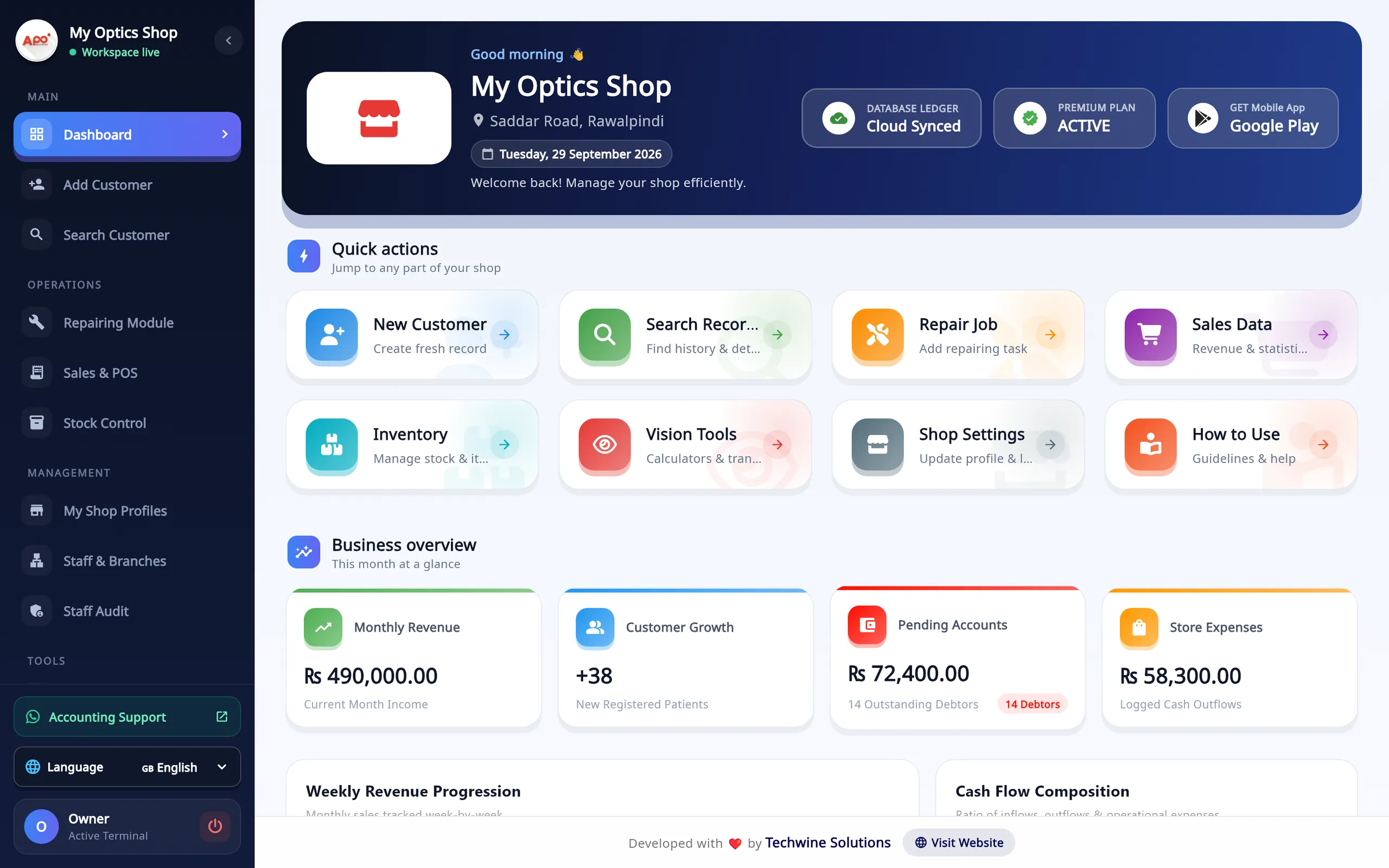
Add a customer and make a sale
Open Add Customer. Enter the customer's name and WhatsApp number, type the prescription for both eyes, then pick the frame and lenses from stock or type them in. Enter the discount, advance, payment type and delivery date, and press Save Customer Order. For a frame, sunglasses or accessories sold without a prescription, use Create New Sale on the Sales & POS screen.
Receipts and WhatsApp
Open Search Customer, find the order and open its receipt. Choose the paper size (57 mm or 80 mm thermal roll, A4 or A5), then print it, save it as a PDF or send it to the customer on WhatsApp. If the receipt printer is not set up yet, follow the guide to connecting a thermal printer.
Add stock
In Stock Control, add frames, lenses and contact lenses one at a time or import a spreadsheet with Bulk Import (.xlsx), then print barcode labels. A method for organising the stock itself is in how to manage optical inventory.
Where your data is kept
Your customers, orders, sales and stock are kept on your shop account online, not only on the PC. That has three practical effects.
- A second or replacement PC only needs the program and your sign-in. It reads the same customers, orders and stock.
- The Android app opens the same records when you sign in with the same account.
- Work done without internet stays on that PC until it is sent. A sale or order that cannot reach the server is saved in a queue on the PC, and the counter shows how many records are waiting. When the connection is back, press Pending Sync on the dashboard; sending is not automatic. Shifts, the cash drawer and the X and Z reports run from a local database on the PC.
Because unsent records exist only on that PC, press Pending Sync at the end of each day. The details are in how offline billing works.
Each PC registers with the shop account when you sign in. If you run more than one counter, tell us how many before you choose a plan; the terms of service note that moving an activation to a different device may need approval.
How updates arrive
New desktop versions are published on this site, and the installer on the desktop page is always the current one. The version in this guide is 6.6.0, released on 29 September 2026. It is published as a required update, so an older copy of the program needs to be updated before you carry on working.
When a newer version is published, the program tells you when it starts, downloads the new installer and runs it for you. Press Pending Sync first so nothing is waiting. You can also update by hand: close the program, download the current AsaanOptics_Setup.zip and repeat steps 1 to 4 above. Sign in again afterwards; your records are on the shop account. What changed in each version is listed in the release log.
Uninstalling
- Open the program while online and press Pending Sync on the dashboard if it is showing, so that no record is left only on this PC.
- Close the program.
- Open Windows Settings, then Apps, then Installed apps (on Windows 10: Apps & features).
- Find Asaan Optics in the list, choose Uninstall and follow the prompts.
Uninstalling removes the program from the PC. It does not delete your shop account or the records on it, and it does not cancel a paid plan. A subscription bought through Google Play is cancelled in Google Play.
If something goes wrong
- The setup says it cannot run on this PC: check that Windows is 64-bit under Settings, System, About.
- You cannot sign in: check the internet connection first, since sign-in needs it, then the email and password.
- The receipt prints too wide or too narrow: choose the paper size that matches your roll when you open the receipt.
If the problem is not on this list, use the contact page and tell us the Windows version and the exact message on screen. Every screen of the program is described, with pictures, on the desktop page linked in step 1.
Questions
- Which versions of Windows does Asaan Optics Desktop run on?
- Windows 10 and Windows 11, 64-bit (x64). It does not run on 32-bit Windows, macOS or ChromeOS.
- Why does Windows show a warning when I run the installer?
- The installer is not yet code-signed, so Windows SmartScreen cannot identify its publisher and may show a "Windows protected your PC" notice. Only continue if you downloaded the file yourself from asaanoptics.com.
- Do I need the internet to install and sign in?
- Yes, to download the installer, to sign in and to sync. Once you are signed in, counter sales and shifts carry on during an outage and the records are sent afterwards.
- How long is the desktop software free?
- The first 30 days are free, counted from when you sign up or first sign in on Windows. No payment details are asked for. After that the desktop software needs a plan.
- Will I lose my records if I uninstall or change my PC?
- Records that have been synced stay on your shop account and appear again when you sign in on any PC. Records still waiting to sync exist only on that PC, so press Pending Sync on the dashboard before you uninstall or replace it.
More from the blog
- Offline-first optical shop software and billing app: what to check and how it works
- Optical shop billing app and management software: how a bill is made in Asaan Optics
- Optical shop management software free download: what is free and what is paid
- How to Digitize Your Optical Store: From Paper Register to Software
Reference guides and free calculators: Resources and optical tools.