Why a spectacle bill is not an ordinary bill
Asaan Optics is our own product, made by Techwine Solutions. This article does not compare it with anything. It describes how billing works in it, screen by screen, so you can judge whether it fits the way your shop works.
A grocery bill is a list of items paid for in full. A spectacle order is different in four ways:
- It carries a prescription for each eye, which has to be found again when the customer returns.
- It is a frame plus a right lens and a left lens, often with a coating, sold as one job.
- It is usually paid in two parts: an advance today and a balance on delivery.
- It is not finished at the counter. The glasses are made, sometimes by an outside lab, and collected later.
The steps below follow one order from the first entry to the cash count at closing time. Screen names are written as they appear in the program.
Step 1: enter the order on Add Customer
On the Windows desktop, one form holds the whole order.
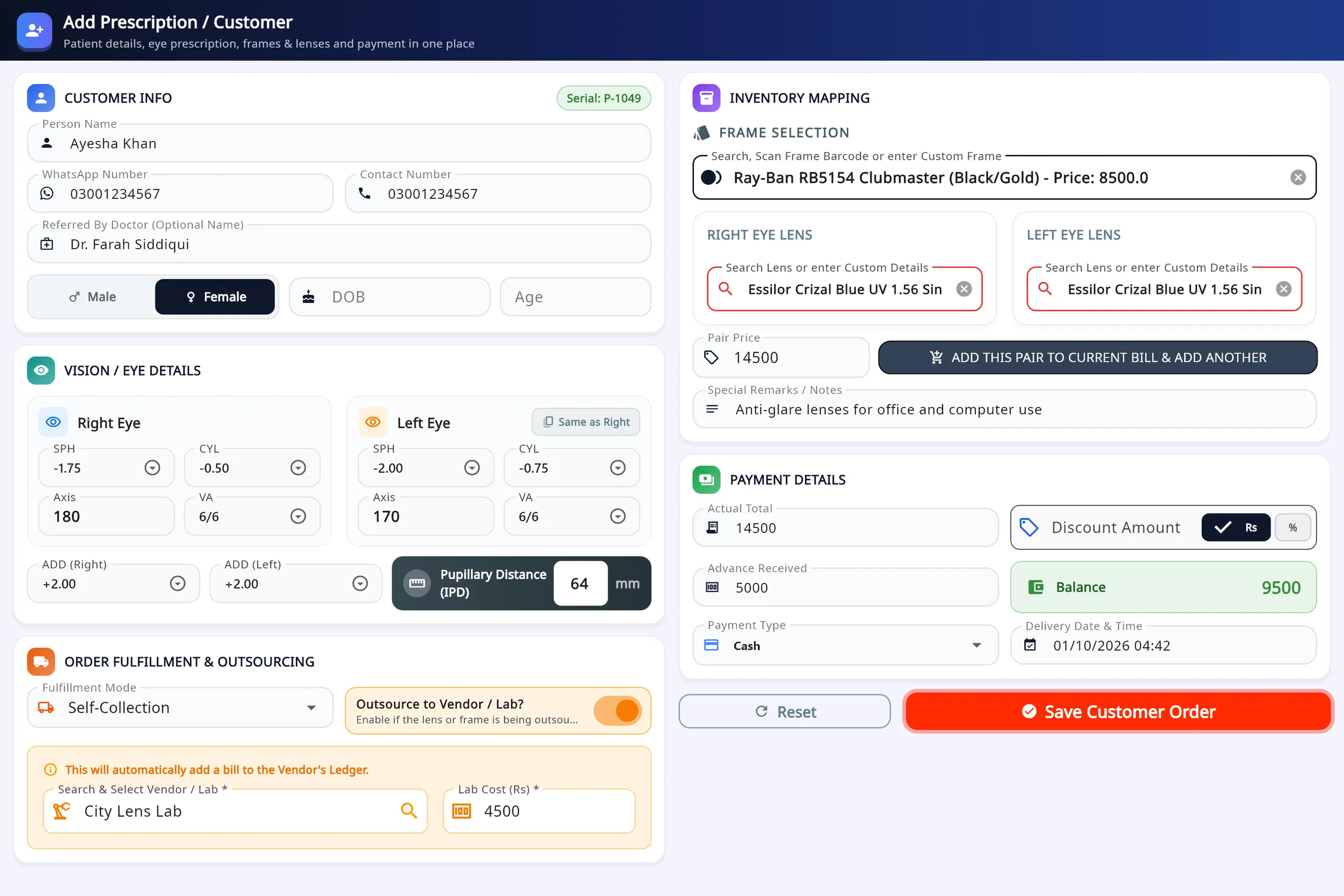
- Enter the customer: name, WhatsApp and contact number, referring doctor, gender, and date of birth or age.
- Type the prescription for both eyes: SPH, CYL, AXIS and VA, the ADD for each side and the IPD. Same as Right copies the right eye to the left when they match.
- Search for the frame or scan its barcode, then pick the right and left lenses from stock. If the item is not in stock, type the details by hand.
- If the customer is buying a second pair, press Add this pair to current bill & add another. Each pair keeps its own frame, lenses, price and remarks.
- If an outside lab will make the lenses, switch on Outsource to Vendor / Lab and enter the lab cost. That amount is added as a bill to the lab's ledger, so you can see what you owe the lab.
- Enter the discount, the advance, the payment type and the delivery date. The balance is worked out as you type. Press Save Customer Order.
The program stores what you type. It is a record of the order, not a check on the prescription, so read the values back against the customer's prescription slip before saving.
Step 2: give the customer a receipt
After the order is saved, the Receipt Generator opens. It opens again whenever you choose a record from Search Customer.
- Choose the paper size first: 57 mm thermal roll, 80 mm thermal roll, A4 or A5. It starts at 80 mm each time.
- Show Eye Exam adds the prescription to the receipt.
- Print Receipt opens the Windows print dialog, Save PDF keeps a copy, and WhatsApp sends the receipt to the customer.
The receipt shows what was paid and what is still due, so the customer and the shop hold the same figure. Printing goes through whatever printer is installed in Windows; the thermal printer guide covers setup and common faults.
Step 3: delivery day and the balance
Search Customer lists prescription orders and repairs together. You can search by name, contact number, serial number, doctor or remarks, and a badge at the top counts the deliveries due today.
- Filter by Balance to list every customer who still owes money. This is the shop's khata.
- When the glasses are ready, send the pickup reminder from the order's row.
- When the customer collects, set the order from Pending to Completed and reprint or resend the receipt if they ask for one.
If the shop's WhatsApp number has been linked in My Shop Profiles, the order confirmation, ready-for-pickup and order-completed messages can go out by themselves, each from a template you can edit. Use a dedicated business number: WhatsApp can block numbers that send messages in bulk.
Watch: collect the balance and close the order
Video, 1 min 55 s
On delivery day the customer pays what is left and the order has to be closed properly. This video covers that part of optical shop billing in Asaan Optics: filter Search Customer for orders with a remaining balance, send a pickup reminder on WhatsApp, and mark the order Completed.
Chapters
- 00:00Closing a paid order
- 00:10Find orders with a balance
- 00:27Send a pickup reminder
- 00:55Mark the order Completed
- 01:33Check it is fully cleared
What the video covers
- Using the Balance filter and Remaining Balance to list only orders with money still to pay
- Sending a WhatsApp pickup reminder with the bell on the customer's row
- Why to take the payment before choosing Completed, and to leave a part-paid order as Pending
- Marking an order Completed from the Status column, which sets the balance to zero
- Confirming the result with the Fully Cleared filter
Transcript
Take the rest of a payment and close the order, in a few clicks. When a customer collects their glasses, you take the rest of the payment and close the order.
In the menu, open Search Customer.
To see who still owes money, open the Balance filter and choose Remaining Balance. The list now shows only orders with money still to pay. The amount is in red.
If the glasses are ready and the customer has not come in, click the bell on their row. It sends a pickup reminder on WhatsApp, with the balance still to pay. A word of caution. There is no separate payment box here. Marking an order Completed sets the balance to zero, and records the whole remaining amount as a sale today. So take the money first. If the customer pays only part, leave the order as Pending.
Lucas Martin has now paid the last two hundred and nine pounds. Find his row, and look at the Status column. This list is how the app marks an order as delivered. Choosing Completed clears the whole balance at once. The balance drops to zero, and the payment is added to your sales. If your WhatsApp is connected, the customer also gets a thank you message automatically. One mistake to avoid. The status is saved the moment you pick it, with no confirmation. So check you are on the right customer's row before you choose Completed.
To check your work, switch the Balance filter to Fully Cleared. The order is there, completed, with nothing left to pay. That is all. Take the payment first, then mark the order Completed.
Counter sales that have no prescription
Sunglasses, cases, solutions, contact lens boxes and services are sold from Sales & POS with Create New Sale.
- Search for the product or scan its barcode.
- Set the quantity and unit price, and add more items if needed.
- Enter a discount if there is one, and choose how the customer pays.
- Press Finalize Sale. The stock count goes down and the sale joins the day's list.
- When Print Receipt? appears, answer Yes, Print. The receipt goes to the printer saved for that counter, on 58 mm or 80 mm paper.
Repairs have their own screen, Repairing, with a description of the fault, a total, an advance and a delivery date. They appear in Search Customer next to prescription orders.
Closing the day: shifts and the cash count
A bill is only useful if the money in the drawer matches it. On the desktop, each counter works in shifts.
- Open the shift and enter the opening float.
- Sell. Bills, expenses and cash put in or taken out are recorded against the person on shift.
- At closing, count the drawer note by note. Staff count blind: the expected amount is shown only after they have entered their count.
- Print the X-report during the shift if you want a check, and the Z-report when the shift closes.
A discount above a staff member's limit, or cash taken out of the drawer, needs the owner's or a manager's PIN. Expenses entered during the day are taken off the counter cash, so the closing figure is what should physically be in the drawer.
Watch: read the day's totals and close the shift
Video, 2 min 9 s
At closing time an owner needs three answers: what was sold, what money came in, and what cash should be in the drawer. This video walks through optical shop daily sales and cash closing in Asaan Optics: the four totals of the day, recording an expense, and closing the shift by counting the drawer against the expected cash.
Chapters
- 00:00Where the day is recorded
- 00:12Read today's four totals
- 00:37Add an expense
- 01:12Filter by sale type
- 01:24Close the shift
What the video covers
- The four cards for the day: total sales, cash-in (money received by cash, card or bank transfer), expenses and net cash in hand
- Recording a shop expense with a reason and an amount, and watching the totals change
- The difference that matters: net cash in hand includes card and bank payments, while Drawer (expected) is cash only
- Filtering the list by Sale Type, for example Expenses, while the cards still show the whole day
- Closing the shift: opening float plus cash collected minus expenses gives the expected cash, compared with what you counted
- What happens at the end: the shift gets its Z number and the Z report opens for printing
Transcript
See what came in today, what went out, and what should be in your cash drawer. Every sale and expense of the day is recorded in Sales and POS. Open it from the menu.
The screen opens on today. Four cards sum up the day. Total sales is the full value of today's orders and products. Cash-in is the money received, by cash, card or bank transfer: seven hundred and eighty pounds. Expenses are twelve pounds. Net cash in hand is cash-in minus expenses: seven hundred and sixty-eight pounds.
You pay eighteen pounds from the drawer for cleaning supplies. Click Add Expense. Type what the money was for, then the amount, and click Save Expense. Expenses rise to thirty pounds, and net cash in hand falls to seven hundred and fifty. Within half a minute, the shift banner follows. Drawer expected falls to one hundred and ninety. Keep the two figures apart. Net cash in hand includes card and bank payments. Drawer expected is cash only.
To see one kind of entry, open Sale Type and choose Expenses. The list shows today's two expenses. The cards still show the whole day.
At the end of the day, click Close Shift, and count the notes in the drawer. Opening float, one hundred pounds. Plus cash collected, one hundred and twenty. Minus expenses, thirty. Expected cash, one hundred and ninety, and you counted the same. Balanced. If the count differs, the app asks for a reason first. Here it matches, so click Confirm and close shift. The shift is closed with its Z number, and the Z report opens for printing. Read these figures every evening, and you know your day is right.
Also watch: Two Pairs of Glasses on One Bill, and Sending the Order to a Lab, Optical POS Software: Bill a Quick Counter Sale Step by Step.
Billing from the Android app
The Android app makes the same kinds of record on the same shop account, with a shorter workflow.
- Add Customer takes the prescription, the frame and lens, the payment and the delivery date. Scan Prescription photographs a prescription slip and fills SPH, CYL, AXIS and ADD by text recognition on the phone. Handwriting and faint print can be misread, so check every value before you save.
- Receipt Details shows the order with the advance and the balance due. From there, Print Thermal (80mm) prints through Android's print dialog, Save A4 PDF keeps a full-page copy and Share Image sends the receipt as a picture.
- POS (New Sale) sells items from the stock kept on the desktop, by scanning the barcode with the camera or choosing Add from Inventory.
- Sales Record lists the day's prescriptions, repairs and product sales with the cash each one brought in.
The Android app page shows each of these screens.
What it does not do
- Stock is added and edited on the desktop only. The phone sells from that stock but does not manage it.
- Staff shifts, the blind cash count and the X and Z reports are on the desktop only.
- The phone prints thermal receipts at 80 mm only. Smaller rolls and A5 pages are printed from the desktop.
- There is no iPhone, iPad, Mac or browser version.
- On the desktop, records made without internet are sent when you press Pending Sync. They are not sent automatically.
- It is a shop management tool. It does not examine eyes, check a prescription or file insurance claims.
Trying the workflow yourself
The quickest test is one real order: enter it, print the receipt on your own printer, mark it completed and check that the day's total matches your drawer. The desktop page has the download and installation steps, and the first 30 days on the desktop are free. What each plan includes afterwards is on the pricing page.
Questions
- Can one bill include more than one pair of glasses?
- Yes, on the desktop. On Add Customer, the button Add this pair to current bill & add another keeps the first pair and opens a new one. Each pair has its own frame, lenses, price and remarks, and pairs already added can still be edited.
- How do I see which customers still owe a balance?
- On the desktop, open Search Customer and filter by Balance. The list shows each order with the amount still due. On the phone, Search Patient shows pending orders with their balance.
- Which receipt sizes can I print?
- The desktop prints prescription and repair receipts on a 57 mm or 80 mm thermal roll, A4 or A5, and counter sale receipts on 58 mm or 80 mm. The Android app prints 80 mm thermal receipts and saves A4 PDFs.
- Can I make bills when the internet is down?
- Yes. On the desktop the record is saved in a queue on the PC and sent when you press Pending Sync on the dashboard; sending is not automatic. The Android app saves the record on the phone and syncs it when it reconnects.
- Can I bill from the phone only, without the desktop?
- Yes. The Android app works on its own for prescriptions, repairs, quick sales and receipts. Stock control, staff shifts and the X and Z reports are on the Windows desktop only.
More from the blog
- Optical shop management software free download: what is free and what is paid
- How to Digitize Your Optical Store: From Paper Register to Software
- How to Manage Optical Inventory: Frames, Lenses and Contact Lenses
- Best optical shop software in 2026: five options compared
Reference guides and free calculators: Resources and optical tools.