Dashboard: the whole shop on one screen
The first screen after you sign in. The sidebar holds every module of the program, and this page follows it from top to bottom.
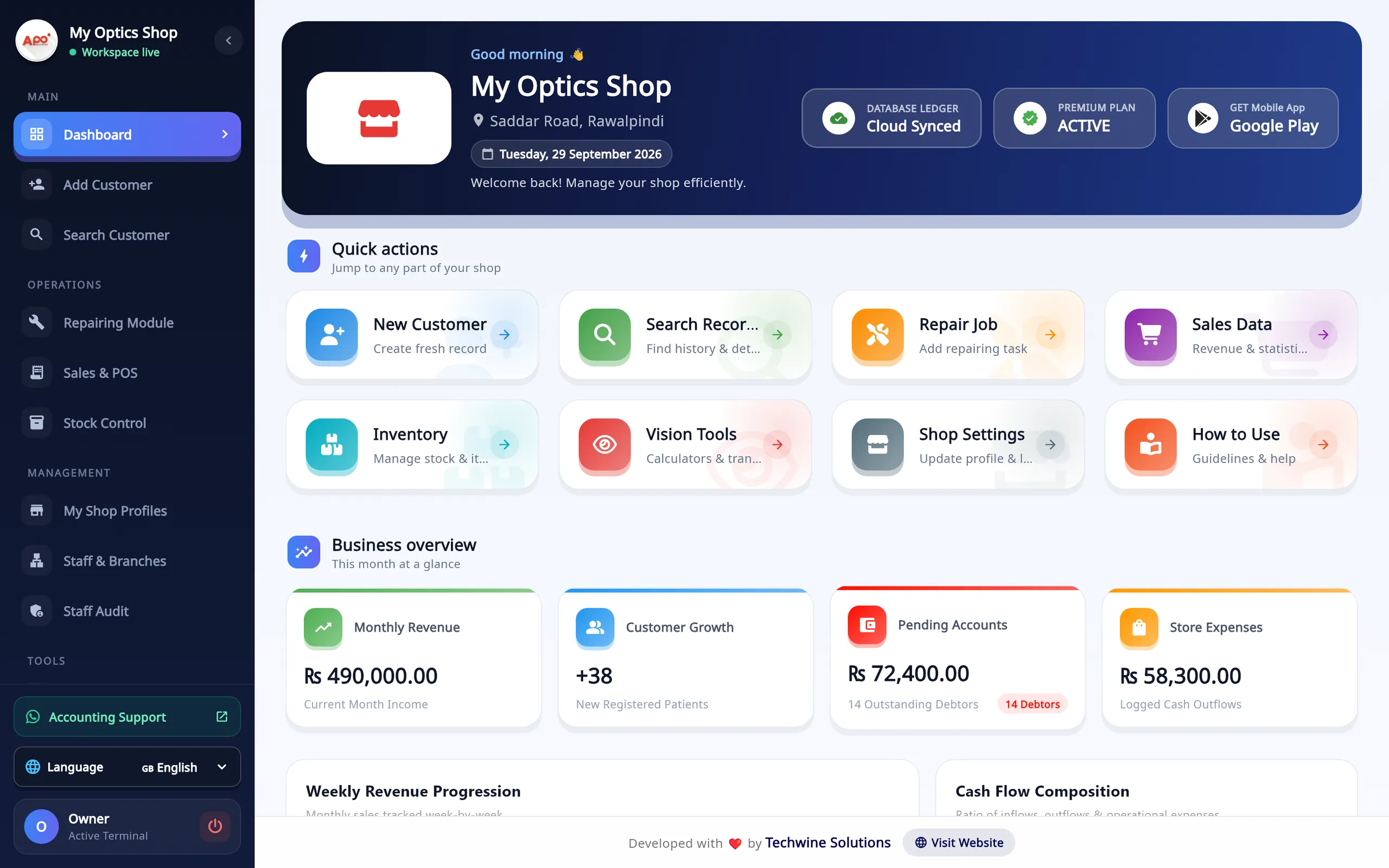
- The sidebar: every module, in the same order as this page
- Account status: records saved online, and your plan
- Quick actions: new customer, search, repair job, sales, inventory, calculators
- This month: revenue, new customers, money still owed, expenses
Below the cards: weekly revenue and the cash-flow split. When records are waiting to be sent, a Pending Sync button appears on the dashboard. How offline work is sent
Watch: every screen in three minutes
Video, 3 min 5 s
If you are comparing optical shop management software, this tour opens every area of Asaan Optics on a Windows PC in about three minutes. You see the real screens in menu order: the dashboard, customer orders, repairs, Sales and POS, Stock Control, your shop profile, staff accounts, Staff Audit and the optical calculators.
Chapters
- 00:00The dashboard
- 00:14Customers, orders and repairs
- 01:01Sales and the till
- 01:18Stock Control
- 01:38Shop profile, staff and audit
- 02:24Calculators and the Android app
What the video covers
- The dashboard: this month's revenue, new customers, balances still to collect and expenses
- Customers: one order page for details, prescription, frame, lenses and payment, plus search and the Repairing Module
- Sales and POS: the open shift, the cash expected in the drawer and every sale and expense of the day
- Stock Control: frames, lenses, contact lenses and accessories, with stock value and low stock
- Shop and team: receipt details, currency and tax, staff sign-ins with screen access, and Staff Audit
- The nineteen optical calculators, from transposition to lens thickness
Transcript
Here is everything Asaan Optics does on your Windows PC, in about three minutes. You start on the dashboard. It shows this month's revenue, new customers, balances still to collect, and expenses.
The menu on the left opens every other area. First, your customers. Open Add Customer. An order begins here. One page takes the customer's details, the prescription, the frame and lenses, and the payment. Tutorial one shows each part. Next, Search Customer. Every order and repair is listed here. Search by name, phone number or serial number, then view, edit or complete the order. See tutorials two and three. Then, the Repairing Module. Repair jobs are recorded here: the customer, what needs fixing, the price, and the delivery date. Each job gets its own serial number.
Now, sales. Open Sales and POS. This is your till: the open shift, the cash expected in the drawer, today's totals, and every sale and expense of the day. Tutorial seven shows a quick sale.
Next, your stock. Open Stock Control. Your frames, lenses, contact lenses and accessories are kept here. You see what your stock is worth, and what is running low. Tutorials five, six and eleven cover frames, lenses and barcode labels.
Now your shop and your team. Open My Shop Profiles. Your shop name, address, phone number and logo are kept here, and printed on every receipt. Currency and tax are set on this page too. See tutorial ten. Next, Staff and Branches. Each member of your team gets their own sign-in, and you choose the screens each person can open. See tutorials twelve and thirteen. Then, Staff Audit. Choose a period. Staff Audit is for the owner and managers. It shows sales by person, discounts above the limit, cash differences at shift close, and deleted bills. See tutorial fourteen.
Last, the tools. Open Vision Calculators. There are nineteen optical calculators here, from transposition to lens thickness. Pick one on the left, enter the values, and the result is worked out for you. One more thing. There is also an Asaan Optics app for Android, for the same shop account. That is the whole app: customers, sales, stock, your shop and team, and the tools. Choose the task you need first, and watch its tutorial.
Also watch: How to Add a Customer and Prescription in Optical Shop Software, Optical Frame Inventory: How to Add Frames to Your Stock, How to Create Staff Accounts in Optical Shop Software, Optical Shop Daily Sales, Expenses and Cash Closing Explained.
Add Customer: prescription, frame, lens and payment in one form
One order, one screen. The eyes are typed once, the frame and lenses come from stock, and the balance is worked out while the payment is entered.
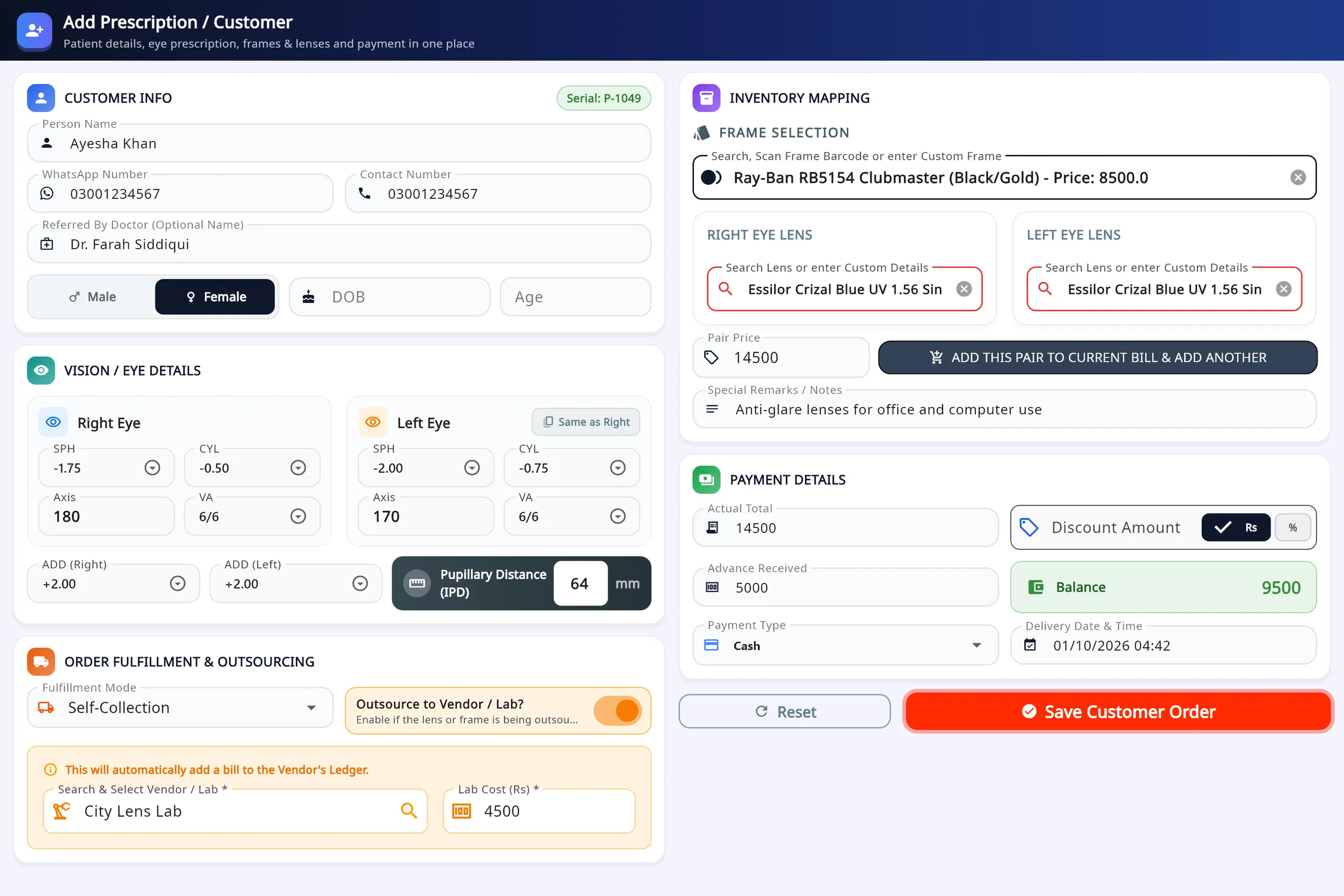
- Vision / eye details: both eyes, ADD and IPD
- Frame and lenses from stock, by search or barcode
- Several pairs on one bill
- Outsource to a vendor or lab, with the lab cost
What you do
- Enter the customer: name, WhatsApp and contact number, referring doctor, gender, date of birth or age.
- Type both eyes: SPH, CYL, AXIS and VA, ADD for each side and the IPD. Same as Right copies the right eye to the left.
- Search or scan the frame's barcode, then pick the right and left lenses from stock, or type custom details.
- For another pair on the same bill, press Add this pair to current bill & add another. Pairs already added can still be edited.
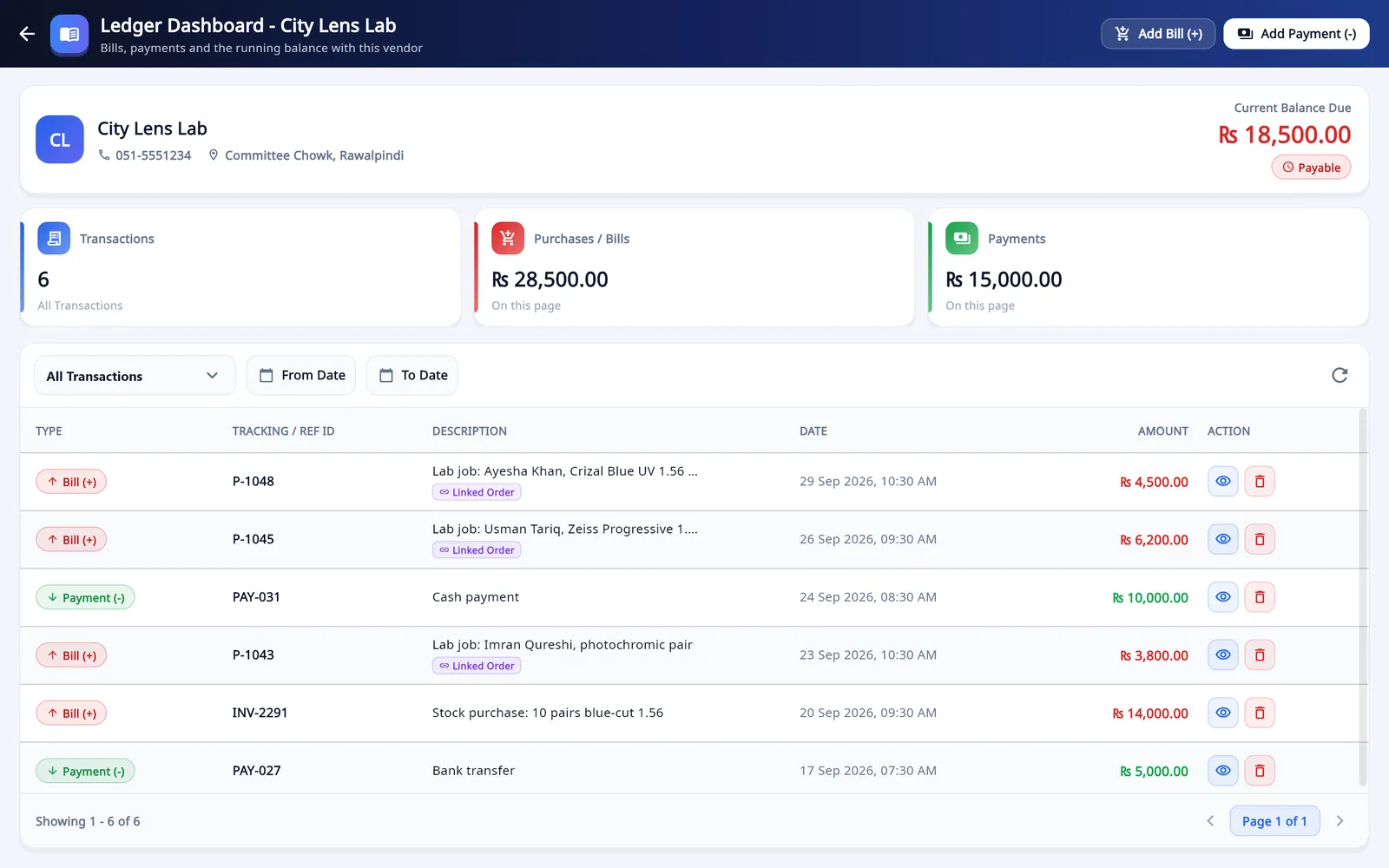
- If a lab makes the lenses, switch on Outsource to Vendor / Lab and enter the lab cost. A bill goes to that vendor's ledger.
- Enter the discount, advance, payment type and delivery date, then Save Customer Order.

Search Customer: orders, balances and receipts
Prescriptions and repairs in one list. Search by name, contact, serial, doctor or remarks; the badge at the top counts the deliveries due today.
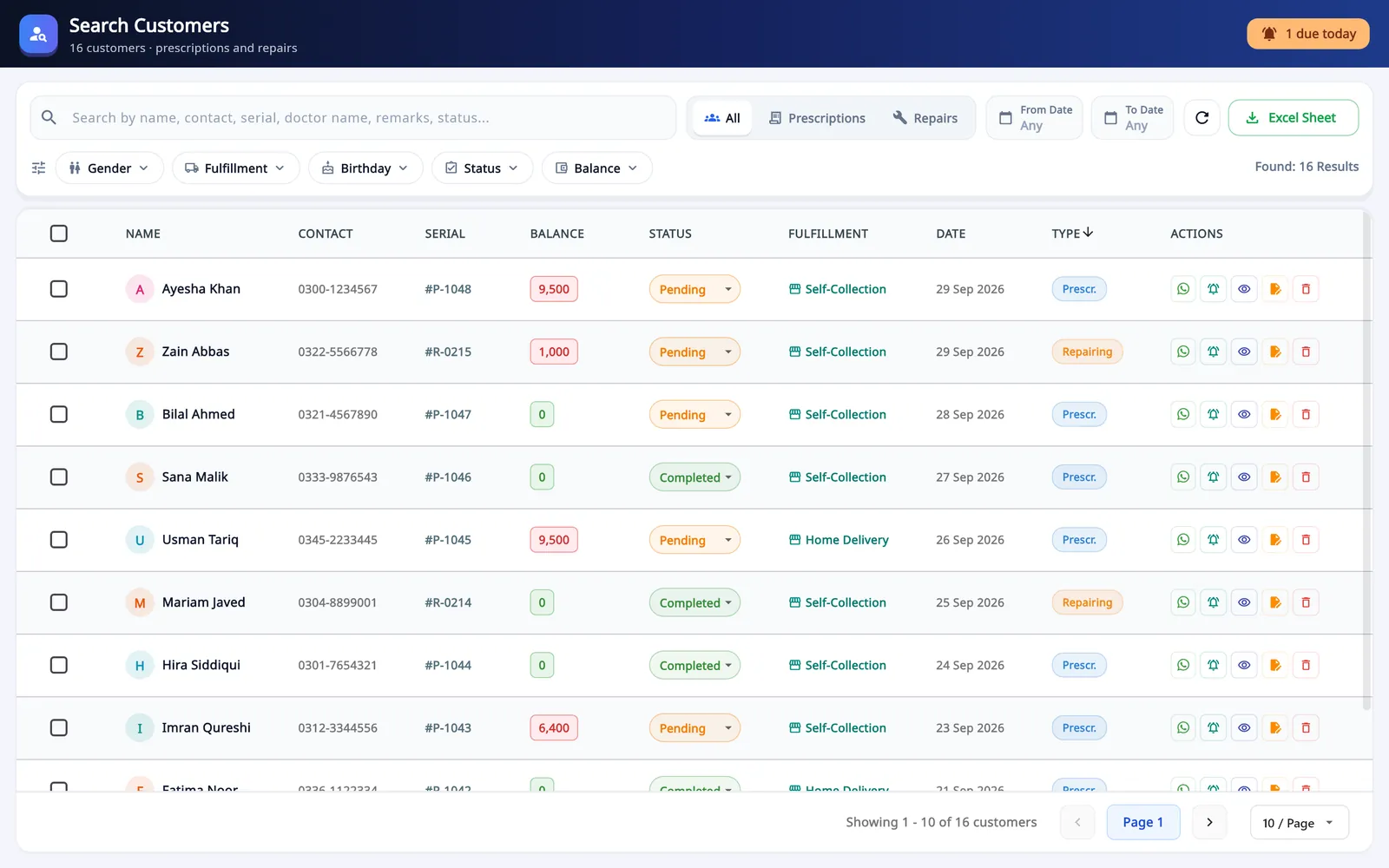
- Filters: gender, fulfilment, birthday, status and balance
- On each row: WhatsApp, pickup reminder, receipt, edit and delete
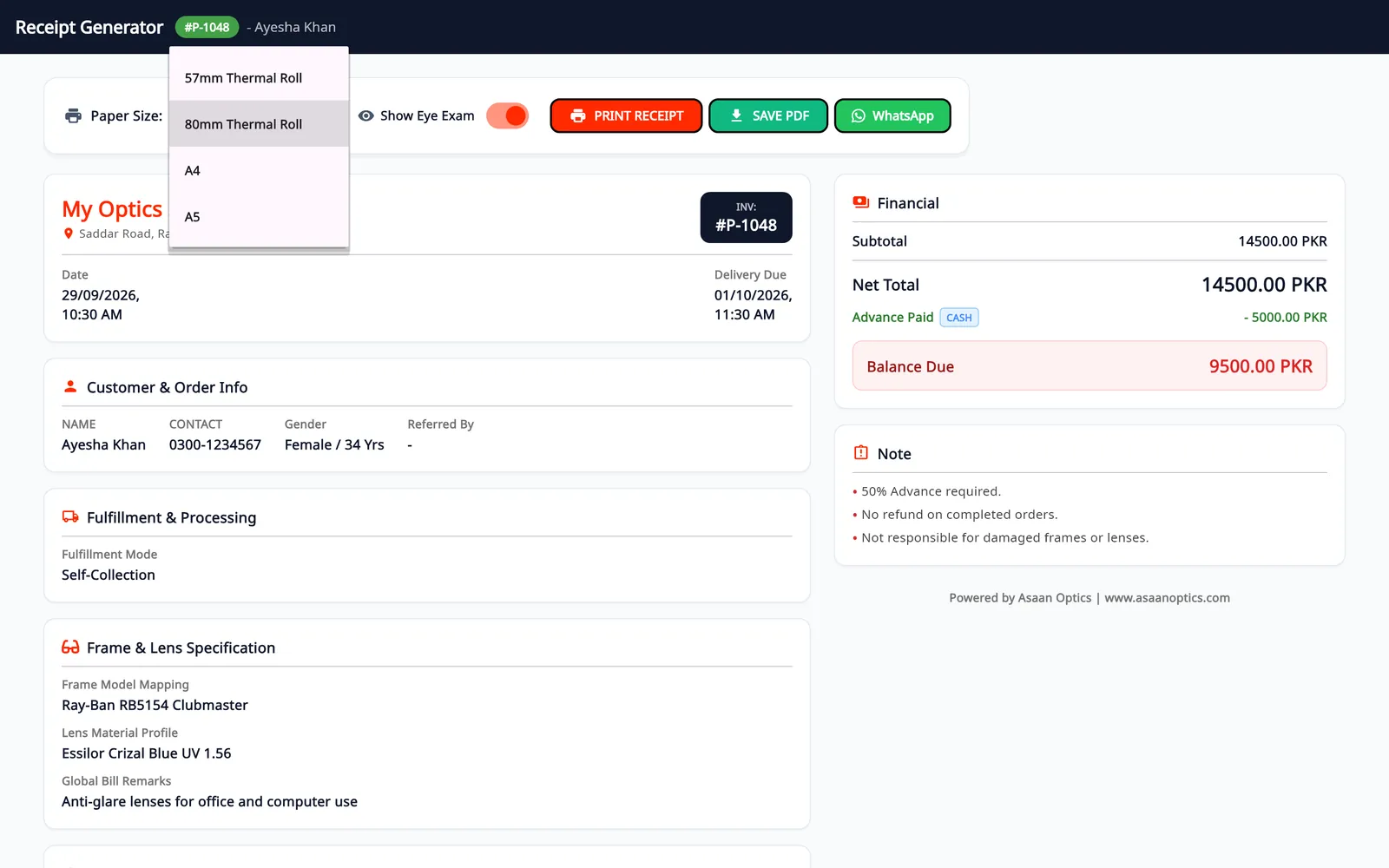
- Paper: 57 mm or 80 mm thermal roll, A4 or A5
- Print, save as PDF or send on WhatsApp
What you do
- Find the customer, or filter by Balance to list everyone who still owes money: the shop's khata.
- Set the order to Pending or Completed, and send a pickup reminder when the glasses are ready.
- Open the receipt and choose the paper size. Show Eye Exam adds the prescription to it.
- Print it, save a PDF or send it on WhatsApp. Excel Sheet exports the list.
Repairing: a ticket for every frame that comes back
Repairs get their own serial and receipt, and they appear in Search Customer next to prescriptions.
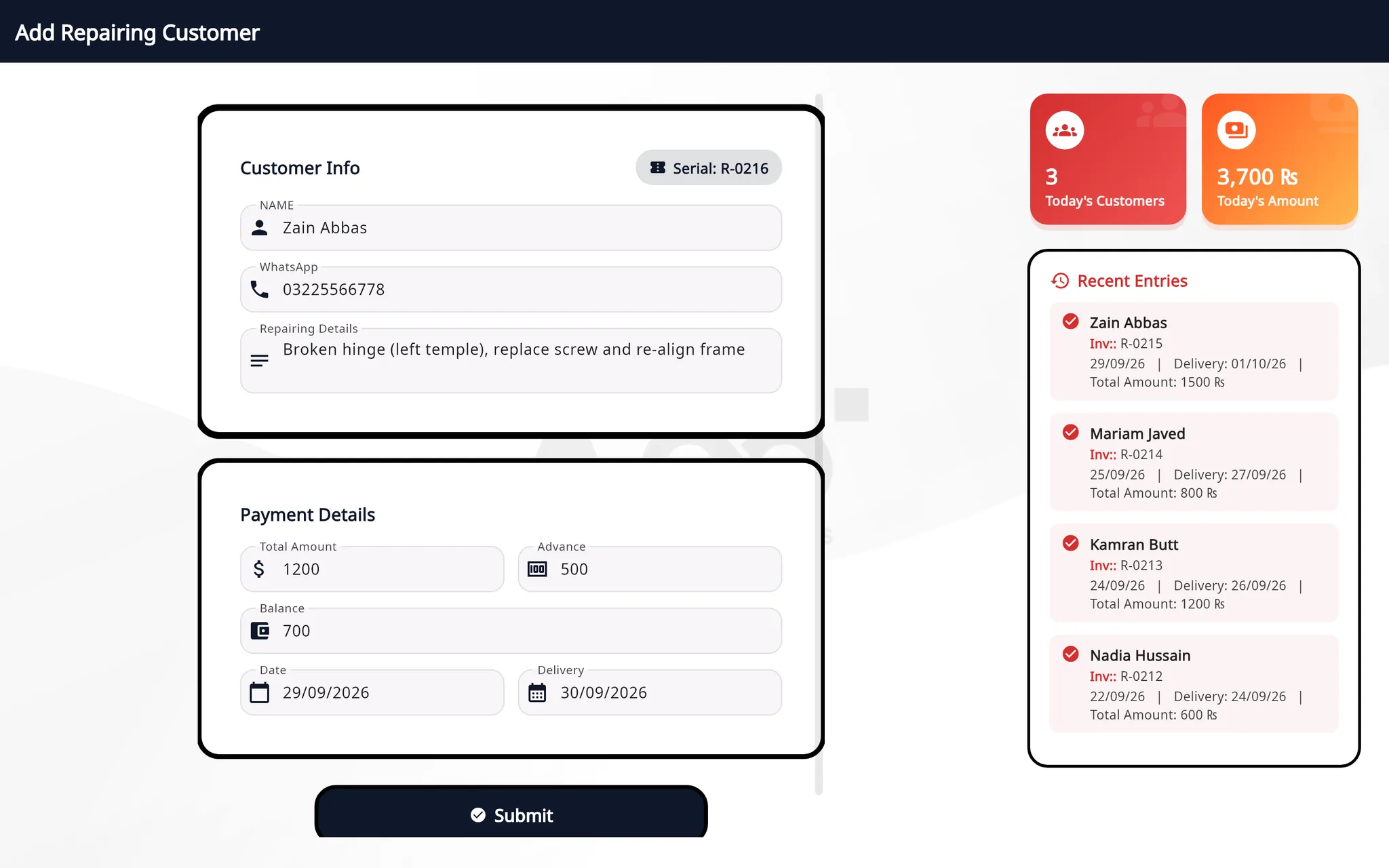
- What needs fixing
- Total, advance, balance, date and delivery
- Today's repair customers and amount
- Recent entries with invoice number and delivery date
What you do
- Enter the customer's name and WhatsApp number and describe the repair.
- Enter the total and the advance; the balance fills in.
- Set the delivery date and press Submit.
- When the frame is ready, mark the order completed. The Spectacle Repair Complete message can go out on WhatsApp by itself.
Sales & POS: counter sales, expenses and cash shifts
Everything that brings money in or takes it out: product sales, prescription advances, repair payments and expenses, on one list with the day's totals.
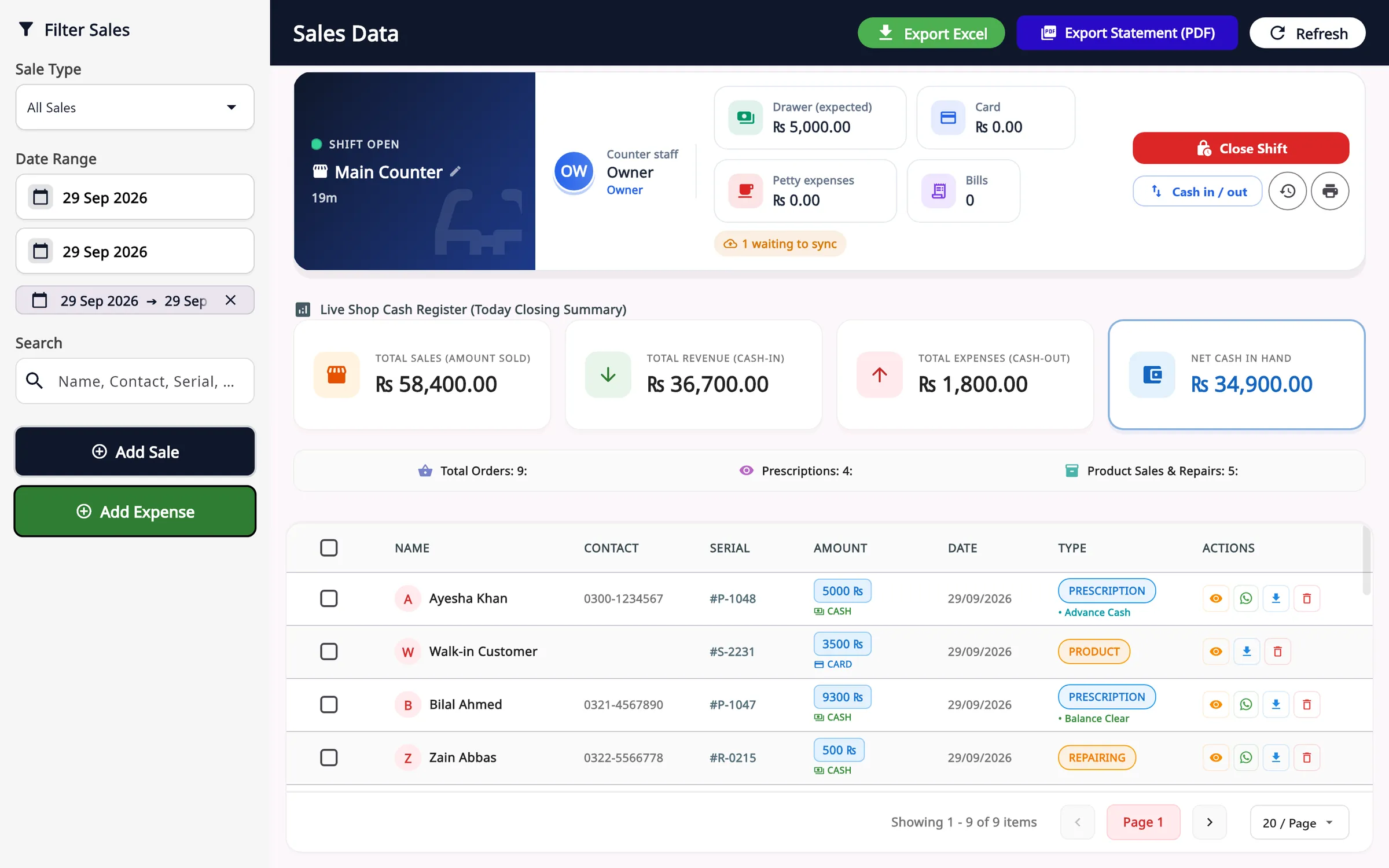
- The open shift on this counter: who is selling, and the drawer so far
- Close Shift, and Cash in / out
- Add Sale and Add Expense, with filters by sale type and date
- Export Excel and Export Statement (PDF)
Create New Sale
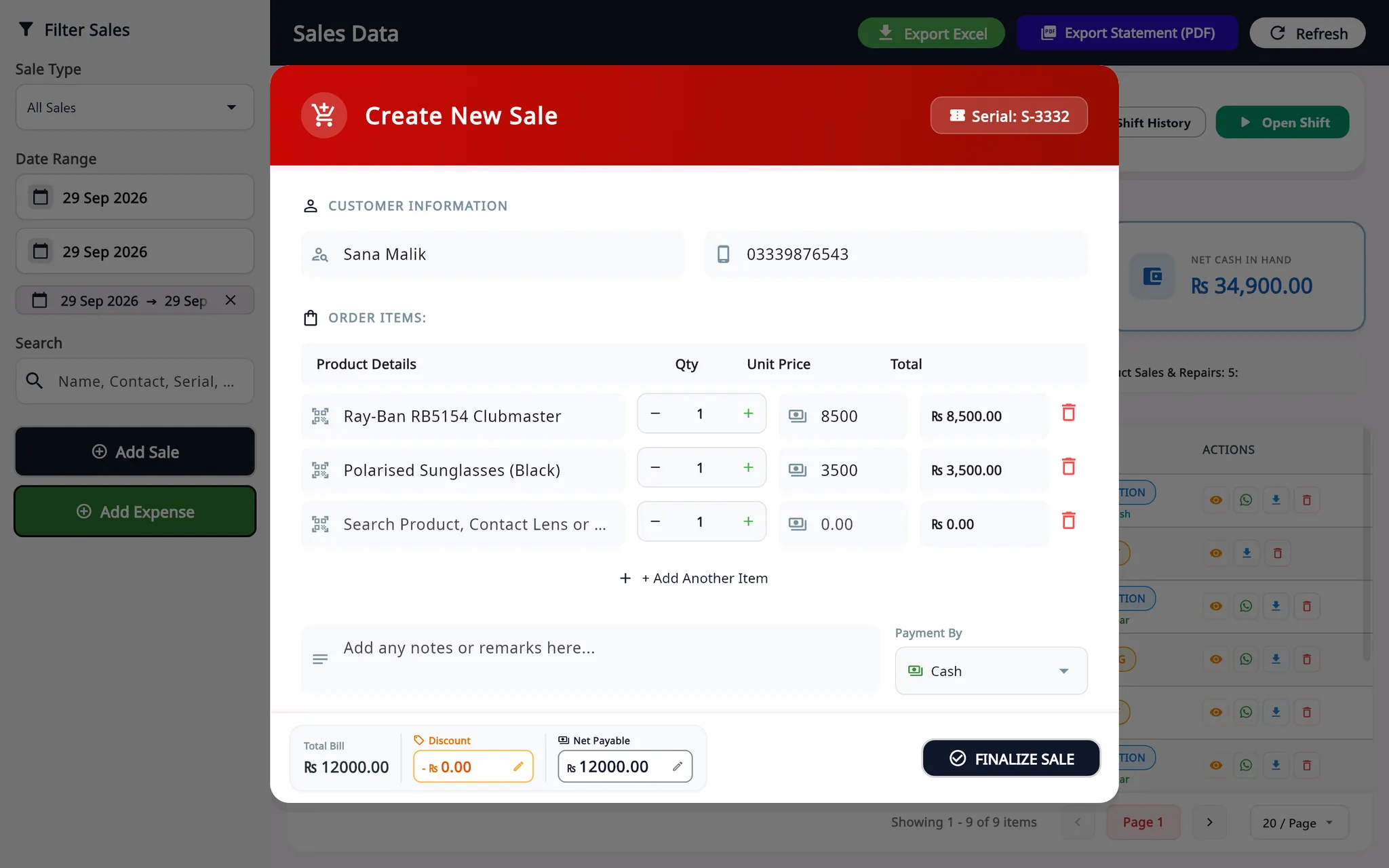
For frames, sunglasses, contact lenses, accessories and services sold over the counter.
What you do
- Search a product, contact lens or service, or scan its barcode.
- Set the quantity and unit price, and add more items.
- Enter a discount if there is one and choose how the customer pays: cash, card, bank transfer and others.
- Finalize Sale. The stock goes down and the sale joins the list, with its receipt.
Watch: a counter sale in Sales & POS
Video, 1 min 44 s
Not every sale needs a prescription: a case, a cloth or a pair of sunglasses goes straight through the till. This video shows a counter sale in Asaan Optics, used here as optical POS software: start the sale, add items by scanning a barcode or searching your stock, apply a discount, choose how the customer pays and finalise.
Chapters
- 00:00Start a counter sale
- 00:24Add items by barcode or name
- 00:48Discount and payment type
- 01:14Finalise and get the receipt
What the video covers
- What the Sales & POS screen shows: the open shift, the day's totals, and each sale and expense
- Starting a sale with Add Sale and a customer name, saved or new
- Adding items by barcode scan or by typing three letters of the name, and setting the quantity
- Entering a discount and reading the net payable
- Choosing cash, card, bank transfer or others, and how that feeds the shift totals
- Finalising the sale and opening its receipt later to print or export as PDF
Transcript
Bill an over-the-counter sale in under a minute. A customer wants something off the shelf, with no prescription.
Open Sales and POS. This screen shows the open shift, the day's totals, and every sale and expense so far. Click Add Sale. A name is required, so pick a saved customer, or type a new name.
Now the items. Scan the barcode, and the product drops in with its price. No barcode? Type three letters of the name, and pick the item from your stock. Use the plus button for the quantity. Scanning the same item twice does not add a new line. It adds one to the quantity. So check the quantities before you finish.
Giving a discount? Type the amount, and the net payable is worked out for you. Then choose how the customer pays: cash, card, bank transfer, or others. This choice matters. Cash sales are added to the cash expected in the drawer, and card sales to the card total. With a wrong choice, the drawer will not match when you close the shift.
Click Finalise Sale. Choose Yes to print the receipt, or No to skip it. The sale is saved, at the top of today's list. The day's totals go up at once, and the counter figures follow within half a minute. Need the receipt later? Click the eye on the row, to print it or export it as a PDF.
Staff shifts and the cash drawer
Each counter works in shifts. A shift records who sold what, and how much cash should be in the drawer at the end.
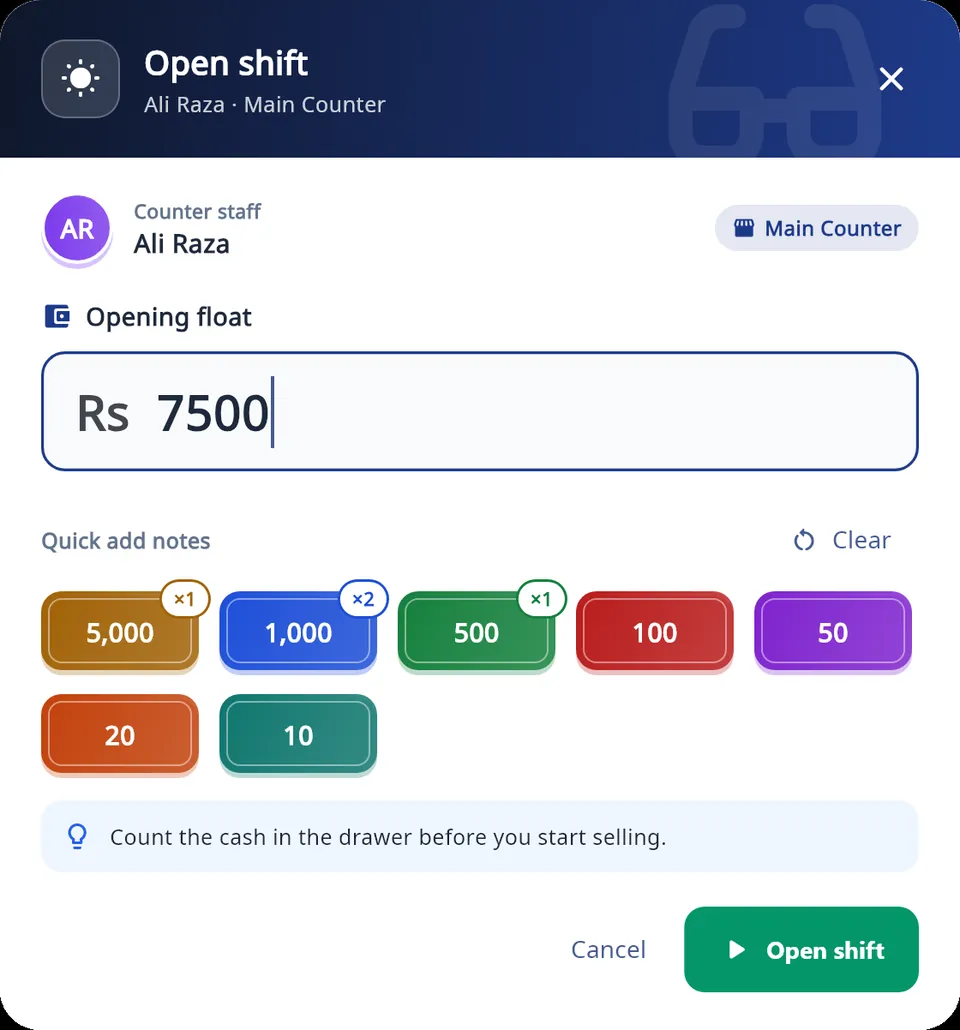
- Opening float, with quick-add notes
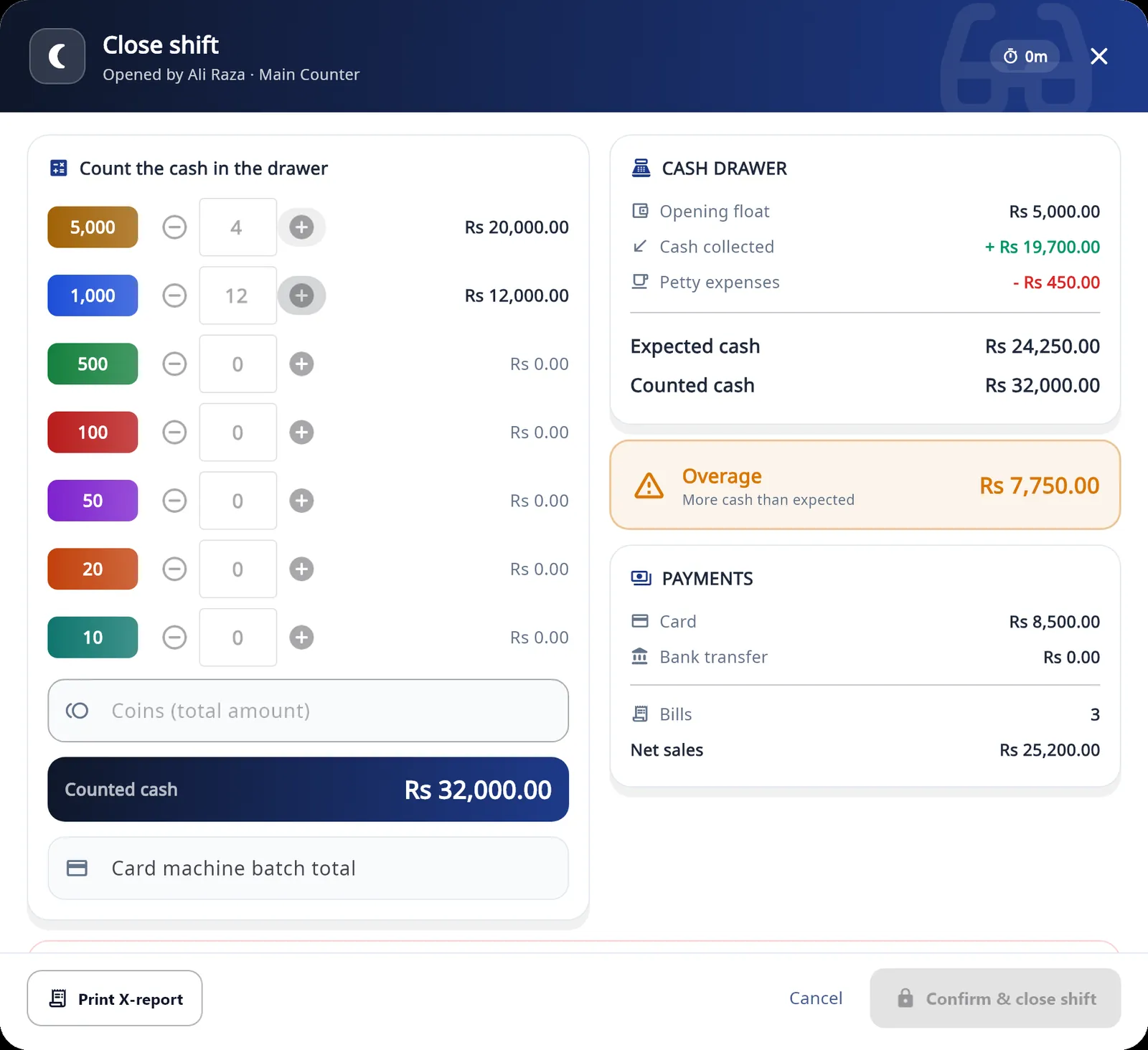
- Count the drawer note by note, plus coins and the card batch total
- Expected cash against counted cash, and the difference
- Print X-report
What you do
- Open the shift and count the opening float.
- Sell. Bills, expenses and cash in or out are recorded against the person on shift.
- Close the shift and count the drawer note by note. Staff count blind: the expected amount appears only after their count.
- Print an X-report at any time and the Z-report at close, on 58 mm or 80 mm paper.
A discount above a staff member's limit, and cash taken out of the drawer, need a manager's override PIN.
Shifts and the till are kept in a local SQLite database on the PC, so the counter keeps selling when the internet drops.
Stock Control: frames, lenses, contact lenses and suppliers
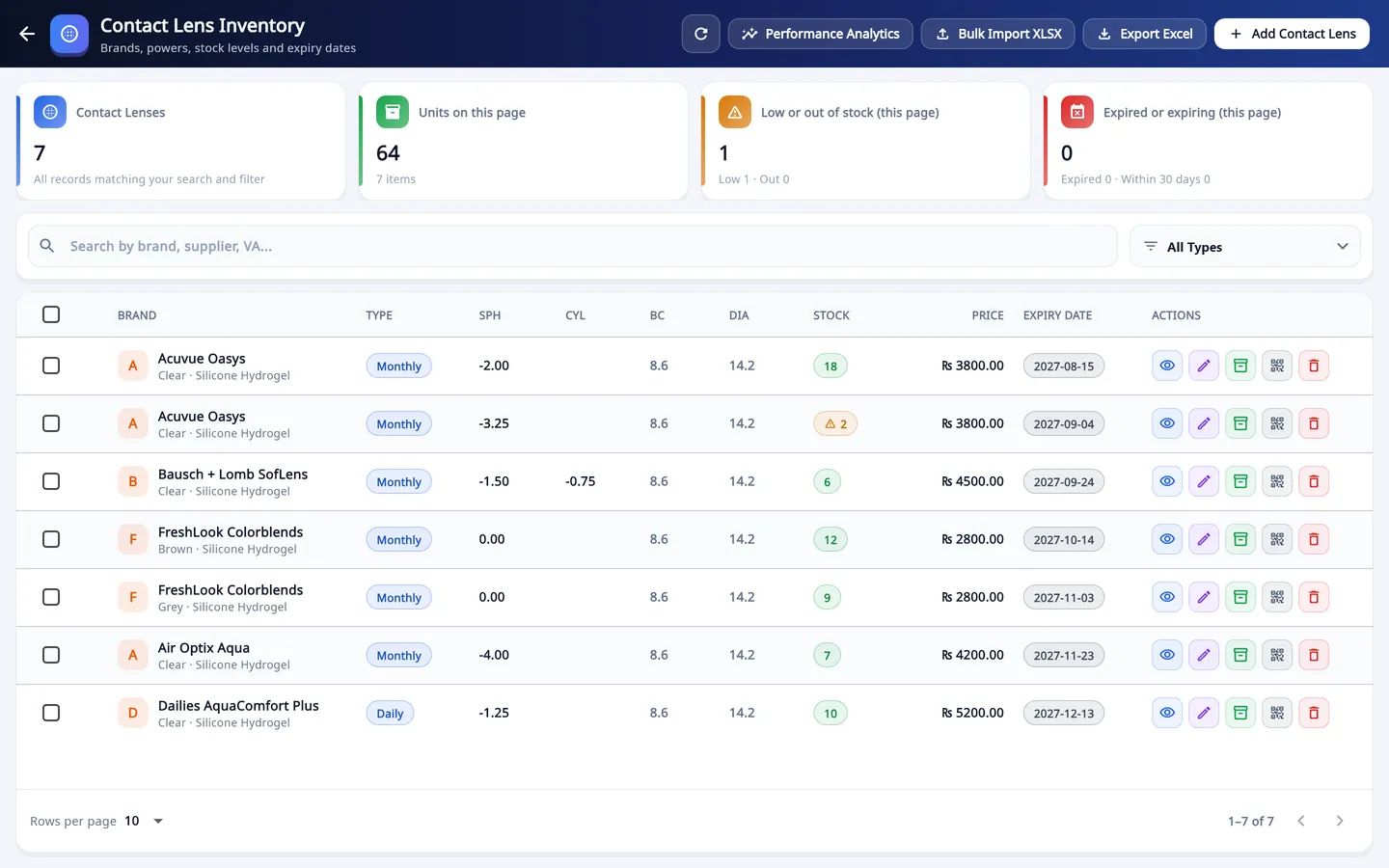
The Stock Control Center opens with what the stock is worth and what needs attention. Each category keeps its own list with barcodes, prices and minimum levels.
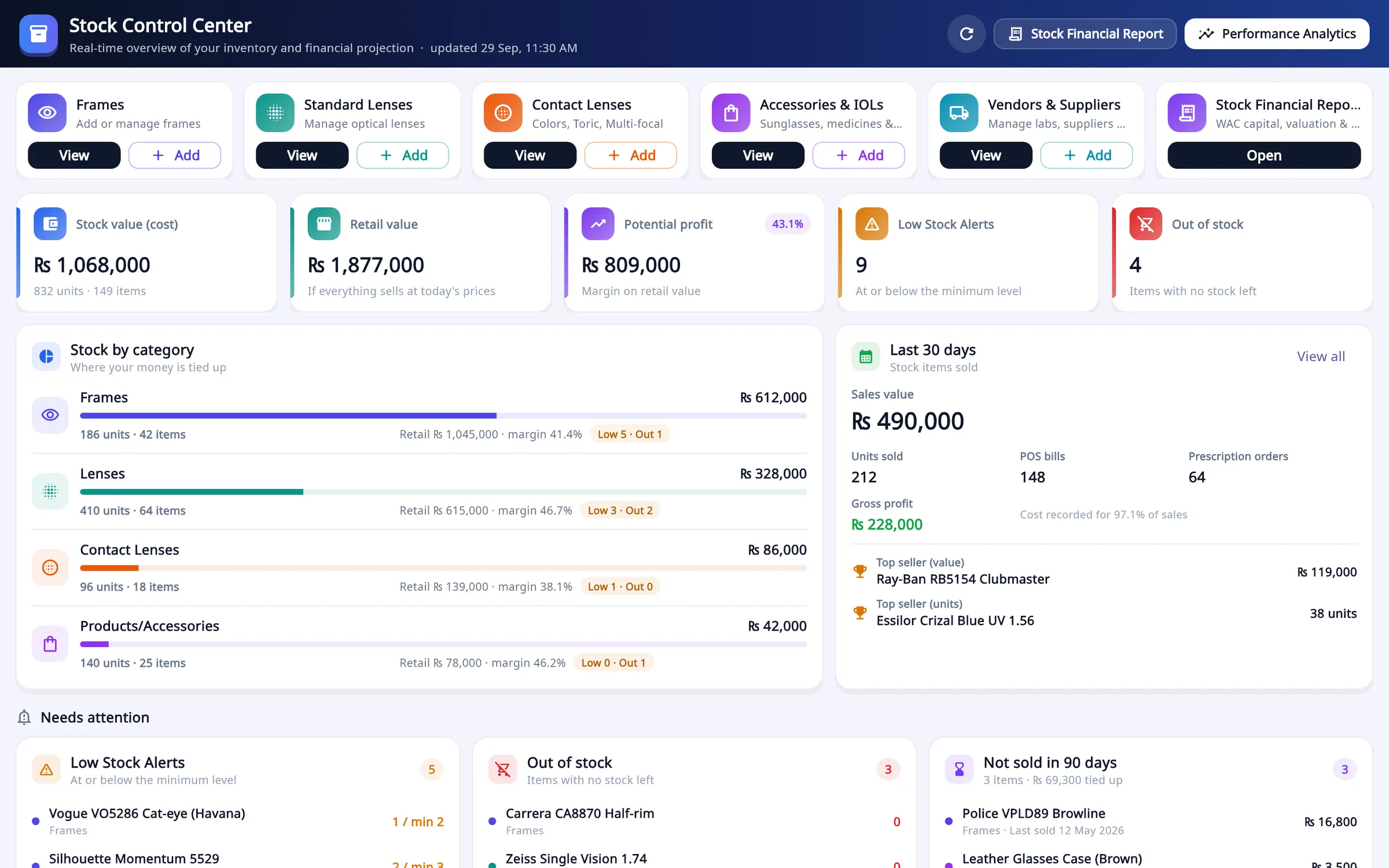
- Categories: frames, standard lenses, contact lenses, accessories, vendors, financial report
- Stock value at cost and at retail, and the potential profit
- Last 30 days: sales value, units, gross profit and top sellers
- Needs attention: low stock, out of stock, not sold in 90 days
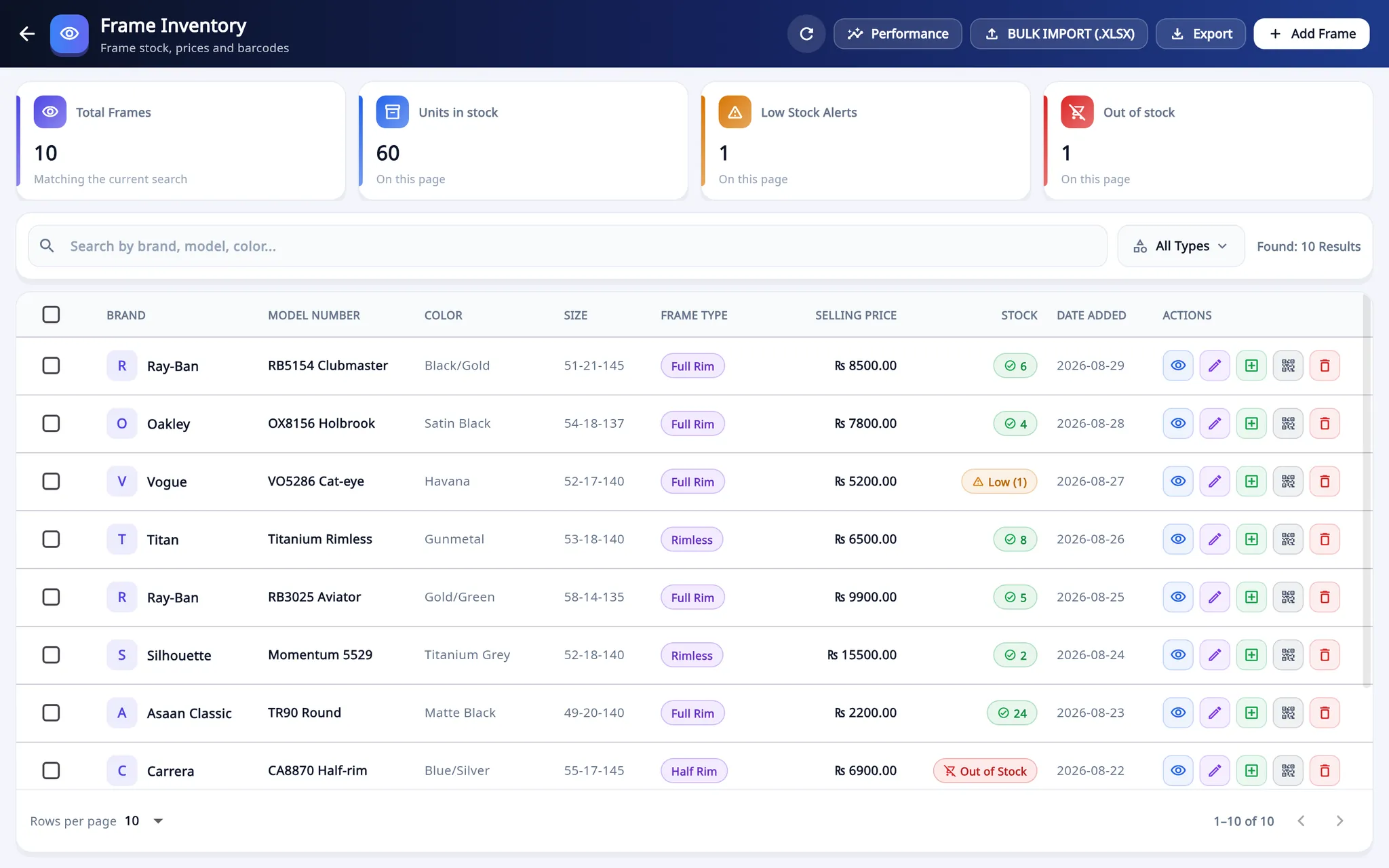
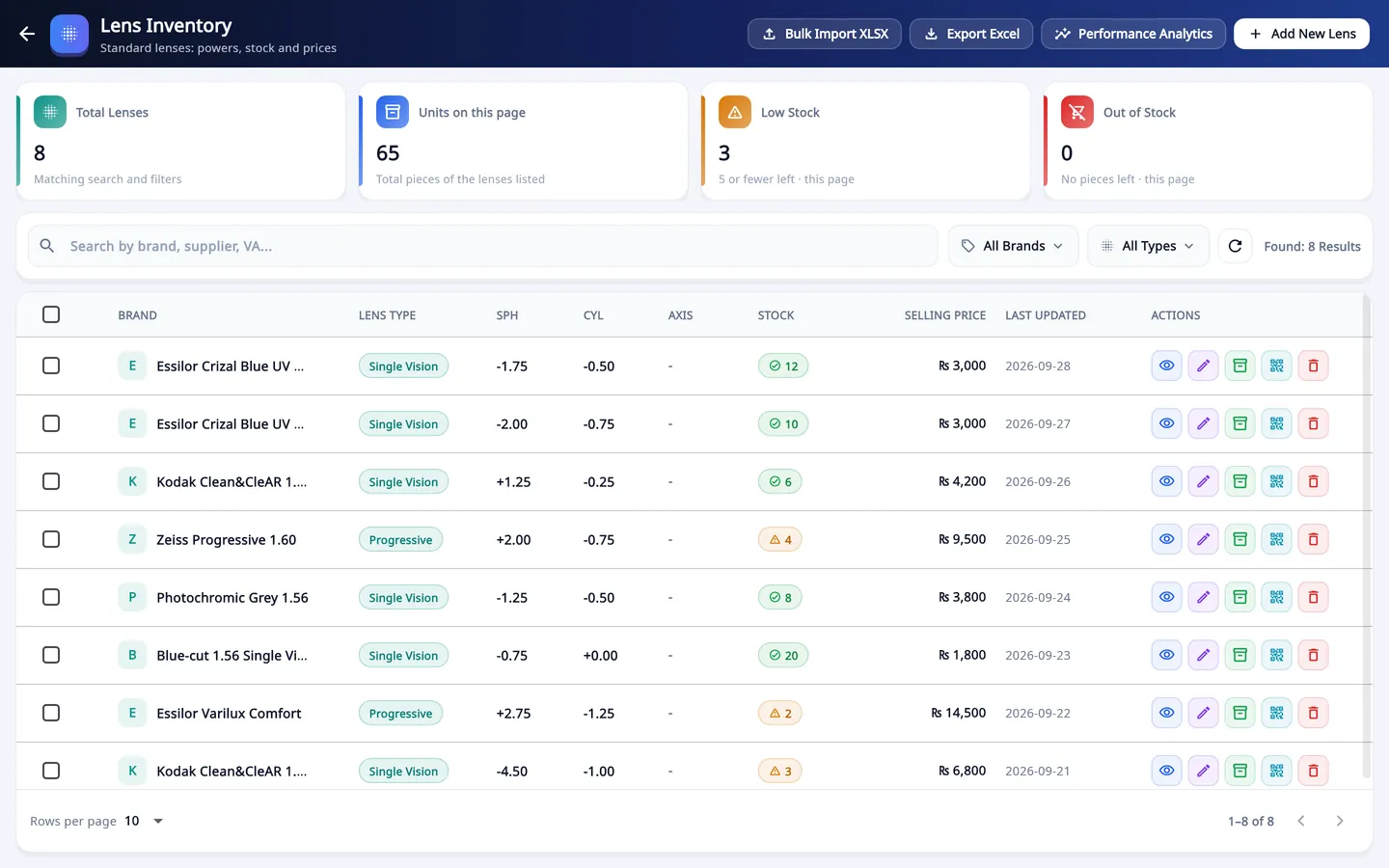
- Bulk import from an .xlsx sheet, and export
- Stock status: in stock, low, out of stock
- Print a barcode label for the item
Frames, lenses and contact lenses
Frames carry brand, model number, colour, size, frame type, shape, gender, minimum stock, barcode and price. Lenses carry type and power; contact lenses add base curve, diameter and expiry date.
What you do
- Add items one at a time, or import a spreadsheet with Bulk Import (.xlsx).
- Print barcode labels in the size of your label roll, from 38 × 25 mm frame labels to 70 × 12 mm temple labels, or a custom size.
- Give each item a minimum stock. At that level it shows under Low Stock Alerts.
- At the counter, scan the label to put the item on the bill.
Reports: what sold, what it cost and who sold it
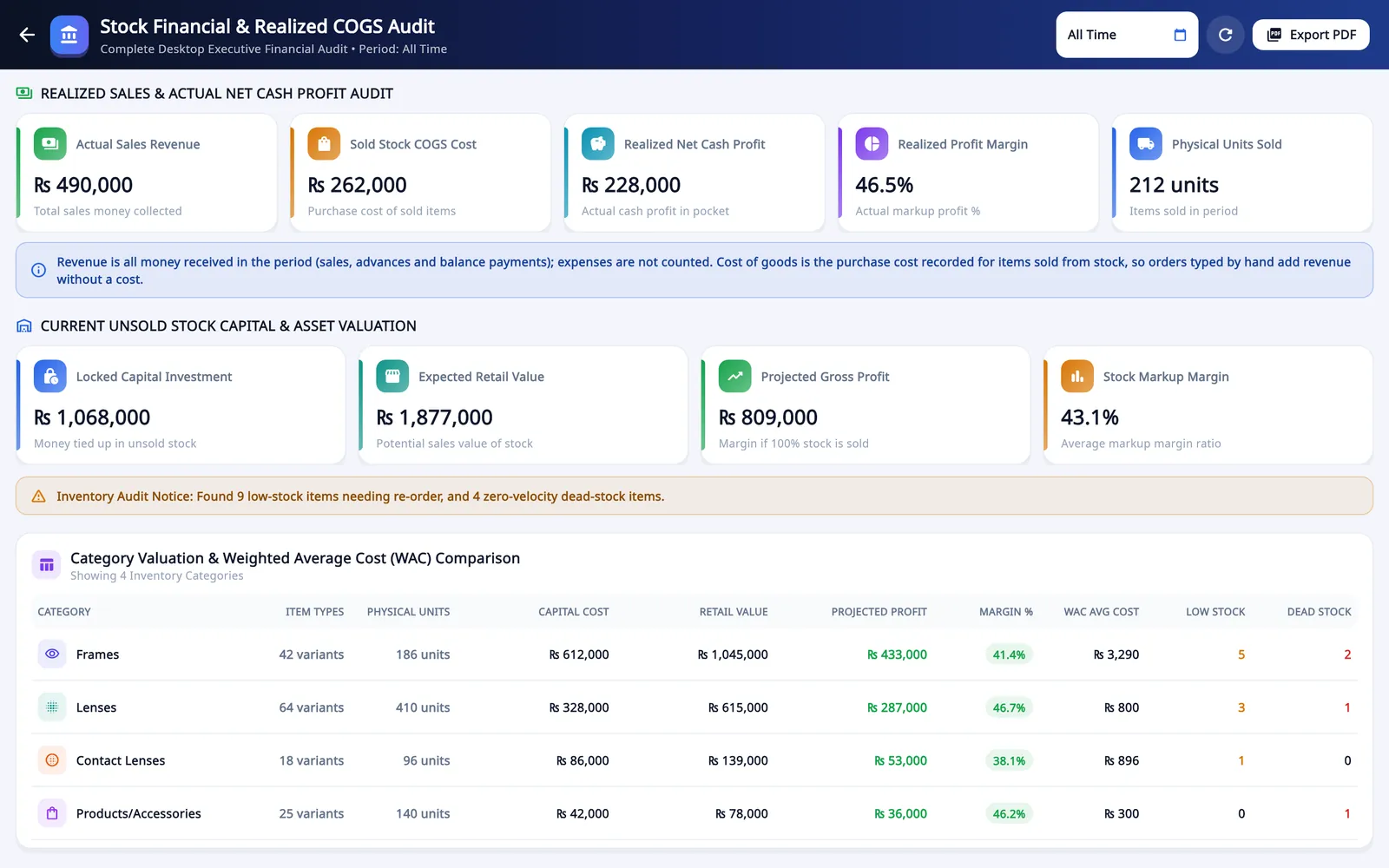
Three reports read the same sales and stock records from different sides, for today, a month or any dates you choose.
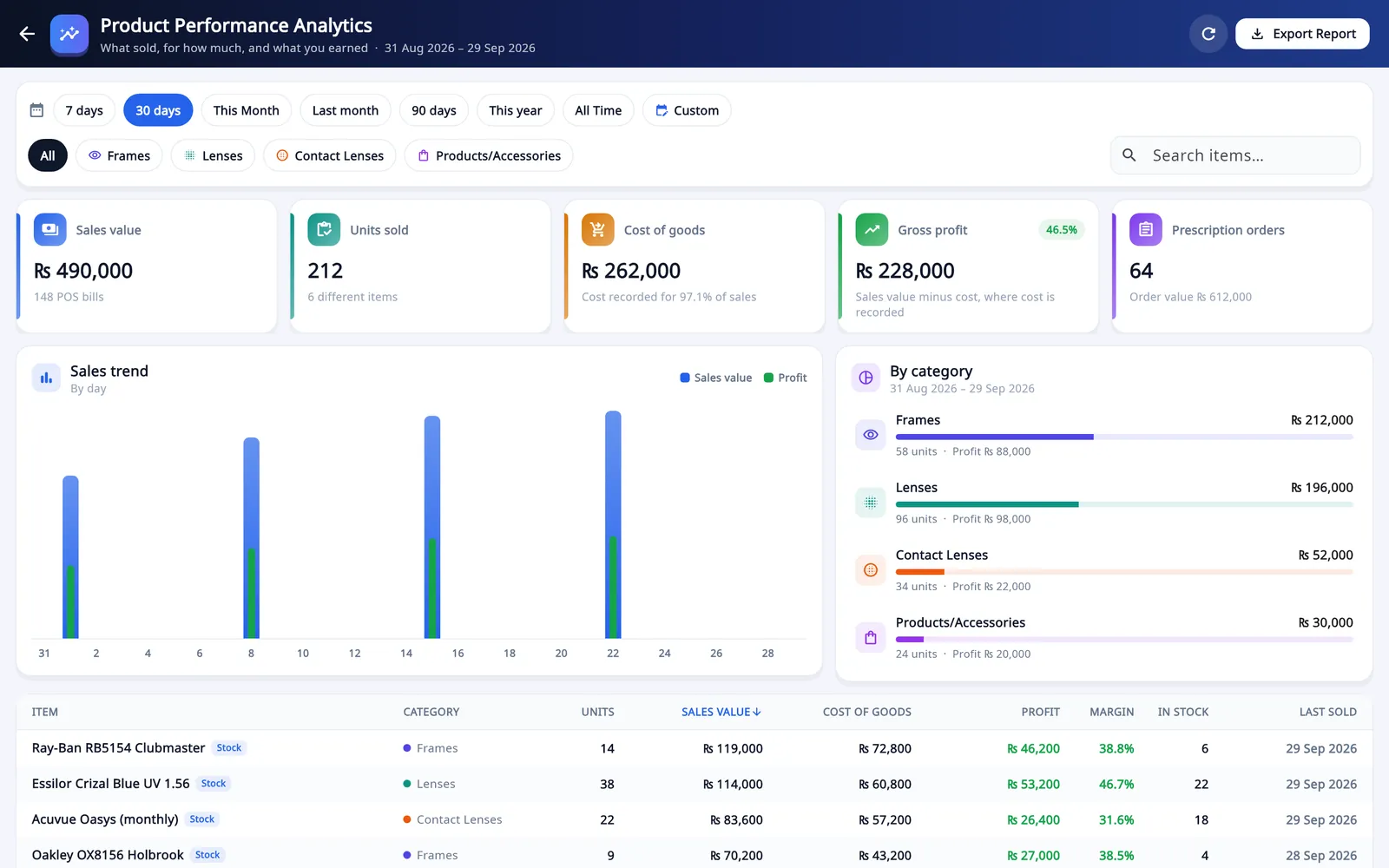
- Realised sales, cost of goods sold (COGS) and profit
- Unsold stock at cost and at retail, per category with weighted average cost (WAC)
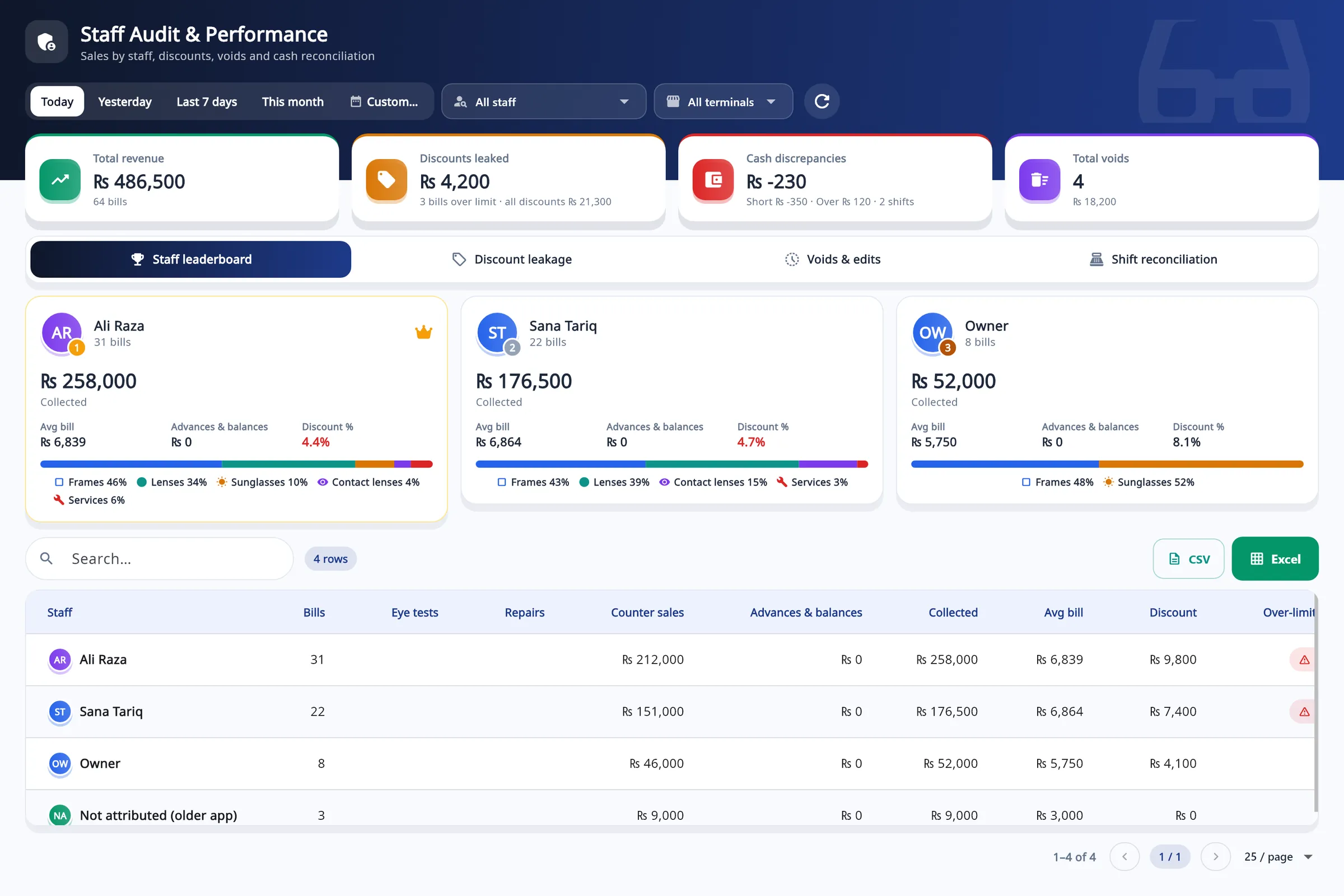
- Revenue, discounts over the limit, cash discrepancies and voids
- Staff leaderboard, discount leakage, voids and edits, shift reconciliation
Watch: review a week with Staff Audit
Video, 2 min 21 s
An optical shop staff audit should answer three things: who sold what, who gave more discount than allowed, and whether the cash in the drawer matched. This video reviews one week in the Staff Audit screen of Asaan Optics, tab by tab, ending with a shift that closed twelve pounds short and the reason recorded beside it.
Chapters
- 00:00What Staff Audit shows
- 00:14Choose the period
- 00:31Compare sales by person
- 00:42Discounts above the limit
- 01:09Deleted and edited bills
- 01:26Expected cash vs counted cash
What the video covers
- Choosing the period, from today to the last seven days, and reading the four summary cards
- The staff leaderboard: money collected, bills and average bill for each person
- Discount leakage: bills where a staff member gave more than their limit, with approve and reject
- Voids & edits: every deleted or edited record with who did it, the reason, a note and the saved original bill
- Shift reconciliation: expected cash against counted cash for each closed shift, filtered to one staff member
- Reading a variance: 412 expected, 400 counted, a shortage of 12 with the reason beside it
Transcript
See who sold what, who gave discounts above their limit, and whether the cash matched, for every member of your team. Staff Audit is for the owner and managers. It shows what happened at the counter, person by person.
First, choose the period. The screen opens on today. Click Last seven days to review the week. Four cards sum up the week: total revenue, discounts above the limit, cash differences at shift close, and deleted bills.
The staff leaderboard ranks your team by the money each person collected. Each card shows the bills, the average bill, and what that person sells.
Open Discount leakage. These are the bills where a staff member gave more discount than their limit allows. Sofia Marino gave fifteen per cent against a limit of ten. The bill is waiting for you. Click the green tick to approve, or the red cross to reject. One thing to know. An approved discount leaves this list. Next time, ask the staff member for the reason first.
Open Voids and edits. Every deleted or edited record is kept here, with who did it, the reason, and a note. Click a row, and you see the saved record of the original bill: the customer, the items, and the amount.
Now the cash. Shift reconciliation lists each closed shift, with the cash expected in the drawer and the cash that was counted. To look at one person, pick the name in the staff filter. For this shift, the app expected four hundred and twelve pounds in the drawer. Marcus counted four hundred. The variance is minus twelve pounds: a shortage, with his reason beside it. So ask your staff to count the drawer carefully before they close a shift. The difference is saved with the shift, and it shows here. That is the week reviewed: sales by person, discounts, deleted bills, and cash. Open Staff Audit once a week, and small problems stay small.
Staff & Branches: a login for everyone at the counter
The owner adds each staff member with their own email and password and ticks the screens they may open. A staff login opens straight into the point of sale.
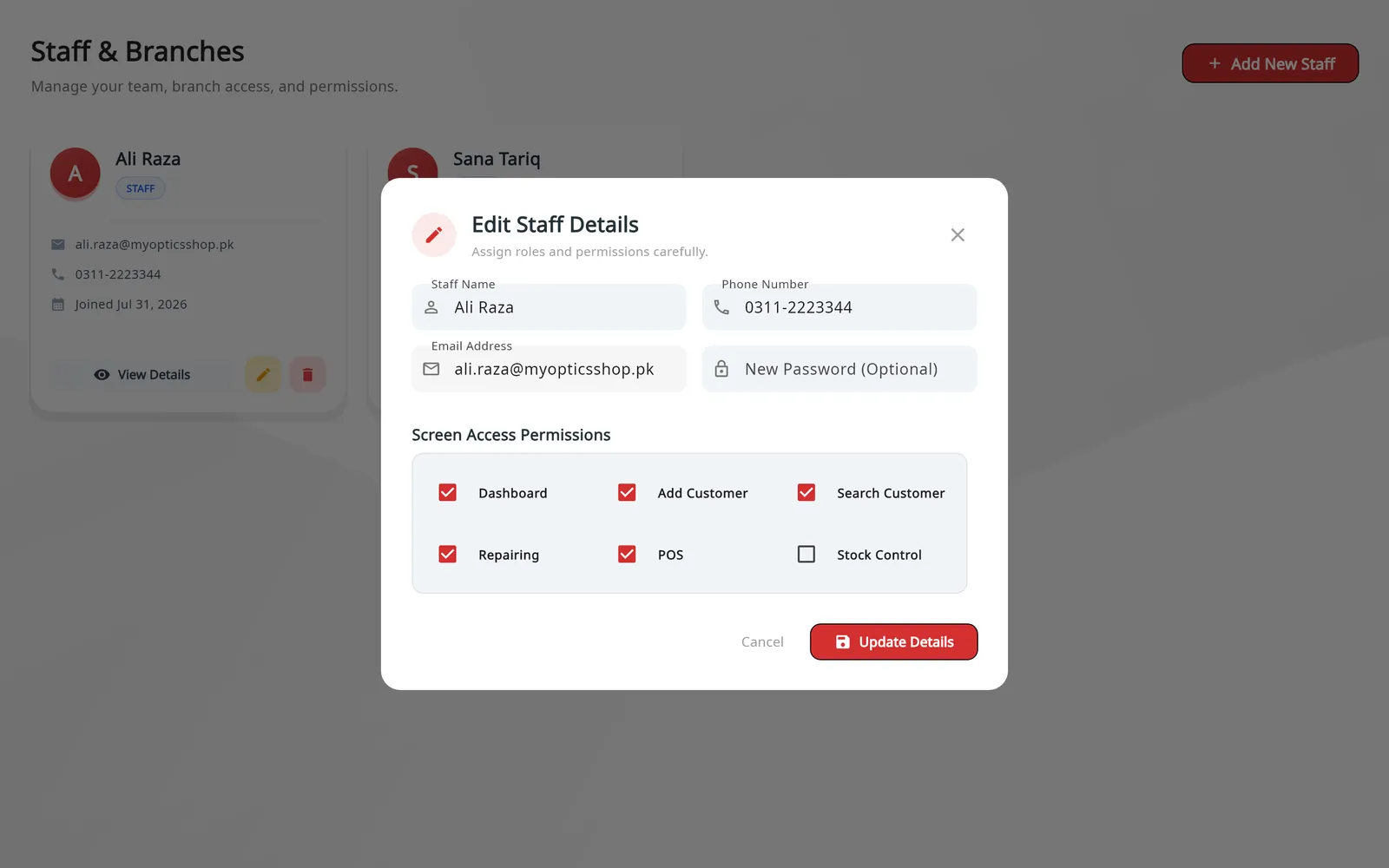
- Screen Access Permissions: Dashboard, Add Customer, Search Customer, Repairing, POS, Stock Control
- Name, phone number, email and password
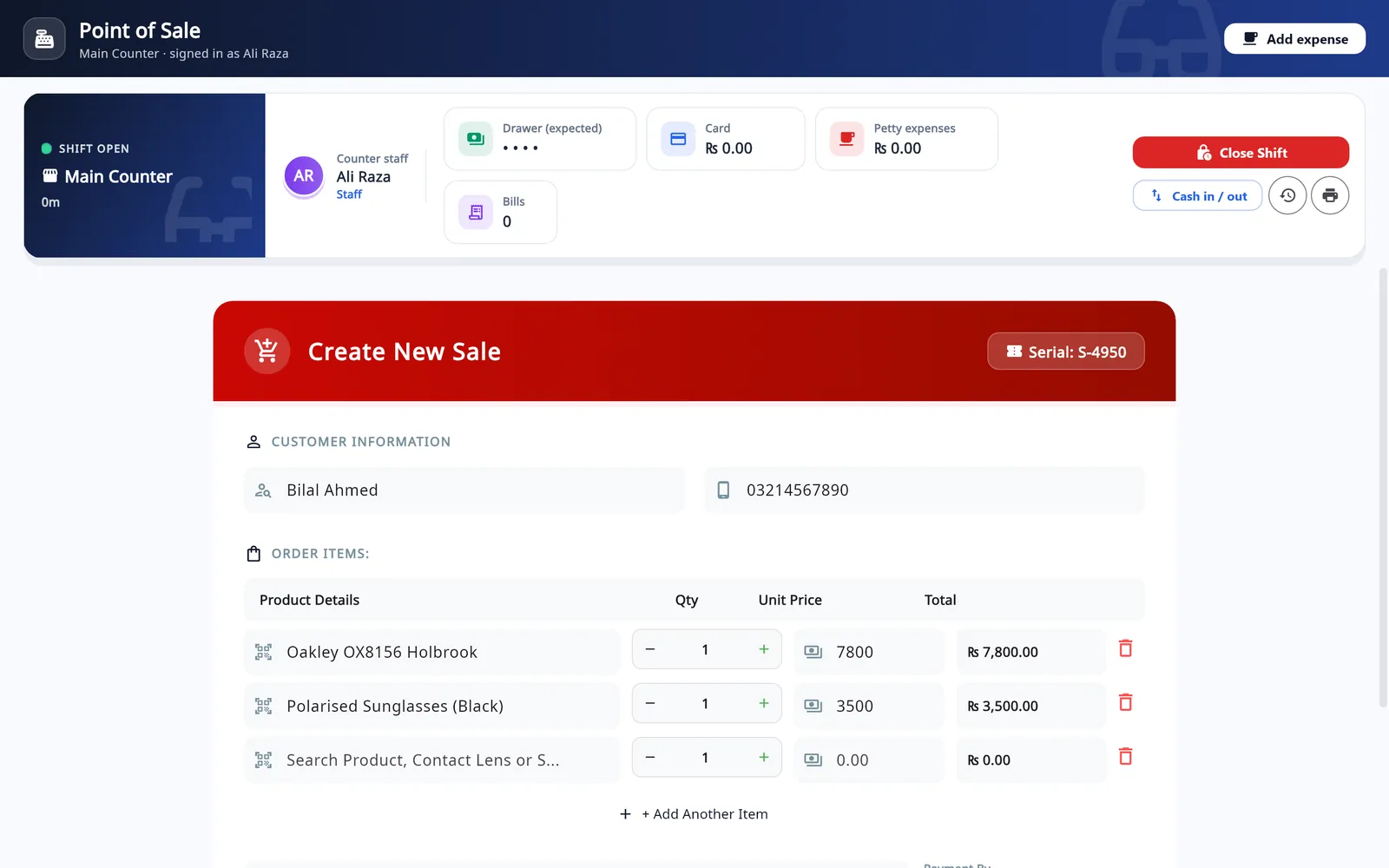
- The expected drawer amount stays hidden from staff
- Staff sell from the same Create New Sale form, under their own name
Manager override PIN: a discount above a staff member's limit, or cash taken out of the drawer, needs the owner's or a manager's PIN.
Policies & PINs, in Staff Audit: blind close and X-report access per staff member, and the override PINs.
My Shop Profiles: shop details, WhatsApp and tax
Three tabs decide what appears on every receipt and message.
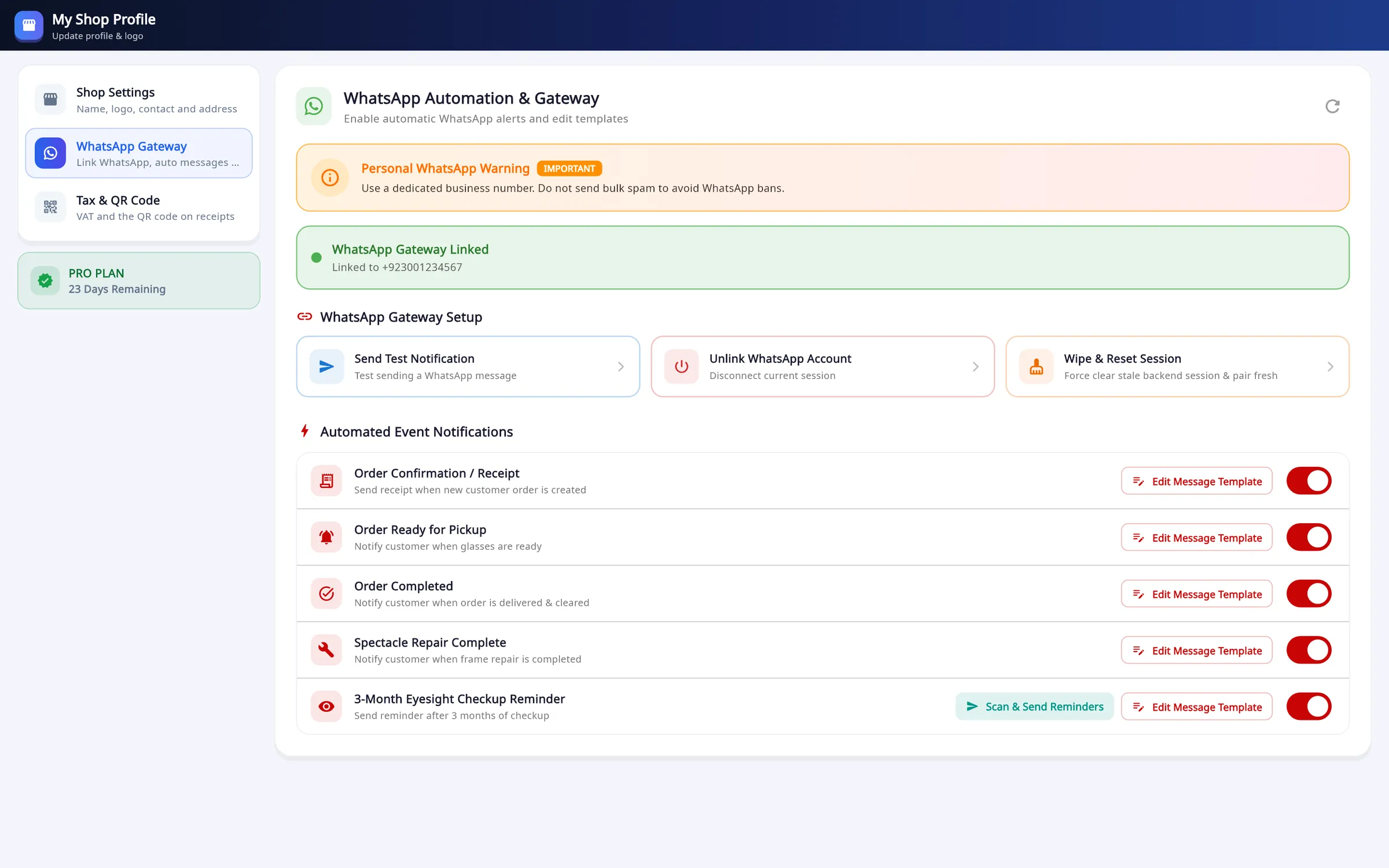
- Linked to the shop's WhatsApp number (paired with a code or a QR scan), with a test message
- Automatic messages: receipt, ready for pickup, completed, repair complete, 3-month checkup reminder, each with an editable template
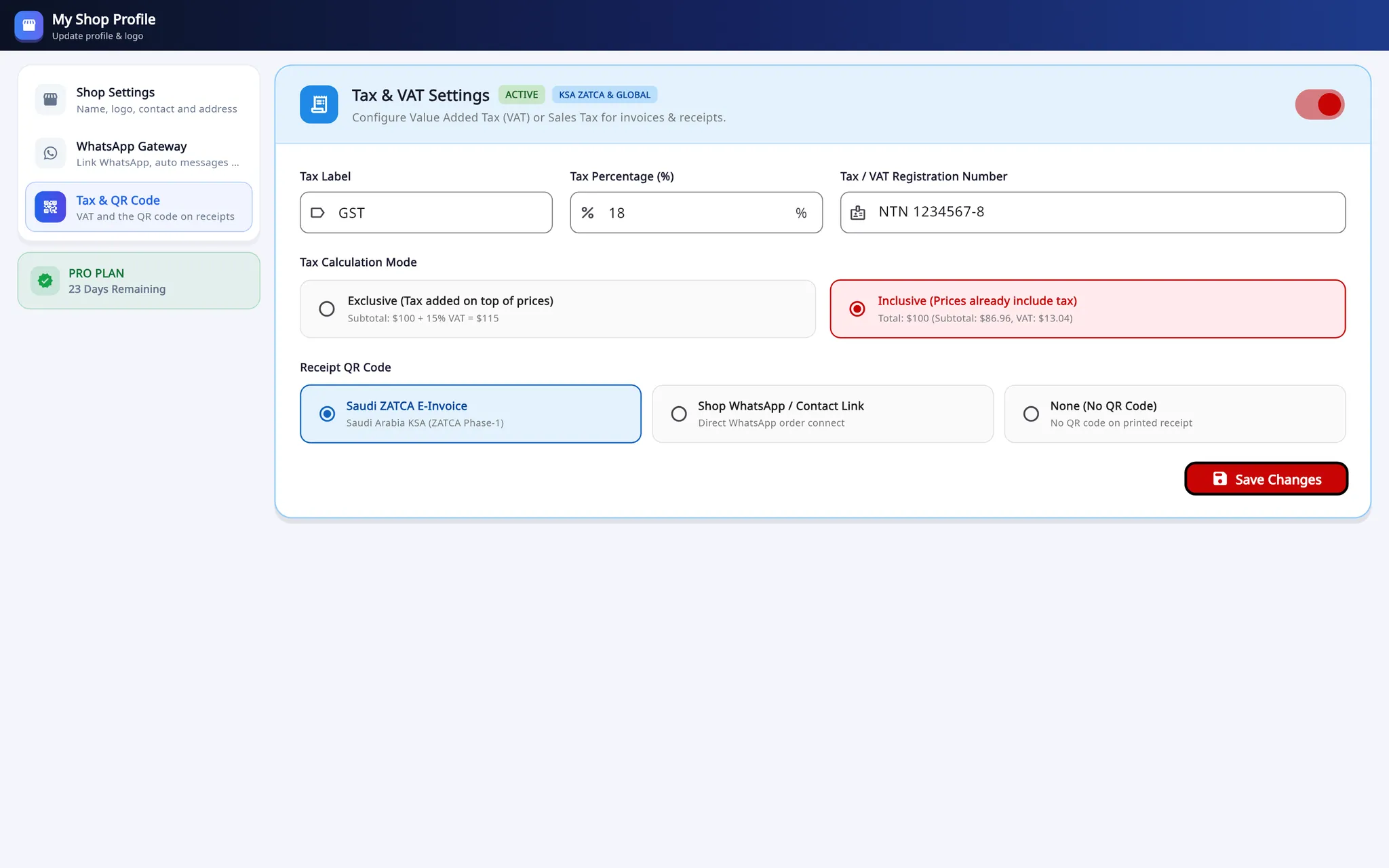
- Tax label, rate and registration number; prices exclusive or inclusive of tax
- Receipt QR code: ZATCA-format e-invoice QR, a WhatsApp link to the shop, or none
- Shop Settings
- Name, logo, contact number, email, address, currency and country code, and the WhatsApp order message with placeholders such as {customer_name} and {balance_amount}.
- WhatsApp Gateway
- Use a dedicated business number: the app warns against bulk messages, which can get a number banned.
- Tax & QR Code
- VAT, GST or sales tax with its label, rate and registration number, added to prices or included in them, for sales and prescriptions. The receipt QR code is a ZATCA-format QR code, a link to the shop's WhatsApp, or none.
Vision Calculators: 19 optical calculators in the program
Transposition, spherical equivalent, crossed cylinders, Prentice's rule, lens thickness, base curve and more, in five groups. Results update as you type, and Copy result puts the answer on the clipboard.
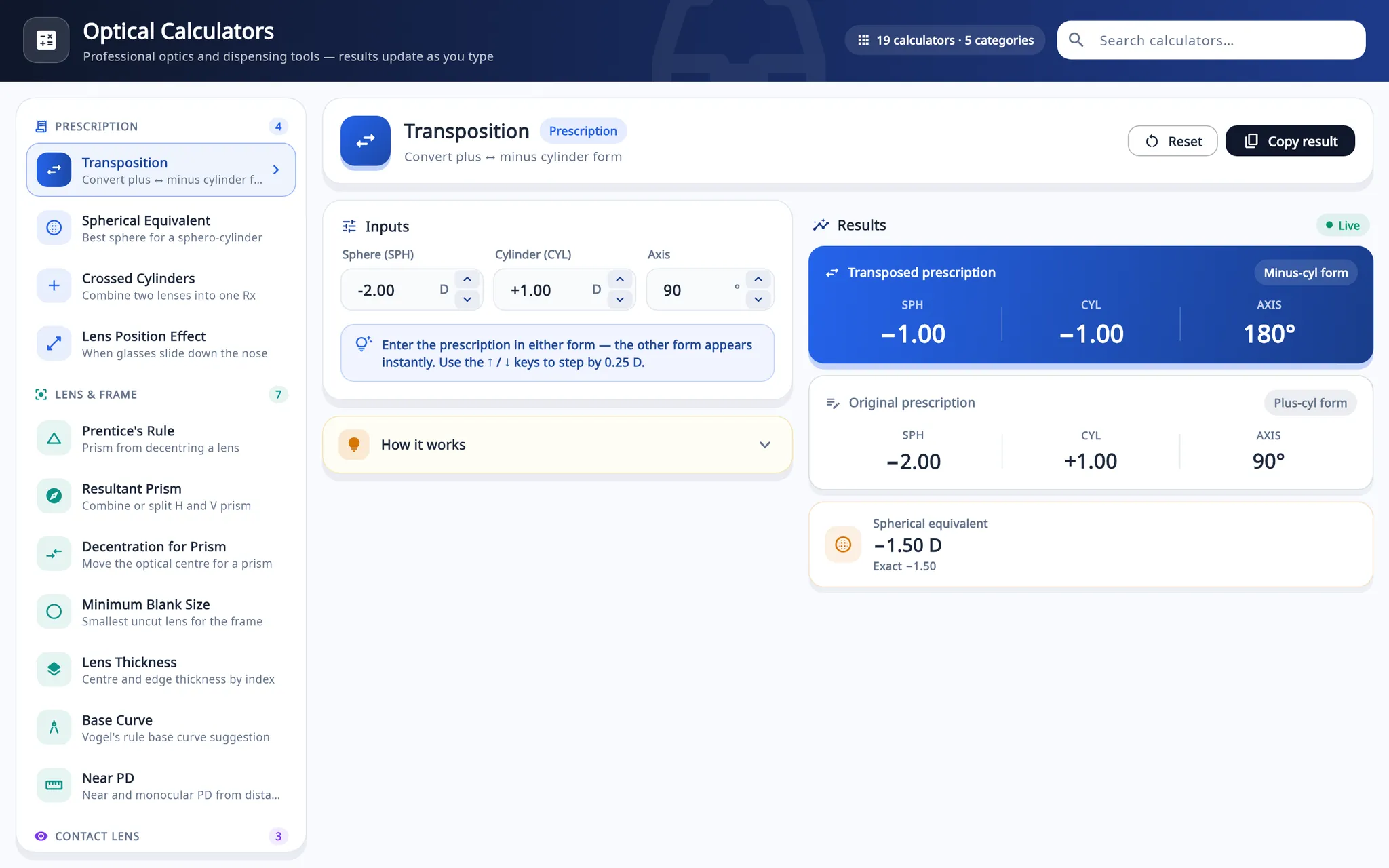
- Five groups: Prescription, Lens & Frame, Contact Lens, Vision & Age, Shop & Business
- The inputs; the arrow keys step by 0.25 D
- The live result, with the original prescription and the spherical equivalent
Offline: the counter keeps selling when the internet drops
Asaan Optics Desktop keeps your records on your shop account online. Without a connection it holds new work on the PC and sends it when you tell it to.
What you do
- Keep billing. A sale or order that cannot reach the server is saved in a queue on the PC, with its own key so it is never recorded twice.
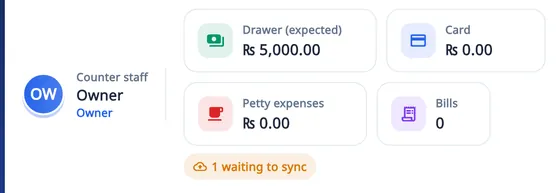
- The counter shows how many records are waiting to sync.
- When the connection is back, press Pending Sync on the dashboard. Sending is not automatic.
Shifts, the cash drawer and the X and Z reports run from a local SQLite database on the PC.
Away from the counter, the Android app opens the same shop records. Asaan Optics for Android
Download and install on Windows
-
1
Download
Download AsaanOptics_Setup.zip and extract it: right-click, Extract All.
-
2
Run the setup
Double-click AsaanOptics_Setup.exe. If Windows shows “Windows protected your PC”, choose More info, then Run anyway.
-
3
Install
Keep the folder C:\Asaan Optics or choose another, tick the desktop shortcut and press Install.
-
4
Sign in
Open Asaan Optics Desktop and sign in to your shop account. The first 30 days are free.
-
5
Set up the shop
In My Shop Profiles, add the logo, currency and tax, and link WhatsApp.
-
6
Add stock and staff
Import or add frames and lenses, print barcode labels, and add staff logins.
Help with activation on WhatsApp: +92 342 9902311
System requirements
| Component | Requirement |
|---|---|
| Operating system | Windows 10 or Windows 11, 64-bit (x64) |
| Internet | To sign in and to sync. Counter sales and shifts carry on during an outage. |
| Printers | Any printer installed in Windows: receipts print through Windows. |
| Barcode scanner | Optional. A USB scanner that types like a keyboard, into the search field. |
Printers and scanners
- Receipt printers
- 57/58 mm and 80 mm thermal printers, and any A4 or A5 printer installed in Windows.
- Barcode scanners
- A USB scanner types into the search field: scan a frame on Add Customer or an item on Create New Sale.
- Label printers
- Label sizes from 38 × 25 mm to 70 × 12 mm, or a custom size.
Frequently asked questions
What are the system requirements for Asaan Optics Desktop Pro?
Asaan Optics Desktop runs on Windows 10 or Windows 11, 64-bit (x64). The internet is needed to sign in and to sync; counter sales and shifts carry on during an outage. Receipts print through Windows, so any printer installed in Windows works, including 57/58 mm and 80 mm thermal printers and A4 or A5 printers. A USB barcode scanner is optional: it types into the search field like a keyboard.
Can I run Asaan Optics on a Mac, a tablet or a Chromebook?
The desktop program is a Windows application for Windows 10 and 11 (64-bit). On a Mac or a Chromebook, use a Windows PC or a small Windows mini-PC at the counter. On an Android phone or tablet, the Asaan Optics Android app works with the same shop records.
What happens to a sale if the internet drops?
The sale is saved on the PC in a queue, each record with its own key so it cannot be recorded twice, and the counter shows how many records are waiting. Shifts and the till run from a local SQLite database, so the counter keeps selling. When the connection is back, press Pending Sync on the dashboard; sending is not automatic.
How many computers can I install the desktop software on?
Install it on each counter PC and sign in to the same shop account. Each PC registers with the account and reads the same customers, orders and stock, so a replacement PC only needs the program and your sign-in. Tell us how many counters you run before you choose a plan.
Can I run multiple optical branches from a single account?
One shop account can have several counters and staff logins. Shifts are kept per counter, and Staff Audit can be filtered by staff member and by terminal. Stock is one list for the account: the desktop app does not keep separate stock per branch or move stock between branches.
Why do optical shops need stock and vendor management?
When a frame or lens is picked from stock on an order or a counter sale, its stock goes down, so the lists show what is really on the shelf. Items at their minimum level show as low stock, and the Stock Control Center lists what has not sold in 90 days. When a job goes to a lab, the lab cost is added as a bill to that vendor's ledger, so you can see what you owe each lab.
How do staff logins keep revenue figures private?
Each staff member signs in with their own email and password, and the owner ticks the screens they may open, for example the point of sale but not Stock Control or the dashboard. On the point of sale, staff do not see the expected drawer amount until they have counted it. A discount above their limit, or cash taken out of the drawer, needs the owner's or a manager's PIN, and Staff Audit shows discounts, voids and cash differences per person.
Can the desktop software print barcode labels for my frames?
Yes. Each frame, lens and contact lens can have a barcode, and labels print in standard sizes from 38 × 25 mm to 70 × 12 mm temple labels, or a custom size. At the counter a USB scanner reads the label into Add Customer or Create New Sale, so staff do not type the item name.
Does the desktop software support right-to-left languages like Arabic and Urdu?
Yes. In Arabic and Urdu the whole program switches to a right-to-left layout. The language picker in the sidebar also offers English, Spanish, French, Portuguese, Turkish and Hindi.
What happens to my data if I stop paying the subscription?
Your customers, orders, sales and stock stay on your shop account. When the subscription ends, the desktop program asks you to renew before you continue with its features; after renewing you carry on with the same records.