What it does
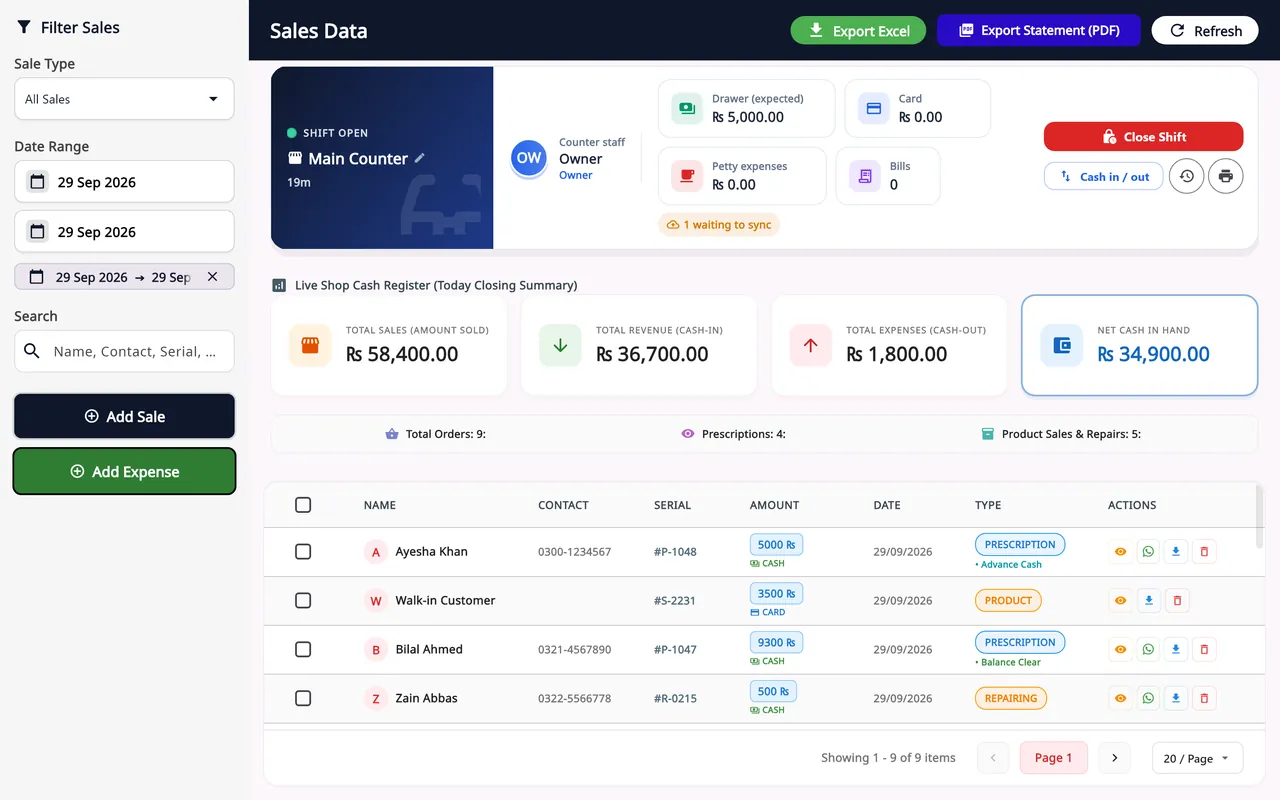
- Create New Sale for frames, sunglasses, contact lenses, accessories and services sold over the counter.
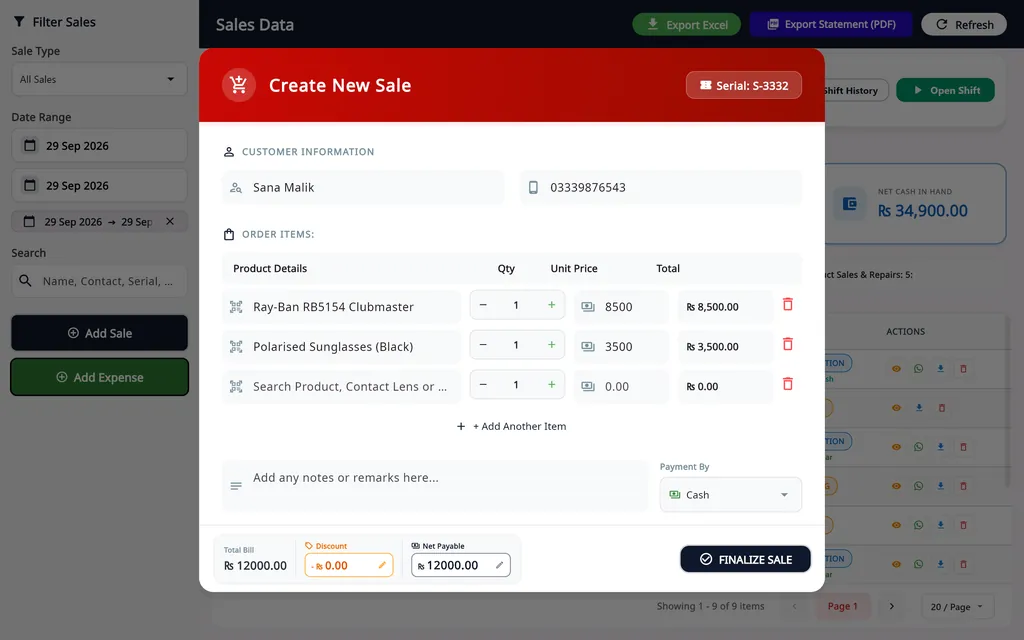
- Add items by scanning the barcode or typing three letters of the name. Scanning the same item twice adds one to the quantity.
- A discount, and payment by cash, card, bank transfer or others. The choice feeds the shift totals.
- Add Expense, with filters by sale type and date.
- Every sale has a receipt that can be printed or exported as a PDF. Receipts print through Windows on 57/58 mm and 80 mm thermal printers and on A4 or A5 printers.
- Export Excel and Export Statement (PDF).
- Each counter works in shifts, with the cash expected in the drawer. See staff shifts and audit.
How a counter sale is made
Find the item
Search a product, contact lens or service, or scan its barcode.
Set the quantity
Set the quantity and unit price, and add more items.
Take the payment
Enter a discount if there is one and choose how the customer pays: cash, card, bank transfer and others.
Finalize Sale
The stock goes down and the sale joins the list, with its receipt.
On Windows and on Android
- Windows desktop
- The full till: sales, expenses, shifts, exports and every receipt size.
- Android app
- POS (New Sale) sells the frames, lenses and accessories kept in the desktop app. Scan the barcode with the phone camera or pick the item with Add from Inventory. The stock goes down on the server, so the desktop shows the same count.
The plans are compared on the pricing page.
Questions
Which payment types can a sale use?
Cash, card, bank transfer and others. Cash sales are added to the cash expected in the drawer and card sales to the card total, so the choice matters when the shift is closed.
What happens to a sale if the internet drops?
The sale is saved on the PC in a queue, each record with its own key so it cannot be recorded twice, and the counter shows how many records are waiting. Shifts and the till run from a local SQLite database, so the counter keeps selling. When the connection is back, press Pending Sync on the dashboard; sending is not automatic.
Which receipt printers work?
Receipts print through Windows, so any printer installed in Windows works, including 57/58 mm and 80 mm thermal printers and A4 or A5 printers. See how to connect a thermal printer.
Do I need a barcode scanner?
No. A USB barcode scanner is optional: it types into the search field like a keyboard. Without one, type part of the item's name and pick it from your stock.
Related
- Prescriptions and ordersBoth eyes, the frame, the lenses and the payment on one order, with several pairs on one bill.
- Stock and inventoryFrames, lenses, contact lenses and accessories with barcodes, minimum levels, stock value and vendor ledgers.
- WhatsApp receipts and remindersOrder confirmation, ready-for-pickup, completed and repair messages from the shop's own WhatsApp number.
- Barcode labelsPrint labels for frames, lenses and contact lenses and scan them at the counter.
- Staff shifts and auditShifts with a blind cash count, X and Z reports, manager PINs, staff logins and a staff audit.
- VAT, GST and ZATCA-format QRYour own tax label, rate and registration number, prices with or without tax, and a QR code on receipts.
- Repair jobsA serial number and a receipt for every repair, with the advance, the balance and the delivery date.
- Asaan Optics DesktopEvery screen of the Windows software.
- PricingPlans for the desktop, the phone or both.
- DownloadThe Windows installer and the Android app.
- How a bill is made in Asaan OpticsGuide
- Offline optical billing software: what to checkGuide