The problem with cloud-only software, and what "offline" should mean
An optical shop cannot pause when the internet does. A customer is at the counter with a prescription, an advance to pay and a delivery date to agree. If the software needs the server for every screen, an outage means going back to paper: you cannot look up last year's prescription, you cannot bill, and everything written on paper has to be typed in later.
Billing software handles this in one of three ways.
| Design | Where records live | When the internet drops | Main risk |
|---|---|---|---|
| Cloud-only | On the server | Work stops | No billing during an outage |
| Local-only | On one PC | Nothing changes | One failed disk loses everything; no second device |
| Offline-first | On the server, with a local copy or queue on the device | The device keeps working and sends the records later | Records wait on the device until they are sent |
Offline-first is the useful design for a shop with an unreliable connection, but the phrase covers very different products. Some keep everything working; some only let you view old records. The questions below separate them.
Eight questions to ask about any offline billing software
- What exactly works with no connection? New bills, or only viewing? Can you search an existing customer?
- Where is an offline record stored? If it is only in the device's memory until sync, a power cut can lose it. It should be saved to the disk.
- How do you know something is unsent? There should be a visible count of waiting records, not a silent background process.
- Is sending automatic or manual? Either can work, but you need to know which, or records will sit on one PC for weeks.
- Can a record be sent twice? If a sync is interrupted and repeated, the same bill must not appear twice.
- What happens to stock? If two devices share one stock list, an offline sale on one is unknown to the other until it is sent.
- Is there a limit on waiting records? Some apps cap the queue.
- Does printing need the internet? A receipt printer connected to the device should not depend on it.
The rest of this article answers these questions for Asaan Optics, for the Windows desktop program and the Android app separately, because the two behave differently.
Offline billing on the Windows desktop
What keeps working
- Sales and customer orders. A sale or order that cannot reach the server is saved in a queue on the PC.
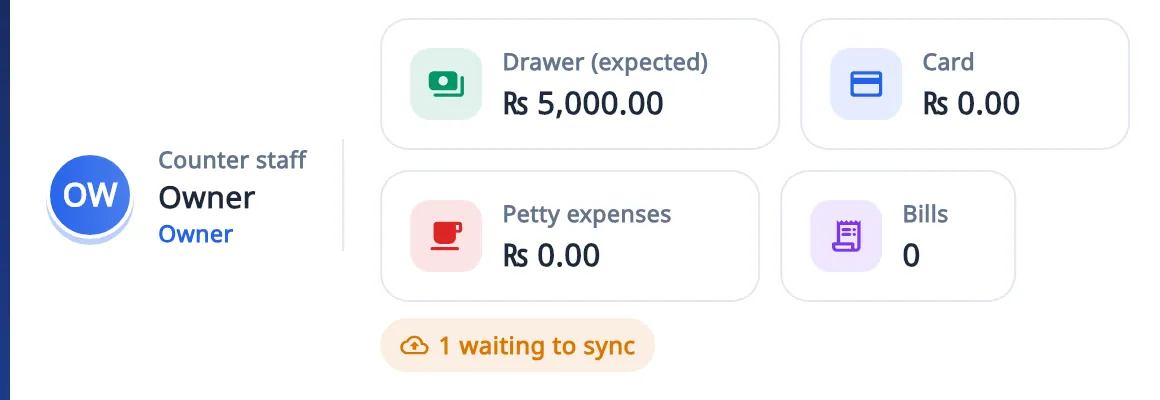
- Shifts and the cash drawer. Opening a shift, selling, cash in and out, closing the shift and the X and Z reports run from a local database on the PC, so the counter keeps selling.
- Receipts. Receipts print through Windows, on any printer installed on the PC, so printing does not wait for the connection.
The "waiting to sync" notice
The counter shows how many records are waiting to sync, on the shift card of the Sales & POS screen. While that number is above zero, those records exist only on this PC. A Pending Sync button also appears on the dashboard.
What happens when the connection is back
Nothing is sent until you tell it to. Press Pending Sync on the dashboard and the queued records are sent to your shop account. Sending is not automatic on the desktop. Each queued record carries its own key, so if a sync is interrupted and you press the button again, the same sale or order is not recorded twice.
What waits
- Signing in needs the internet. Sign in while the connection is up; do not sign out during an outage.
- Other devices. A second counter PC or a phone does not see the queued records until they are sent.
- WhatsApp messages to customers need a connection. The receipt can be printed or saved as a PDF in the meantime.
Offline billing in the Android app
What keeps working
- Prescriptions, repairs and sales made without a connection are saved on the phone.
- Search Patient answers from the phone's cache when the connection drops, so you can still find a returning customer's order.
The offline banner
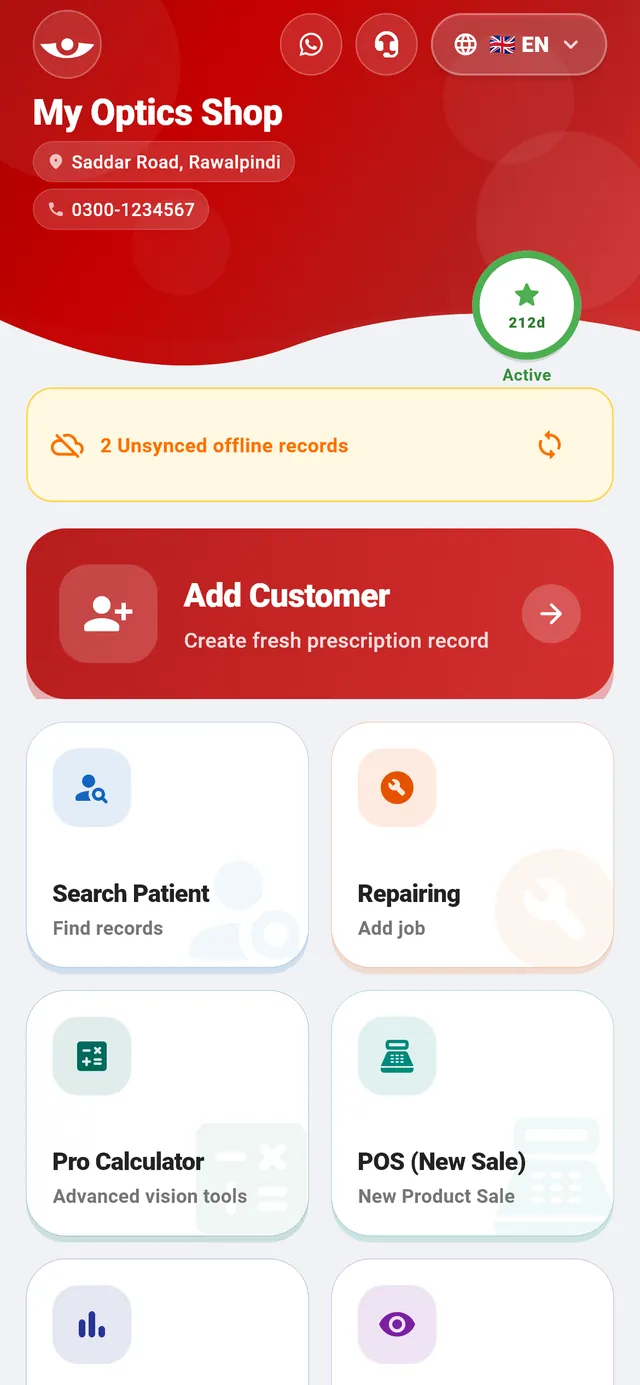
The home screen shows a banner with the number of unsynced offline records and a sync button.
What happens when the connection is back
Waiting records are sent when the home screen opens with a connection, or when you tap the sync button on the banner. This is the main difference from the desktop, where you always press the button yourself.
Limits on the phone
- Without an active plan, up to 20 records can wait on the phone. The free allowance on Android is 30 entries every 30 days; plans are on the pricing page.
- A sale made offline takes stock off the shared list only when it is sent. Until then the desktop still shows the old count for that item.
- Stock is not managed on the phone. The phone sells from the stock kept in the desktop program.
Desktop and Android side by side
| Question | Windows desktop | Android app |
|---|---|---|
| What can be created offline | Sales and customer orders; shifts, cash drawer, X and Z reports | Prescriptions, repairs and sales |
| Where it is kept | A queue and a local database on the PC | On the phone |
| How you see it | Count of records waiting to sync on the counter; Pending Sync button on the dashboard | Banner on the home screen with the count |
| How it is sent | You press Pending Sync. Not automatic. | When the home screen opens with a connection, or when you tap sync |
| Limit on waiting records | None stated | 20 without an active plan |
| Needs the internet | Sign-in, sync, WhatsApp messages | Sign-in, sync, WhatsApp messages |
Habits that keep offline records safe
An unsent record lives on one device. If that PC's disk fails or the phone is lost before the record is sent, it is gone. Offline working is a way through an outage, not a way of running the shop permanently. Four habits cover the risk.
- Sync before you close. At the end of each day, check the count of waiting records on the counter PC and press Pending Sync. On the phone, open the home screen while connected and confirm the banner has cleared.
- Sync before anything that touches the device. Updating or uninstalling the program, clearing the app's data on the phone, or handing a PC to a technician all come after a sync. The steps for updating are in the installation guide.
- Check stock after a long outage. If two devices sold from the same stock while offline, the last piece of a frame may have been sold twice. Once both have synced, look at the low stock and out of stock lists.
- Keep a backup connection. A phone hotspot for a few minutes is enough to send a day's records.
Summary
With Asaan Optics the counter keeps billing and printing through an outage on both Windows and Android. Records wait on the device, a visible count tells you how many, and they reach your shop account when you press Pending Sync on the desktop or when the phone's home screen opens with a connection. What it does not do is send desktop records by itself, show offline records on other devices before they are sent, or sign you in without the internet.
The desktop's free 30 days are long enough to test this in your own shop: disconnect the PC, make a sale, reconnect and press Pending Sync. The download and the full description of the offline screen are on the Asaan Optics desktop page.
Questions
- Can I bill customers in Asaan Optics without the internet?
- Yes, once you are signed in. On the Windows desktop a sale or order that cannot reach the server is saved in a queue on the PC, and shifts, the cash drawer and the X and Z reports run from a local database. On Android, prescriptions, repairs and sales are saved on the phone.
- Do offline records sync automatically when the internet comes back?
- On the desktop, no: you press Pending Sync on the dashboard. On Android, waiting records are sent when the home screen opens with a connection, or when you tap the sync button on the offline banner.
- Does the Asaan Optics Android app work offline?
- Yes. Prescriptions, repairs and sales made without a connection are saved on the phone, and Search Patient answers from the phone's cache. Without an active plan, up to 20 records can wait on the phone.
- Can a sale be recorded twice if I sync more than once?
- On the desktop each queued record carries its own key, so the same sale or order is not recorded twice when it is sent.
- What does not work without the internet?
- Signing in, sending WhatsApp messages, and anything that depends on another device: a second PC or a phone does not see an offline record, and shared stock does not go down, until that record has been sent.
More from the blog
- Optical shop billing app and management software: how a bill is made in Asaan Optics
- Optical shop management software free download: what is free and what is paid
- How to Digitize Your Optical Store: From Paper Register to Software
- How to Manage Optical Inventory: Frames, Lenses and Contact Lenses
Reference guides and free calculators: Resources and optical tools.