Phone or computer: how the two apps work together
Video, 1 min 11 s
Should you run your optical shop app on a phone or on a computer? Asaan Optics has an Android app and a Windows app, and this short explainer shows how the two share one account and the same data, and what each is better at.
Chapters
- 00:00Two apps, one shop
- 00:18One account, same data
- 00:29What the phone suits
- 00:41What the computer suits
- 00:53Where to buy a plan
What the video covers
- Why you do not have to choose: one email and password signs in to both apps
- How a customer saved on the phone appears on the computer, and an order taken on the computer appears on the phone
- What the phone suits: adding customers and prescriptions, searching records, a sale, a repair, looking after stock
- What the computer suits: the whole order on one wide form, a barcode scanner and receipt printer, barcode labels, shifts and Staff Audit
- Where to buy or renew a plan: the payment screen in the Android app lists all the packages
Transcript
Asaan Optics runs on your Android phone and on your Windows computer. Here is how the two work together.
There are two apps. The Android app goes where you go. The Windows app gives you the whole shop on a large screen. You do not have to choose: most shops use both.
You sign in to both with the same account, and both show the same data. A customer you save on the phone is there on the computer, and an order you take on the computer is there on the phone.
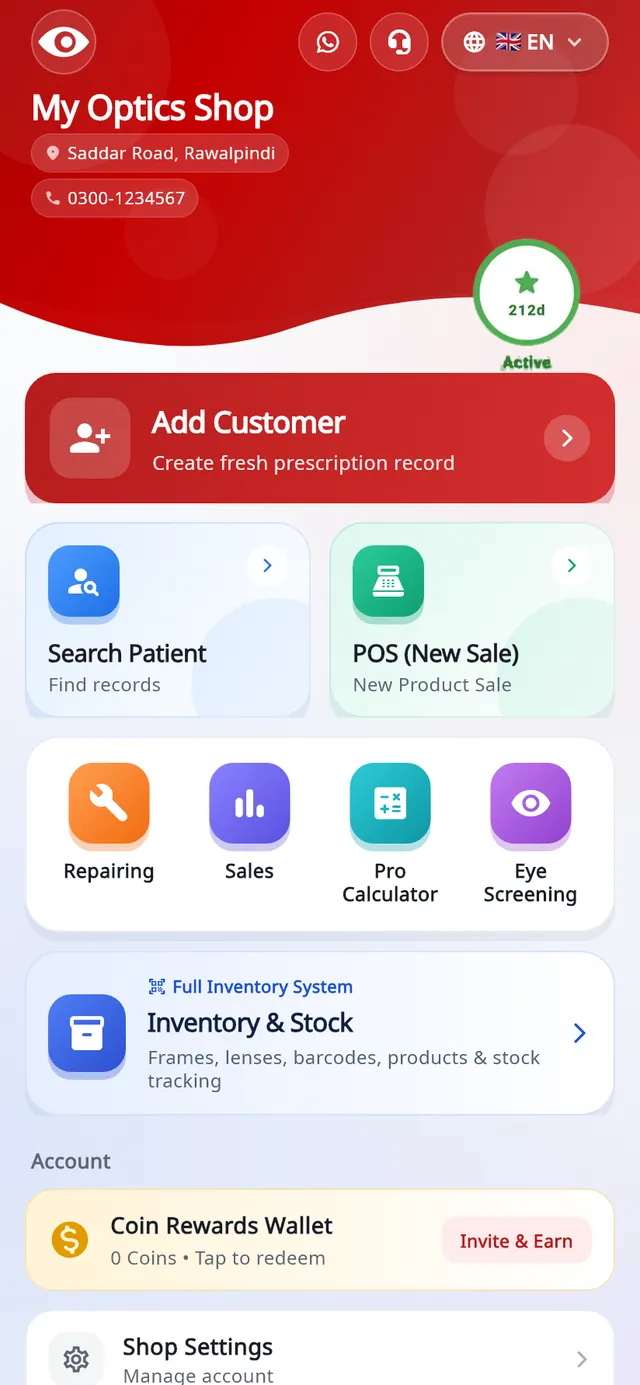
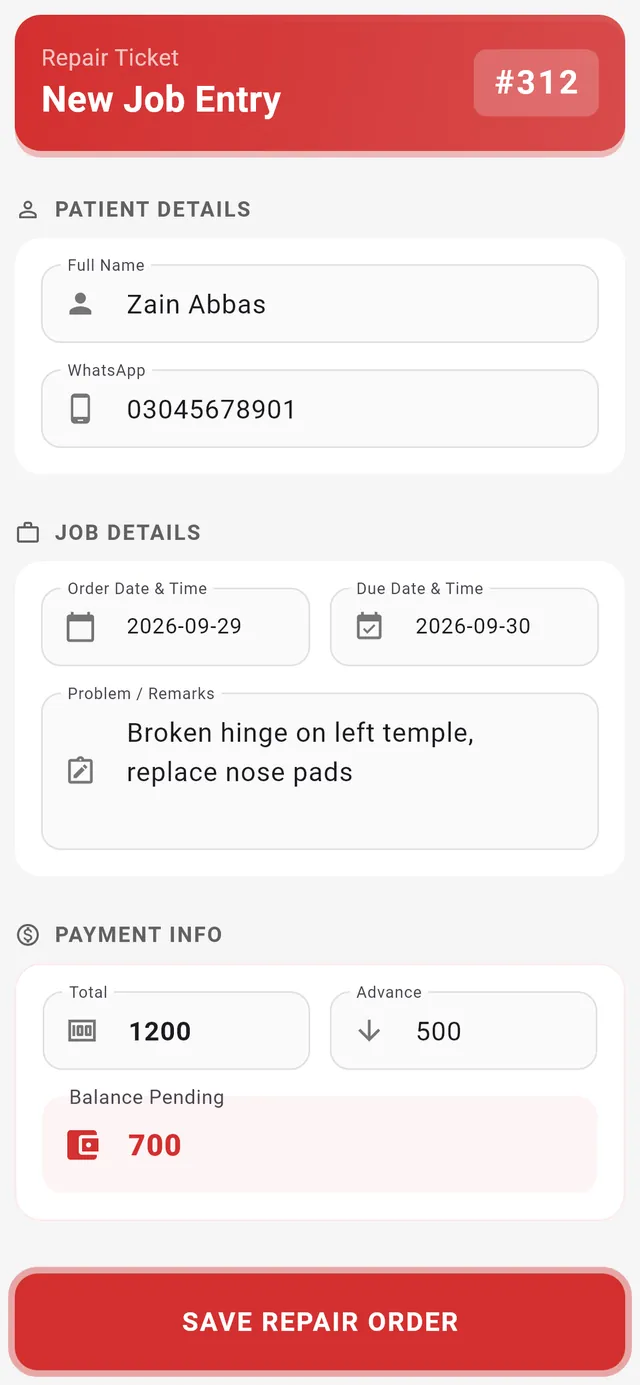
On the phone you add customers and prescriptions, search your records, make a sale, take in a repair, and look after your stock. It is the quick way to work when you are away from the desk.
On the computer, one wide form holds the whole order, a barcode scanner and a receipt printer plug straight in, and you print barcode labels. Shifts and Staff Audit show you the cash and your team.
One thing to know about plans. You buy or renew your plan in the Android app, also when the plan is for the computer. The payment screen in the app lists all the packages.
AI prescription scanner, on the phone itself
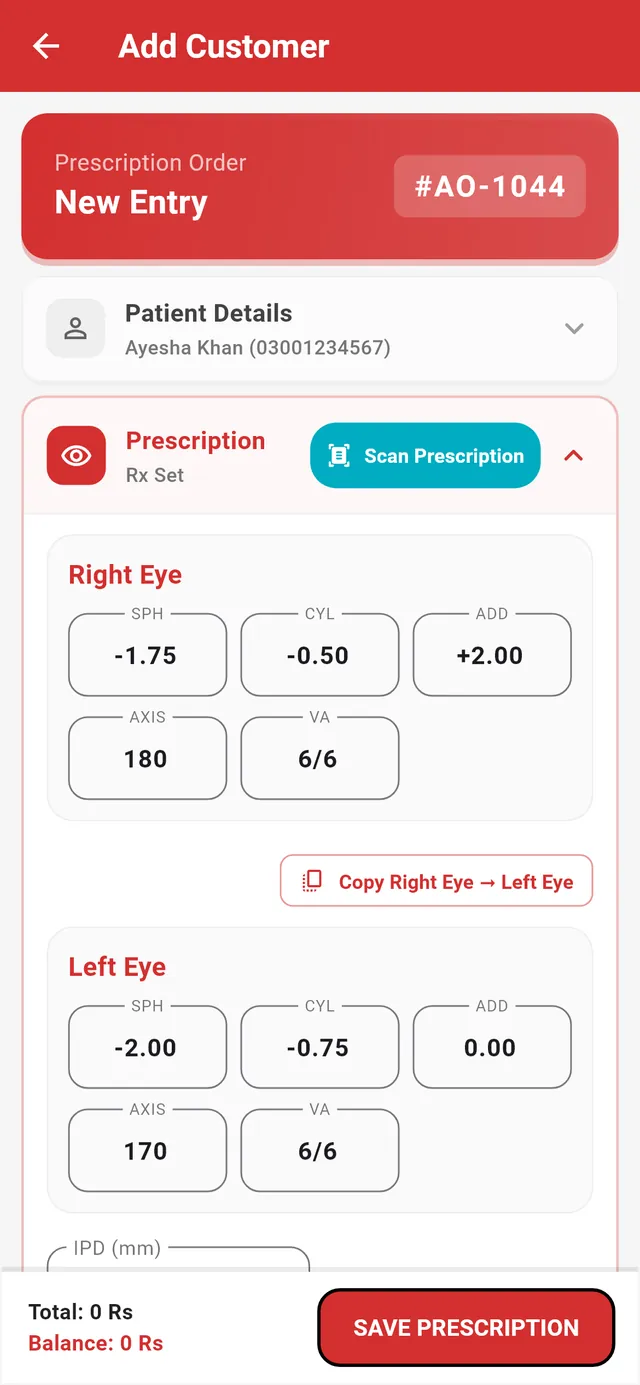
On Add Customer, tap Scan Prescription and photograph the slip. Crop the picture to the numbers table, and Google ML Kit text recognition reads it on the phone and fills SPH, CYL, AXIS and ADD for both eyes.
You check every value before anything is saved: handwriting and faint print can be misread, so the fields stay editable. The same screen then takes the frame and lens, the payment and the delivery date.
The scanner is part of the Android app. The desktop app does not have one.
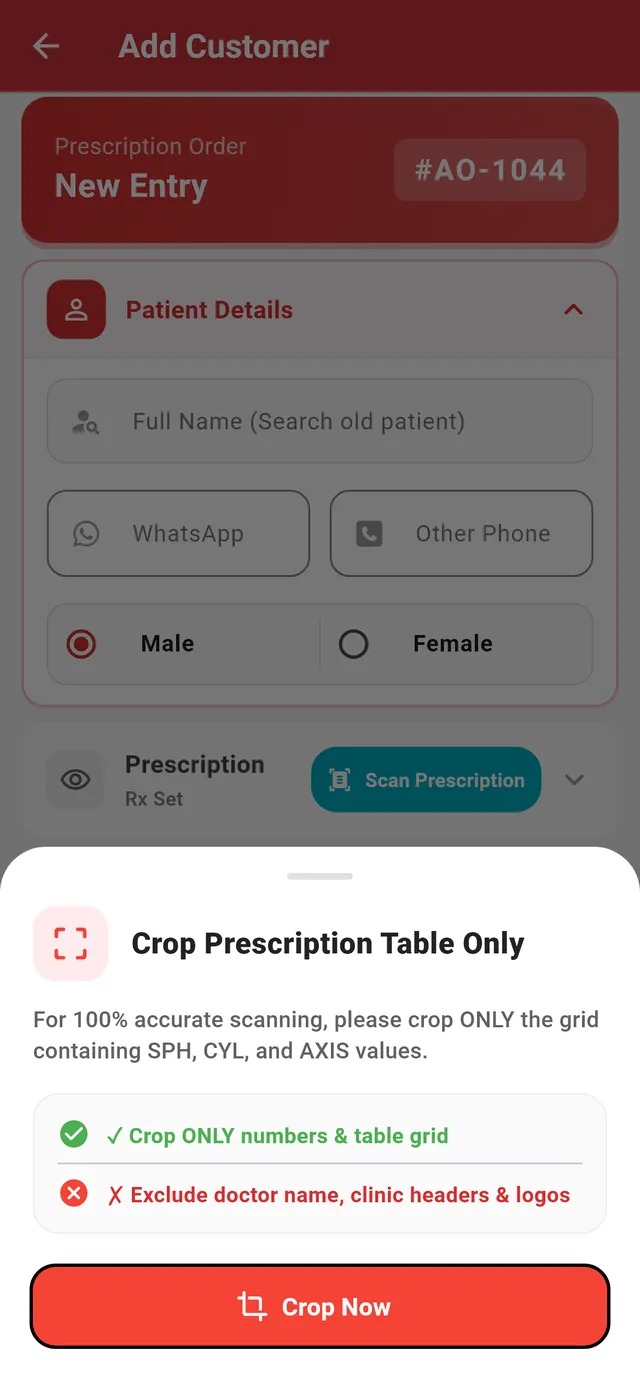
- Crop the table only: SPH, CYL and AXIS, without the doctor's name or clinic header
- Scan Prescription sits in the Prescription card of Add Customer
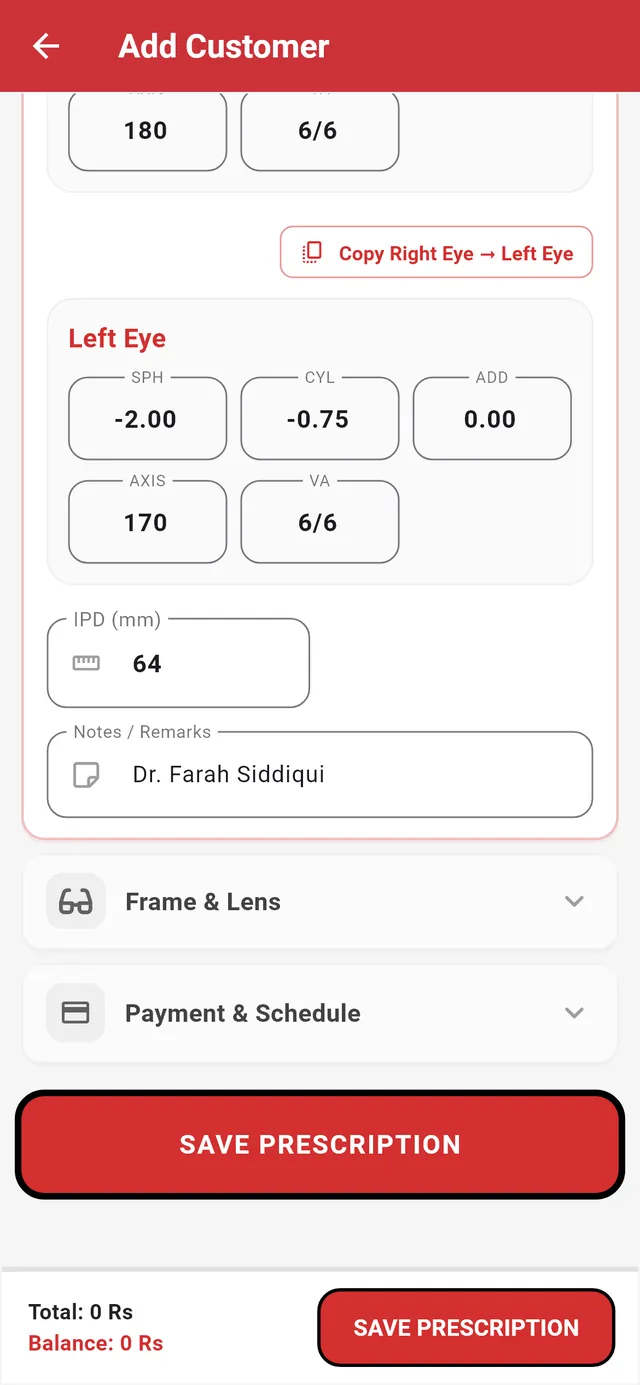
- Copy Right Eye → Left Eye when both eyes match
- Every value stays editable: check it against the slip
- Nothing is stored until Save Prescription
Find the customer, even offline
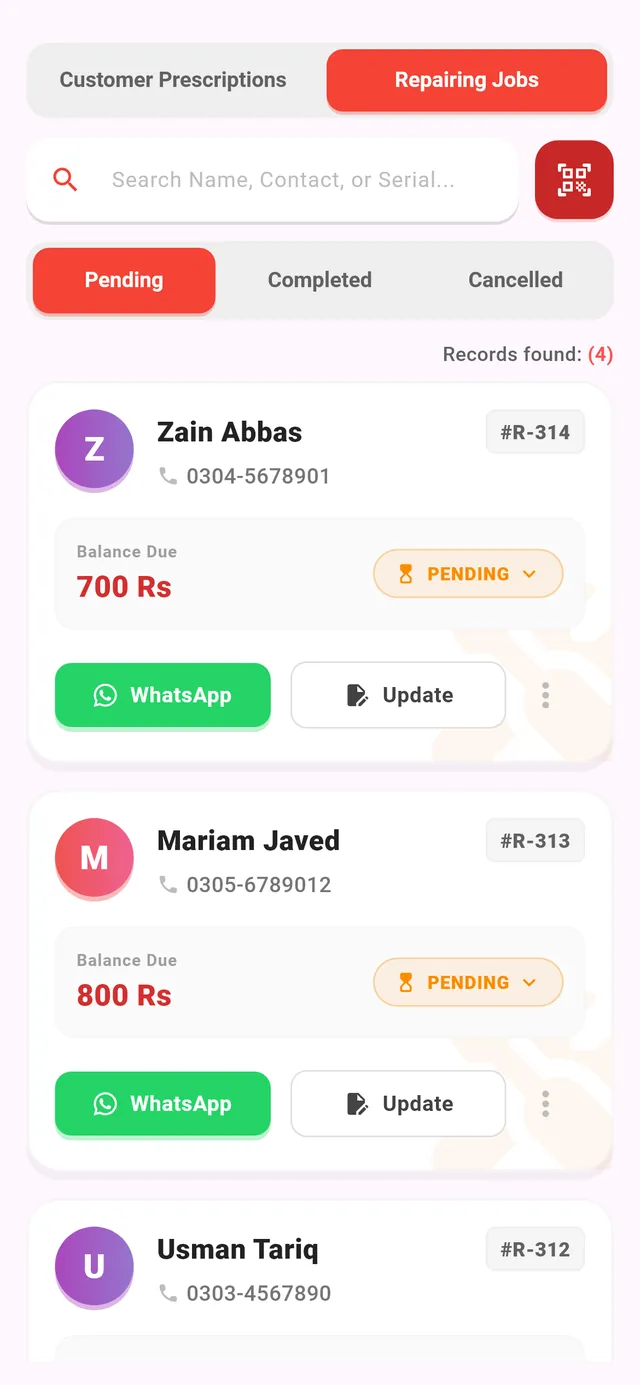
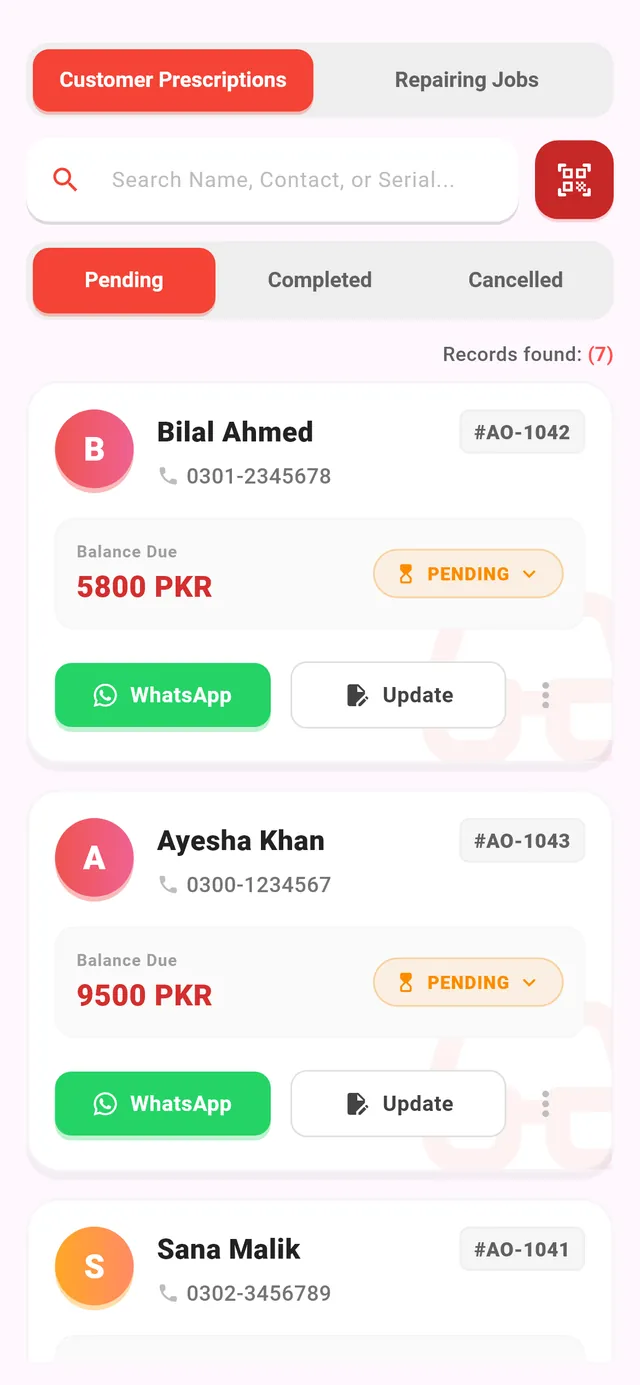
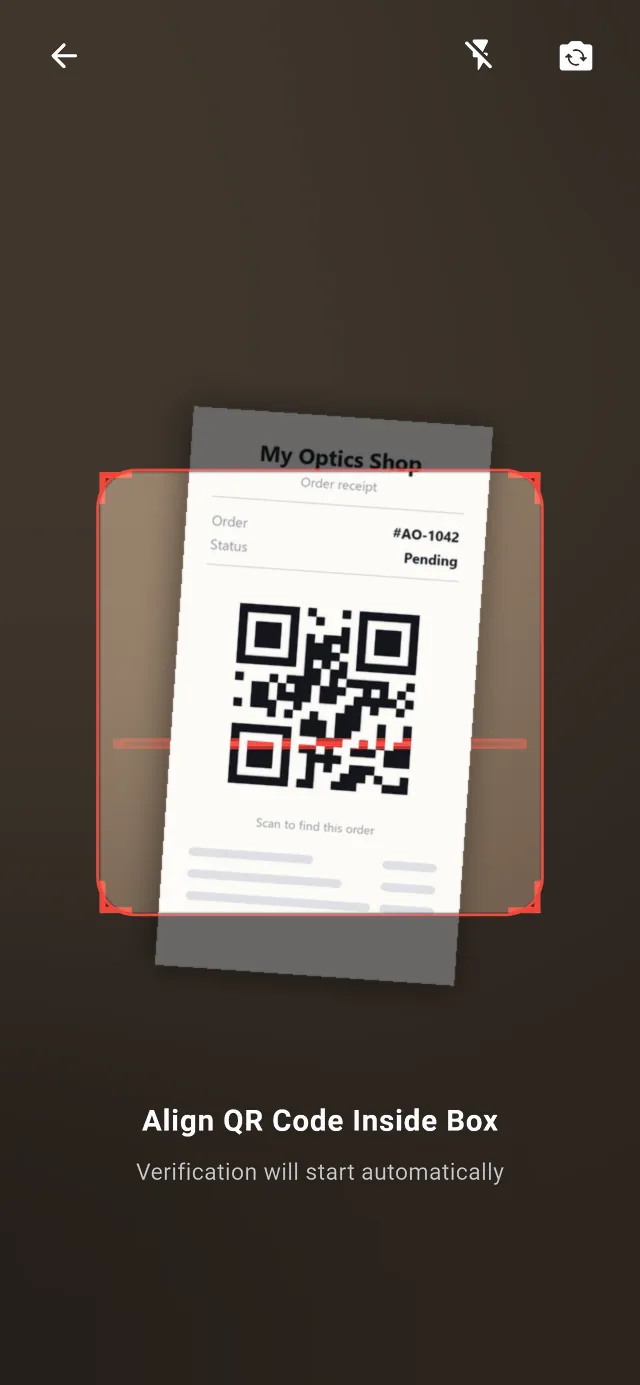
Search Patient looks through prescriptions and repair jobs by name, phone or serial number, and answers from the phone's cache when the connection drops. When a customer comes back with a receipt, tap the QR icon beside the search box and scan the code on it.
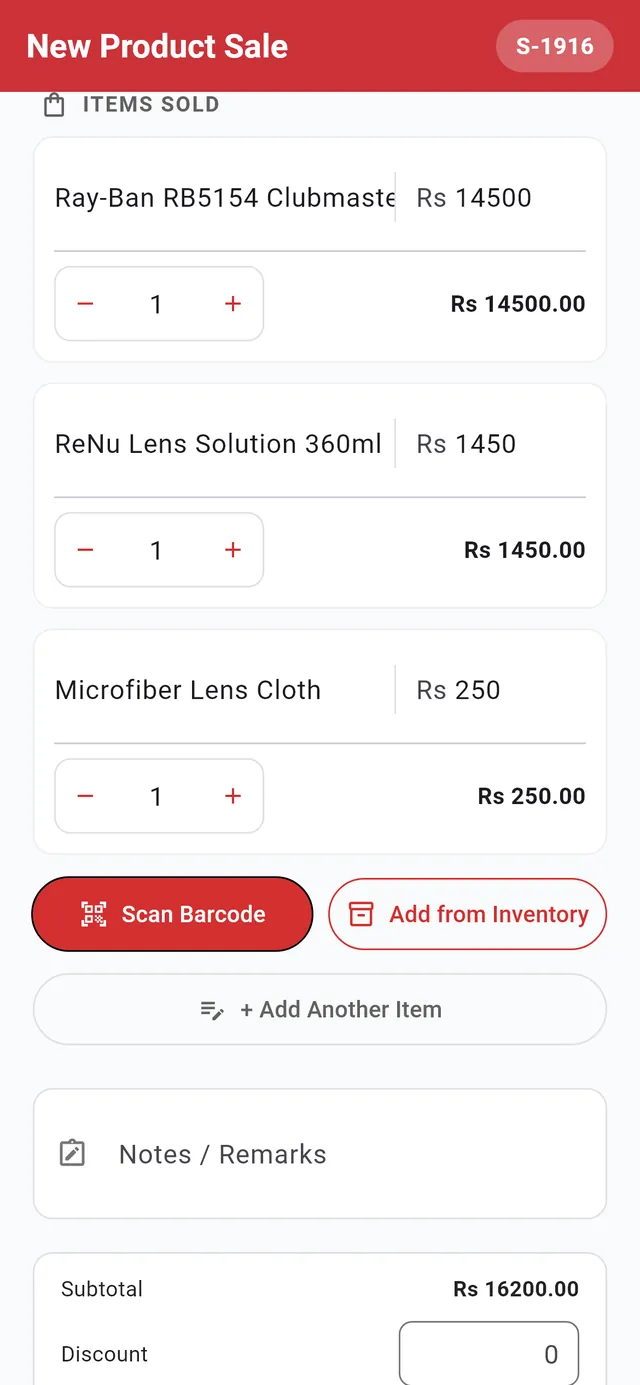
- Quantity and line total for each item
- Scan Barcode with the camera, or Add from Inventory
- Subtotal, discount and payment close the sale
Ring up a sale from your desktop stock
POS (New Sale) sells the frames, lenses and accessories you keep in the desktop app. Scan the barcode with the phone camera, or pick the item with Add from Inventory.
When the sale is saved, the stock goes down on the server, so the desktop shows the same count. Without a connection the sale waits on the phone and is sent later.
Receipts and WhatsApp messages from the phone
Print, save or share the receipt
Receipt Details shows the prescription, frame and lens, what was paid and what is still due. Print Thermal (80mm) sends it through Android's print dialog to an 80 mm thermal printer, Save A4 PDF keeps a full-page copy, and Share Image sends it as a picture to any app.
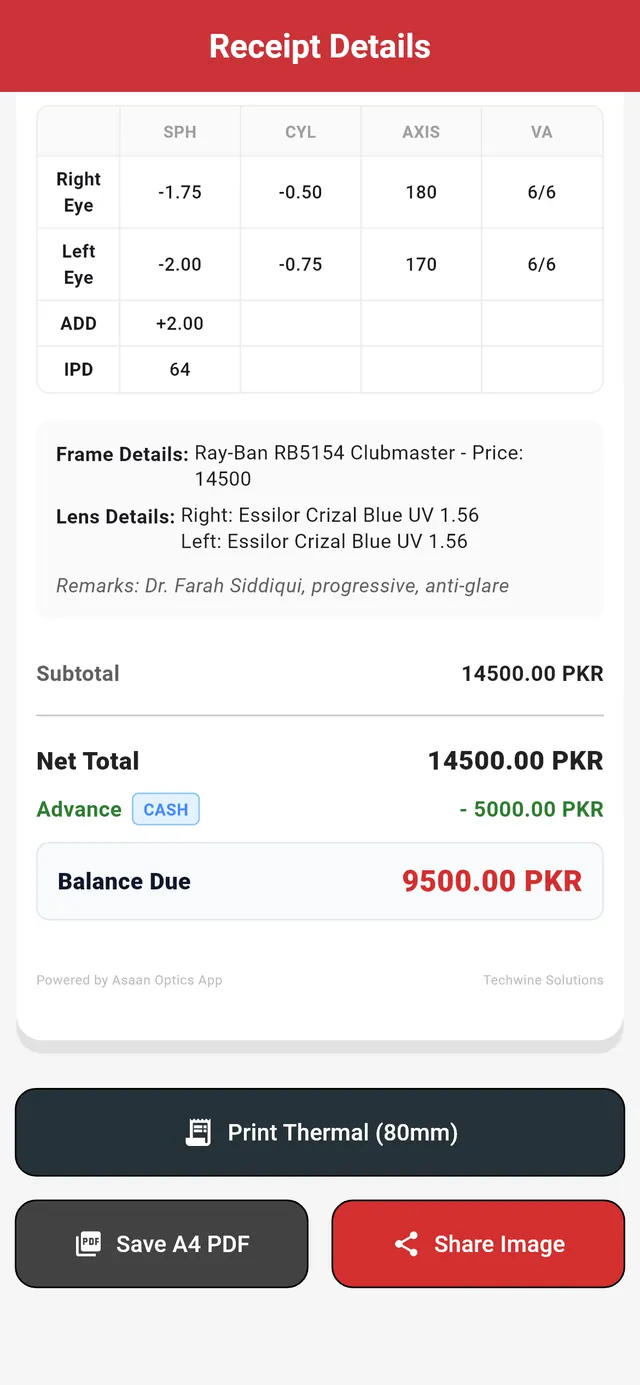
- Both eyes, as saved with the order
- Advance paid and Balance Due
- Print Thermal (80mm), Save A4 PDF or Share Image
WhatsApp Automation
Link the shop's WhatsApp number once, with a QR code or an 8-digit pairing code. The app then sends the order confirmation, ready-for-pickup, order-completed and repair messages itself. Each message has its own switch and template, with a live preview of what the customer will read.
If the link is down, the WhatsApp button on a record still opens the chat with the message written. You never have to save the customer's number.
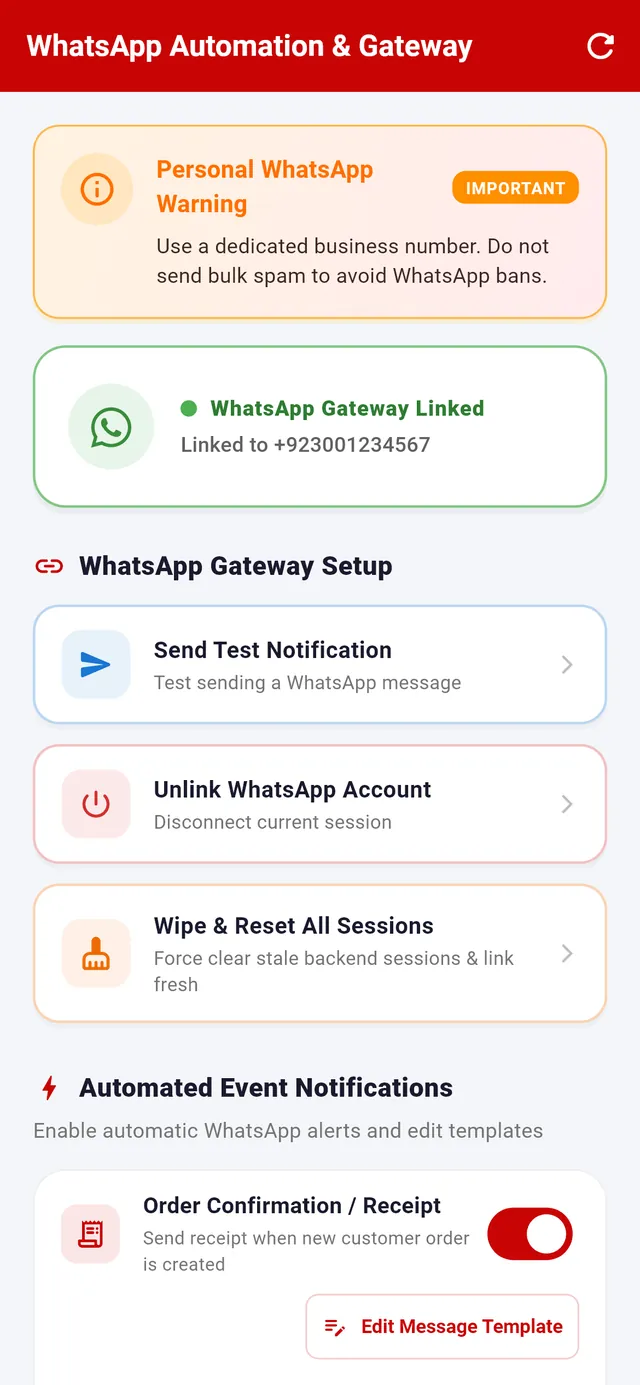
- Use a dedicated business number: WhatsApp can ban numbers that send bulk messages
- WhatsApp Gateway Linked to the shop's number
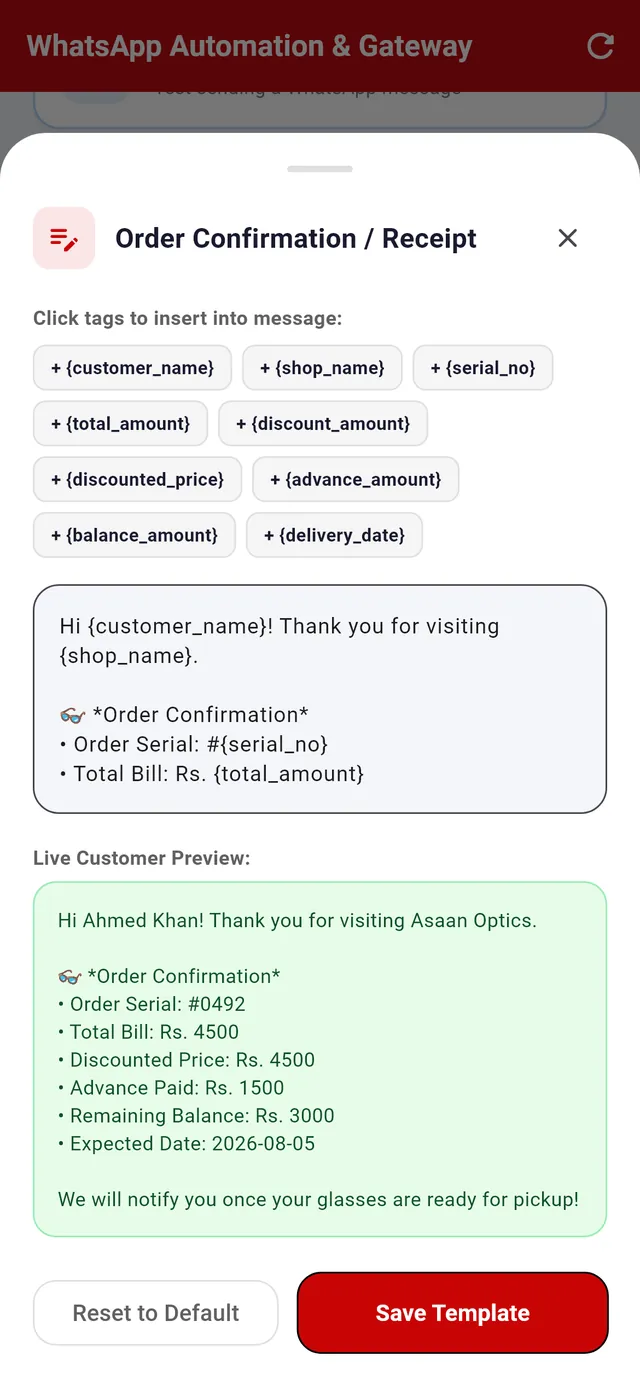
- Tags such as {customer_name} fill in for each customer
- Live Customer Preview of the message
Today's sales, and the report behind them
Sales Record lists the day's prescriptions, repairs and product sales with the cash each one brought in. Detail View opens the Detailed Sales & Financial Report: cash collected against pending, amounts sold, balances customers still owe, expenses, net counter cash and a breakdown by category.
Expenses entered in Sales are taken off the counter cash, so the figure at the top is what should be in the drawer.
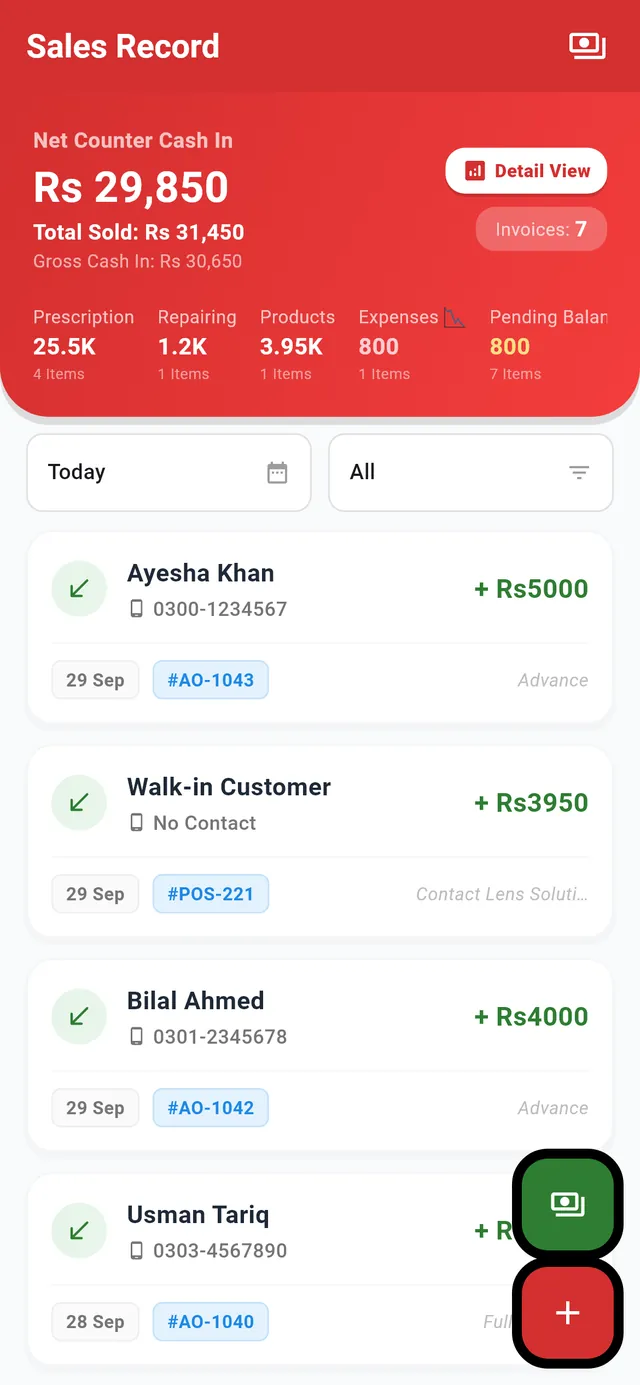
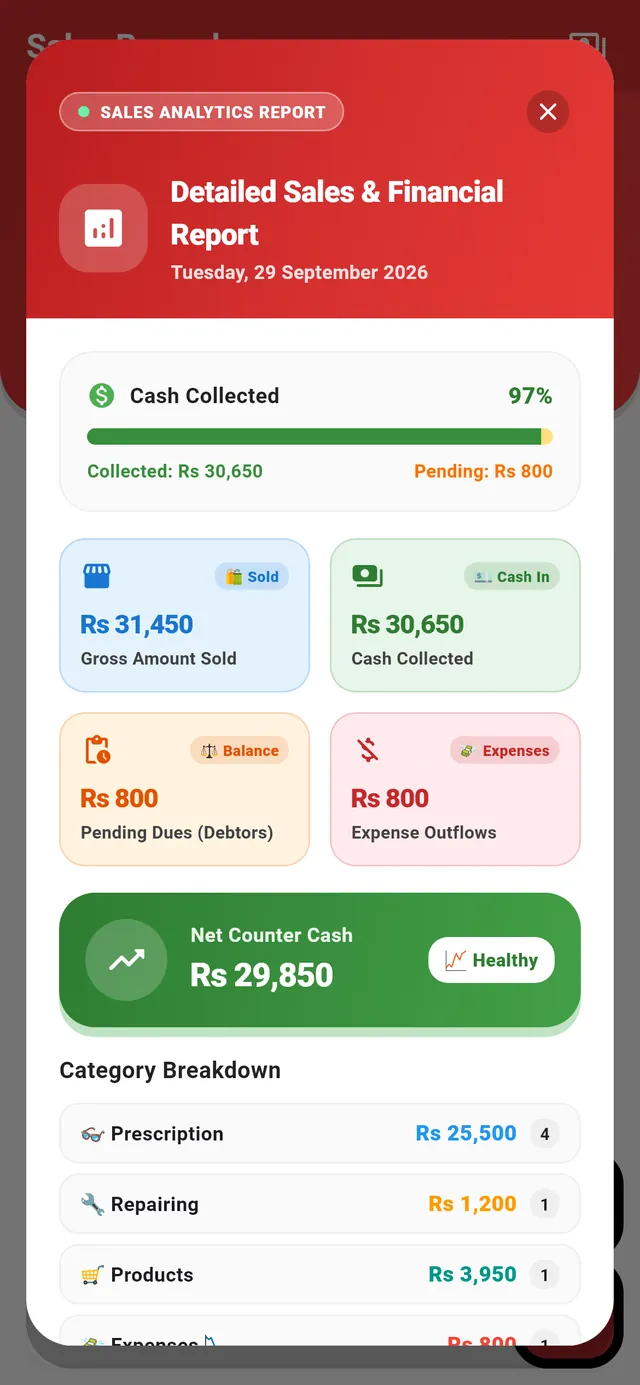
- Cash collected against what is still pending
- Customer balances and the day's expenses
- Net Counter Cash after expenses
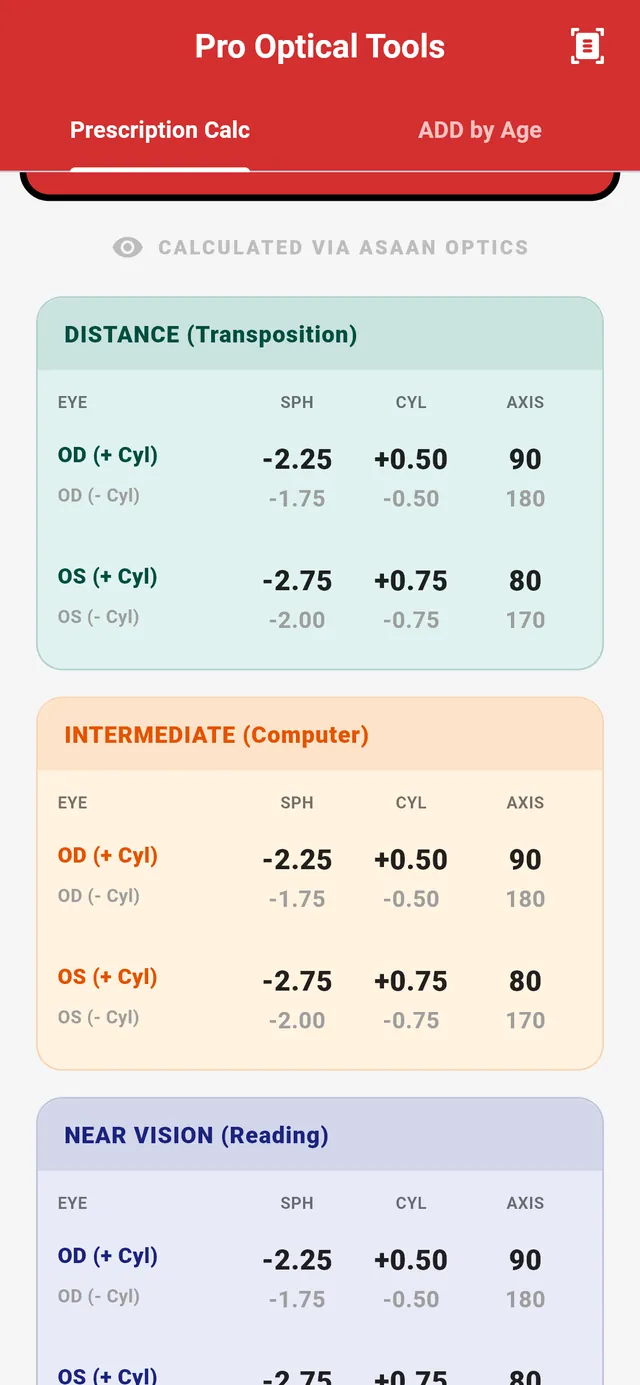
- Distance: the prescription transposed, in plus- and minus-cylinder form
- Intermediate, for computer work
- Near, for reading
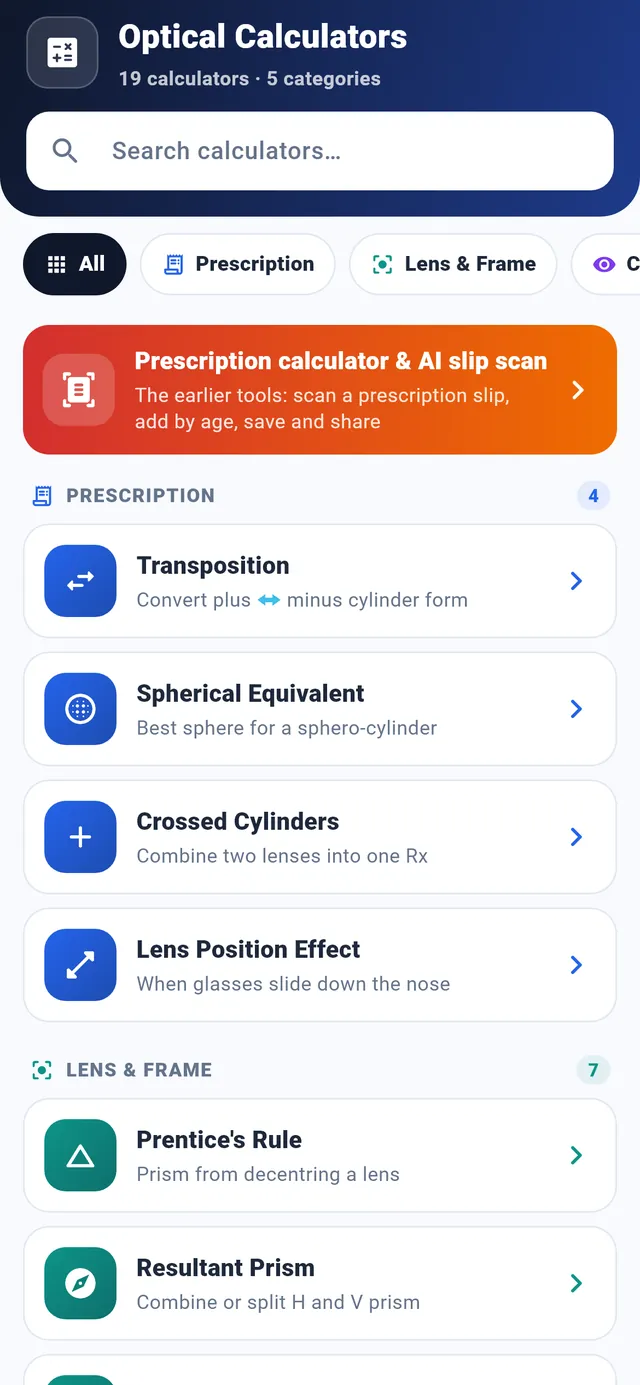
Optical calculators at the chair
Pro Calculator on the home screen opens Pro Optical Tools. Enter a spectacle or contact lens prescription, tap Calculate Both Eyes, and read the distance, intermediate and near powers for each eye.
The Optical Calculators list holds 19 calculators in five groups, from transposition and spherical equivalent to Prentice's rule and resultant prism.
Sign in with a fingerprint or your face
Sign in once with your email and password, then turn on Biometric Login in My Shop Settings. From then on, Tap to use Biometric Login opens the app with the fingerprint or face unlock already set up on the phone. It is a sign-in for the Android app; the desktop app has no biometric login.
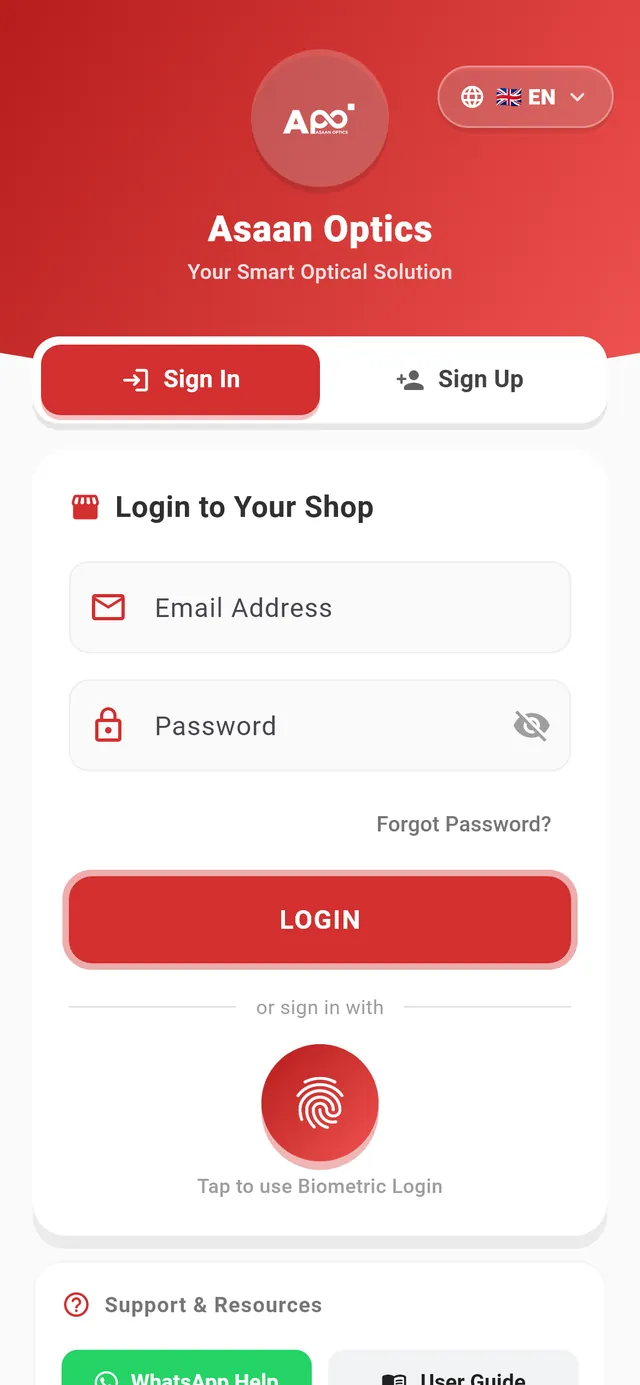
- Tap to use Biometric Login
No signal? Keep working
Prescriptions, repairs and sales made without a connection are saved on the phone, and the home screen shows how many are waiting. They are sent when the home screen opens with a connection, or when you tap the sync button on that banner. Without an active plan, up to 20 records can wait on the phone.
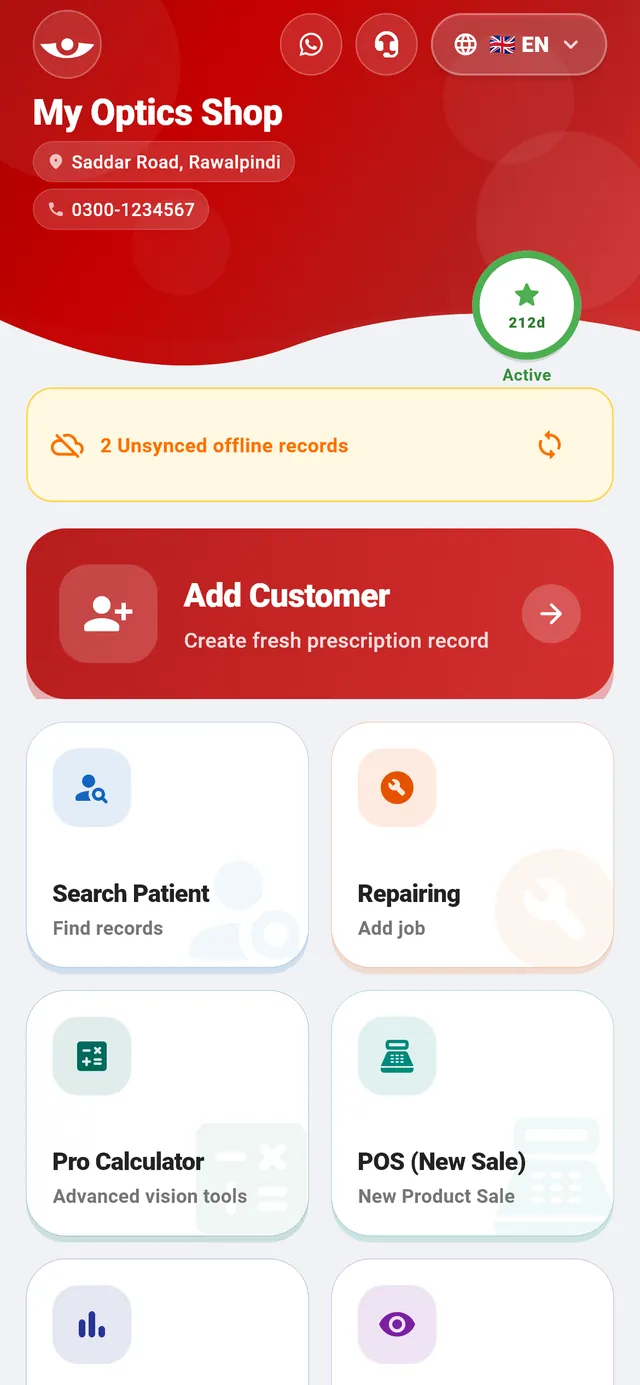
- 2 Unsynced offline records, with a sync button
What the phone leaves to the desktop
A few jobs belong to the Windows desktop app.
Stock management
Frames, lenses, contact lenses, vendors, barcode labels and stock reports are managed in the desktop app. The phone sells from that stock, and its Inventory & Stock tile points to the desktop app. Desktop software details
Other receipt sizes
The phone prints 80 mm thermal receipts and saves A4 PDFs. Smaller 57 or 58 mm slips and A5 pages are printed from the desktop app.
iPhone
There is no iPhone or iPad version. The app runs on Android phones and installs from Google Play.
Plans
The mobile app has its own plan, and a bundle covers the phone and the desktop together. Plans and prices
How to activate or renew your plan in the Android app
Video, 2 min 19 s
Activate or renew your Asaan Optics plan from your Android phone, for the phone app, the Windows app, or both. This walkthrough shows the plans screen in the Asaan Optics Android app: the Mobile, Desktop and Bundle tabs, the duration slider, the Google Play payment step and where the app shows your active plan afterwards.
Chapters
- 00:00Where plans are bought
- 00:14Check the plan badge
- 00:29Mobile, Desktop or Bundle
- 00:58Choose the duration
- 01:12Pay through Google Play
- 01:35Confirm the plan is active
What the video covers
- Where the plan badge and the Upgrade button are on the home screen
- What the Mobile, Desktop and Bundle tabs each unlock, and why a Mobile plan does not unlock the Windows app
- How to choose one month, six months or one year with the duration slider
- What happens when you tap Subscribe Now and Google Play asks you to confirm the payment
- Where to check the plan afterwards: the badge, Shop Settings and View Purchase History
- Why the Windows app must be closed and opened again, signed in with the same account
Transcript
Activate or renew your Asaan Optics plan from your Android phone: for the phone app, the Windows app, or both. Plans are bought here, in the Android app, through Google Play. That includes the plan for the Windows app.
On the home screen, the round badge shows your plan. Here it says Expired, so the plan needs renewing. Tap Upgrade at the bottom of the screen. Tapping the badge opens the same screen.
This is the plans screen. First, choose which app the plan is for. Mobile is the phone app. Desktop is the Windows app on your computer. Bundle is both together. Tap a tab, and the list below shows what that plan includes. We want the phone and the computer, so we tap Bundle. Check the tab before you pay. A Mobile plan does not unlock the Windows app.
Next, the duration. Slide to one month, six months, or one year. The price for your country is shown here, in your own currency. This video hides the amount.
When the plan and the duration are right, tap Subscribe Now. Google Play now asks you to confirm the payment, with the payment method saved in your Google account. That sheet belongs to Google, so it is not shown here. Keep the app open until it finishes. When the payment goes through, the app shows PRO Activated.
Tap Let's Go to return to the home screen. The badge now says Active, and counts the days left. For more detail, open Shop Settings, lower down on the home screen. The first card shows that the plan is active, and the days remaining. View Purchase History, lower down, shows the expiry date and your payments. If the Windows app was already open, close it and open it again. It checks your plan when it starts. To use a computer plan, sign in to the Windows app with the same account.
Also watch: Optical Shop Software in 90 Seconds: What Is Asaan Optics?, Optical Shop Software Free Download for Windows: First 30 Days Free.
Questions about the Android app
How does the AI prescription scanner save time?
Instead of typing SPH, CYL, AXIS and ADD for both eyes, tap Scan Prescription on the Add Customer screen, photograph the slip and crop it to the numbers table. Google ML Kit text recognition reads it on the phone and fills the fields. You check and correct each value before saving. The scanner is in the Android app only.
What does biometric login do?
It signs you in to the Android app with the fingerprint or face unlock already set up on the phone, instead of typing the password. Sign in once with your email and password, then turn on Biometric Login in My Shop Settings. The fingerprint or face check is done by Android. The desktop app does not have biometric login.
How does the QR customer scanner work?
In Search Patient, tap the QR icon beside the search box and point the camera at the QR code on a customer's receipt. The app matches the receipt to its prescription or repair record and opens it, so you do not have to search by name.
Does the app work without internet?
Yes. Prescriptions, repairs and sales made offline are saved on the phone and sent when the home screen opens with a connection, or when you tap the sync button on the offline banner. Search Patient answers from the phone's cache. Without an active plan, up to 20 records can wait on the phone.
Can I manage stock from the phone?
No. Frames, lenses and other stock are managed in the Windows desktop app. The phone sells from that stock with Scan Barcode or Add from Inventory, and each sale takes the items off the stock on the server.
Which printers can I use with the phone?
Print Thermal (80mm) hands the receipt to Android's print dialog, so it prints on an 80 mm thermal printer that your phone can print to. You can also save an A4 PDF or share the receipt as an image.
Is there an iPhone version?
No. Asaan Optics runs on Android phones and installs from Google Play. On a Windows PC, use the desktop app.
Put the shop on your phone
Install Asaan Optics from Google Play, then sign in or create your shop's account.