The short answer
Asaan Optics is our own product, made by Techwine Solutions. Both parts of it are free to download, but "free" means something different on each.
| Android app | Windows desktop program | |
|---|---|---|
| Download | Free, from Google Play | Free, from this website |
| Free without a time limit | 30 new entries every 30 days | Nothing after the first 30 days |
| Free for a limited time | One free month on the 1-month plan, through Google Play | The first 30 days, with no payment details asked for |
| After that | Back to the free allowance, or a paid plan | A paid plan is needed to keep working |
| Your records | Stay in your account | Stay in your account |
The rest of this page explains each line. Current prices are on the pricing page and are not repeated here.
What you can download
The Windows desktop program
The installer is a zip file from this website. It runs on Windows 10 or Windows 11, 64-bit. You extract it, run the setup, and sign in to your shop account. Windows may show a "Windows protected your PC" notice the first time; the desktop page lists the installation steps and system requirements in full.
The internet is needed to sign in and to sync. Counter sales and shifts carry on during an outage.
The Android app
The app installs from Google Play on an Android phone. You sign in with the same shop account, or create one in the app.
What does not exist
There is no iPhone, iPad or Mac version, and no version that runs in a web browser. On a Mac or a Chromebook, the options are a Windows PC at the counter or the Android app.
What stays free on Android
Without any plan, the Android app lets you add 30 entries every 30 days. An entry is a prescription, a repair job or a sale. Records you have already entered stay in your account and can still be opened.
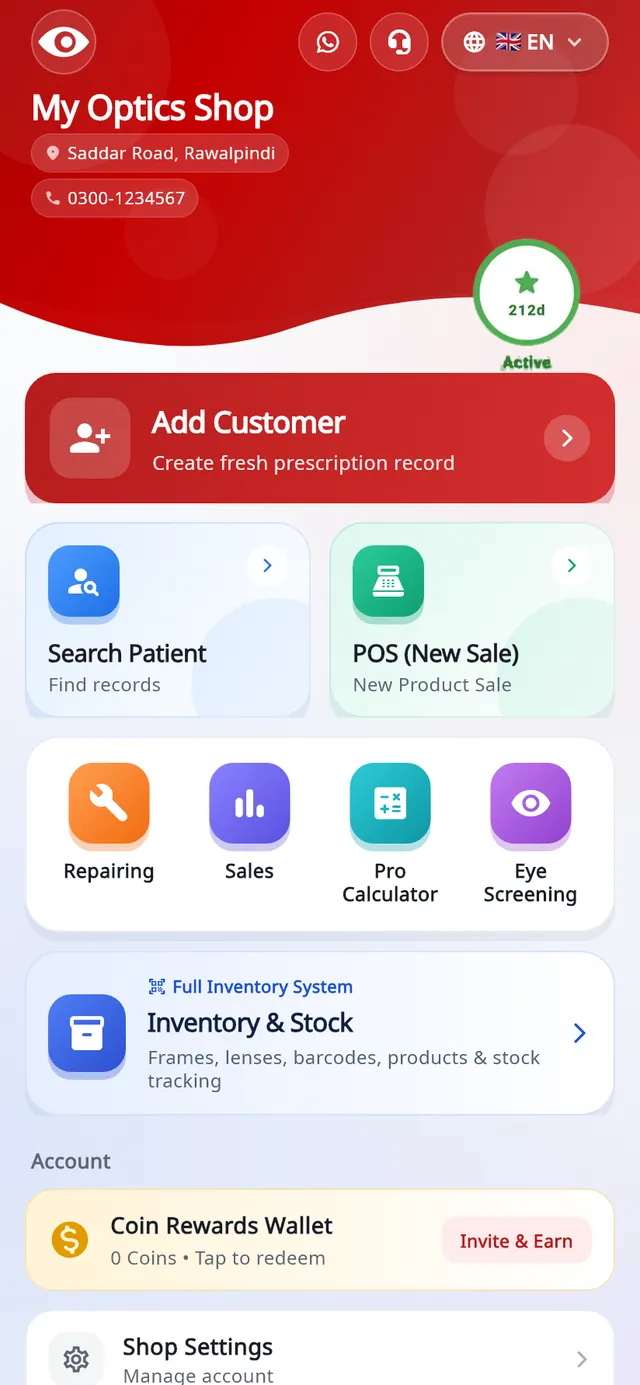
For a shop that makes more than about one order a day, 30 entries will not cover a month. The allowance suits a very small shop, an optician who visits customers, or someone who wants to use the app for some weeks before deciding.
Two further points on the free allowance:
- Offline work is limited without a plan: up to 20 records can wait on the phone to be synced.
- Stock control is not part of the phone app on any plan. It runs on the desktop.
The 30 free days on the desktop
The first 30 days on the desktop program are free. They are counted from when you sign up or first sign in on Windows, not from when you download the file. No payment details are asked for.
After 30 days the desktop program needs a paid plan. Your records are not deleted: the program asks you to renew when you save a new customer or sale, or open stock.
How the two free periods interact
The free month on the Android 1-month plan is offered once per account. If the account has already had the desktop's free 30 days, the Android plan starts as a paid plan. Decide which device you want to try first.
What needs a paid plan
- Unlimited entries on the phone: the Mobile App plan removes the limit of 30 entries every 30 days.
- The desktop after day 30: stock for frames, lenses, contact lenses and accessories, barcode labels, vendor ledgers, staff shifts with X and Z reports, staff logins and the stock and sales reports are all desktop features, so they need Desktop Pro or the bundle once the free period ends.
- Both devices on one account: the bundle covers the desktop and the phone together.
The Android plan is paid through Google Play, which shows the exact price for your country and renews until you cancel it there. For the desktop plan or the bundle, we send payment details on WhatsApp and then activate the plan on your account. Refund requests within 7 days are covered for technical problems we cannot fix and for accidental double payments; the refund policy has the full terms.
Receipt printers and barcode scanners are not included in any plan. They are bought separately if you want them.
What is free without downloading anything
The optical calculators on this website need no account and no download. They include transposition, spherical equivalent and others, listed on the tools page.
Transposition is the one most opticians use daily, and the rule is short enough to check by hand:
- Add the cylinder power to the sphere power. The result is the new sphere.
- Change the sign of the cylinder, from plus to minus or minus to plus.
- Change the axis by 90 degrees, adding or subtracting so that it stays between 1 and 180.
For example, -2.00 +1.00 × 90 becomes -1.00 -1.00 × 180. The calculators are for estimation; a final prescription should always be confirmed by a qualified optometrist or optician.
How to use the 30 free days well
Thirty days is enough to find out whether the program fits your shop, if you test it on real work and not on sample data.
- In My Shop Profiles, add the shop name, logo, currency and tax settings, so that receipts look the way they will in daily use.
- Enter real orders on Add Customer for a week, with the prescription, frame, lenses, advance and delivery date.
- Print receipts on your own printer. If the printer is thermal, set the same paper width in the printer driver and in the program; the thermal printer guide explains how.
- Add a small part of your stock, for example one brand of frames, by hand or with Bulk Import from an .xlsx sheet, and sell from it.
- Open and close a shift each day and compare the counted cash with the expected cash.
- Disconnect the internet for an hour, keep billing, then press Pending Sync on the dashboard and check that the records arrive.
- Give one staff member their own login with limited screens and see whether it suits how you work.
If something on this list does not work for your shop, you have learned it without paying. If you are still comparing products, the optical shop software guide has a checklist that applies to any vendor.
Where to download
The Windows installer and its setup steps are on the Asaan Optics Desktop page. The Android app is on Google Play; search for Asaan Optics, or follow the link on the Android app page.
Questions
- Is Asaan Optics free to download?
- Yes. The Windows installer is downloaded from this website and the Android app from Google Play, and neither download costs anything. No payment details are asked for when you sign up.
- Can I keep using it free permanently?
- On Android, yes, within a limit: without a paid plan the app lets you add 30 entries (prescriptions, repairs and sales) every 30 days. The Windows desktop program is free for its first 30 days and then needs a paid plan.
- What happens to my records when the free period ends?
- They stay in your shop account. The desktop program asks you to renew when you save a new customer or sale or open stock. The Android app goes back to the free allowance. After renewing you carry on with the same records.
- Can I manage stock on the free Android app?
- No. Stock for frames, lenses, contact lenses and accessories is managed in the Windows desktop program, which needs a plan after its first 30 days. The phone can sell from that stock but cannot add or edit it.
- Which computers and phones does it run on?
- The desktop program runs on Windows 10 or Windows 11, 64-bit. The app runs on Android phones. There is no iPhone, iPad, Mac or browser version.
More from the blog
- How to Digitize Your Optical Store: From Paper Register to Software
- How to Manage Optical Inventory: Frames, Lenses and Contact Lenses
- Best optical shop software in 2026: five options compared
- Best optical shop software in Pakistan: what to compare
Reference guides and free calculators: Resources and optical tools.