How printing works in Asaan Optics
Neither app talks to a printer directly. The desktop software prints to any printer installed in Windows; the Android app hands the receipt to Android's own print dialog. If Windows or Android can print to your thermal printer, Asaan Optics can too, and a printer that Windows cannot see will not appear in Asaan Optics either.
What gets printed, and where it goes:
| What you print | Paper | How it reaches the printer |
|---|---|---|
| Asaan Optics Desktop (Windows) | ||
| Sale receipts | 58 or 80 mm | Straight to the printer saved in Receipt & printer; the Windows print dialog if none is saved |
| Prescription and repair receipts | 57 mm, 80 mm, A4, A5 | Windows print dialog |
| X and Z shift reports | 58 or 80 mm | Windows print dialog |
| Barcode labels | 38 × 25 to 70 × 12 mm, or a custom size | Windows print dialog |
| Android app | ||
| Prescription receipts | 80 mm, or an A4 page | Android print dialog; Share Image sends a picture instead |
| Repair receipts | A4 page | Android print dialog |
Match the paper width in three places
Most printing problems come down to one mismatch: the roll, the printer driver and Asaan Optics disagree about how wide the paper is. Choose 80 or 58 mm once and set it in all three places.
80 mm
Standard thermal roll
80 mm roll
58 mm
Small thermal roll
58 mm roll
- The roll
- The paper you load. Most counter printers take 80 mm; compact and portable models usually take 58 mm.
- The Windows driver
- The paper size in the printer's Printing preferences. Drivers name sizes differently; pick the one that matches the roll.
- Asaan Optics
- Paper in Receipt & printer for sale receipts and X and Z reports, and Paper Size in the Receipt Generator for prescription and repair receipts. The Receipt Generator calls the small roll 57 mm; it is the same narrow roll.
Windows: connect the printer to Asaan Optics Desktop
Do the first three steps in Windows, before opening Asaan Optics. They work the same for USB and Bluetooth printers.
1. Install the printer in Windows
Install the driver from the printer's maker. Plug a USB printer in first; pair a Bluetooth printer in Windows Bluetooth settings, then install its driver as the maker describes. The printer is ready when it is listed under Printers & scanners in Windows Settings.
2. Print a Windows test page
Open the printer in Printers & scanners and choose Print test page. If this page does not come out, fix the connection or driver before going further: Asaan Optics cannot print to a printer Windows cannot print to.
3. Set the paper size in the driver
In the printer's Printing preferences, choose the paper size that matches the roll, 80 or 58 mm. Asaan Optics sends receipts with the printer's own settings, so this is also where the cut and the paper feed after each receipt are set.
4. Choose the printer in Asaan Optics
Open Sales & POS and click the printer button in the shift bar, next to Shift History. In Receipt & printer, choose Paper (80 mm or 58 mm) and pick your printer under Receipt printer. Click Test print, check the sample receipt, then click Save.
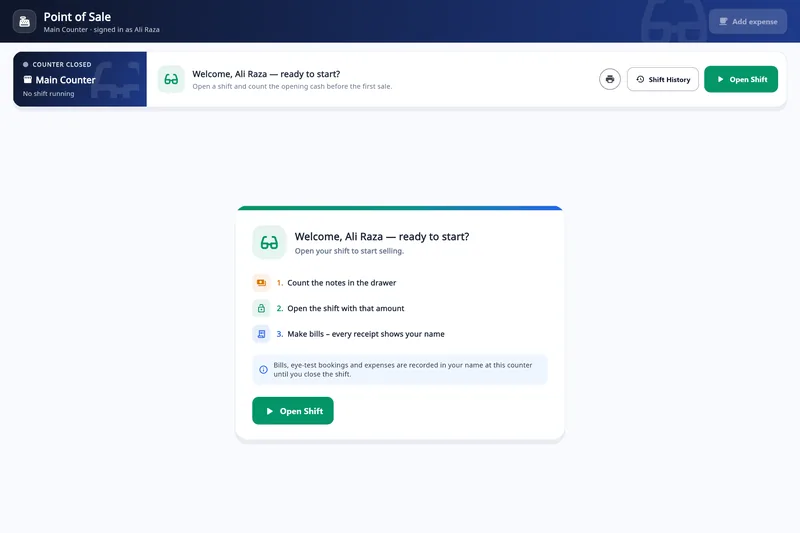
- The printer button opens Receipt & printer.
Sales & POS before a shift is opened. The printer button is also there while a shift runs. 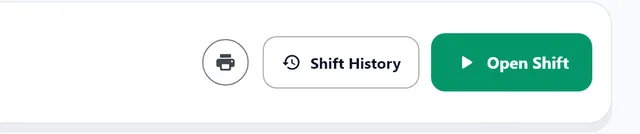
Detail: the printer button, left of Shift History.
5. Print a sale receipt
After FINALIZE SALE, answer Yes, Print when Print Receipt? appears. The receipt goes straight to the saved printer, without the Windows print dialog. To print it again later, open the sale's receipt in the sales list and click Print.
Prescription and repair receipts
These print from the Receipt Generator, which opens after you save a customer's order and when you open a record from Search Customer. Choose the Paper Size first: 57mm Thermal Roll, 80mm Thermal Roll, A4 or A5. It starts at 80 mm every time.
PRINT RECEIPT opens the Windows print dialog; choose the thermal printer there for a roll size, or an office printer for A4 and A5. SAVE PDF keeps a copy, and WhatsApp sends the receipt to the customer.
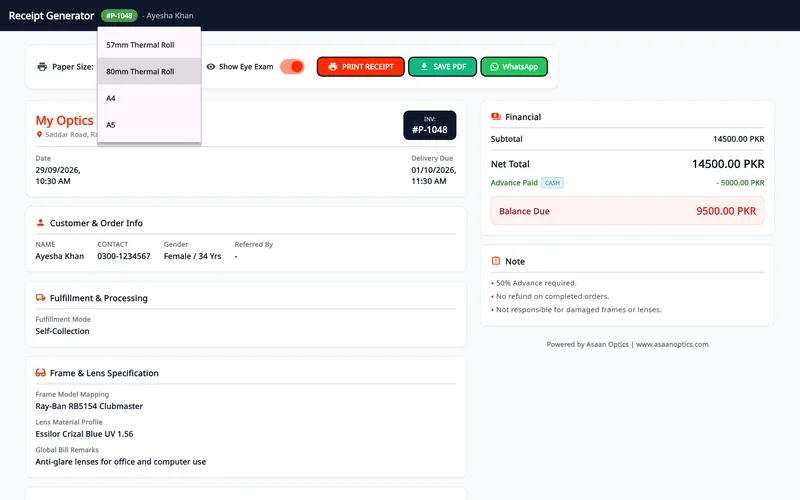
- Paper Size: two thermal roll widths, A4 and A5
- PRINT RECEIPT opens the Windows print dialog
Watch: choose the paper size and print a receipt
Video, 1 min 59 s
Every saved order in Asaan Optics has a receipt, and this video shows what to do with it. It covers optical shop receipt printing from start to finish: picking the paper size for a thermal receipt roll or an A4 or A5 office printer, adding or hiding the Eye Exam table, and then printing, saving a PDF or opening a WhatsApp message that tells the customer the order is ready.
Chapters
- 00:00A receipt for every order
- 00:10Open the receipt
- 00:20Paper size and Eye Exam table
- 01:07Print, save PDF or WhatsApp
What the video covers
- Opening the Receipt Generator from Search Customer with the eye button
- The four paper sizes: 57 mm roll, 80 mm roll, A4 and A5, and which printer each suits
- Why to check the size before every print: each receipt opens on the 80 mm roll
- Turning Show Eye Exam on for the prescription table or off for a plain bill
- What Print Receipt and Save PDF each do
- What the WhatsApp button sends: a text with the serial number, total, advance and balance, not the PDF
Transcript
Print a receipt, save it as a PDF, or tell the customer the order is ready. Every saved order has a receipt. You open it from Search Customer.
Open Search Customer. Click the eye on the row of the order. This opens the Receipt Generator.
First, the paper size. Click it to see the choices. There are four. A fifty seven millimetre roll, an eighty millimetre roll, A4 and A5. Choose A4 or A5 for an office printer. For a receipt printer, choose the roll it takes. This choice matters. The screen stays the same. The paper size sets the layout of the print and the PDF. A word of caution. The size is not remembered. Every receipt opens on the eighty millimetre roll, so check it before you print.
Show Eye Exam adds the prescription table to the receipt. Turn it off for a plain bill.
Now the three buttons. Print Receipt opens the Windows print window, where you choose the printer. Save PDF asks where to keep the file, then opens it. WhatsApp opens a chat with a message already written: the serial number, the total, the advance and the balance. It sends text only, not the PDF. One more thing. The message says the order is ready for pickup, so use this button only when it is. Check the number first. The receipt is ready. Print it, save it as a PDF, or send the message. That is all. Check the paper size first, then print, save or send.
Shift reports: X and Z
In Close shift, Print X-report prints the shift so far without closing it. Confirm & close shift prints the Z report. Both open the Windows print dialog and use the same Paper width as sale receipts.
After the shift is closed you can switch the width between 58 mm and 80 mm and use Reprint Z (duplicate).
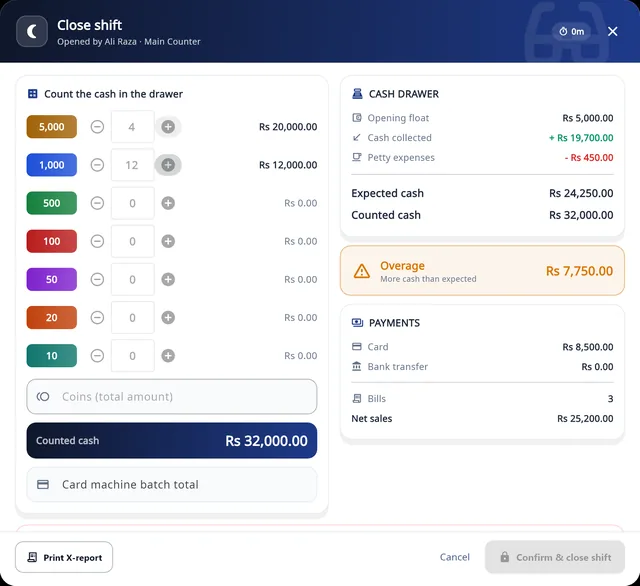
- Print X-report: a mid-shift report; nothing is reset
Printer and paper settings belong to the PC they are made on. A shop with two counters sets each PC up once, with its own printer.
Barcode labels
Frame and product labels need a label printer: labels come on a roll with gaps between them, which a receipt printer cannot handle. Asaan Optics has seven preset sizes, or you enter your own width and height in millimetres.
- 38 × 25 mm
- 35 × 25 mm
- 35 × 15 mm
- 40 × 20 mm
- 50 × 20 mm
- 50 × 25 mm
- 70 × 12 mm
1. Install the label printer in Windows
Install its driver and set the label size in Printing preferences to the labels you have loaded.
2. Open the item in Stock Control
In Stock Control, find the frame, lens, contact lens or product and click the Barcode button on its row.
3. Choose the size and what to print
Pick the Label Size that matches your labels, or enter the width and height. Tick Print Name and Print Price if you want them on the label, and set Print Quantity.
4. Print
Click Print Labels and choose the label printer in the Windows print dialog. Save PDF makes a file you can check first.
Each label is sent as one page of exactly the chosen size, with no margins, and a Code 128 barcode. If the driver's label size differs, the print lands across two labels or drifts along the roll.
Android: print receipts from the phone
The Android app prints through Android's print dialog and has no printer screen of its own. A Bluetooth thermal printer shows up in that dialog only through a print service app that supports it.
1. Install a print service
Install the print service app for your printer from Google Play. Many printer makers publish one; the printer's manual or box usually names it.
2. Connect the printer
Turn the service on under Printing in Android settings (the path differs by phone). Pair a Bluetooth printer in the phone's Bluetooth settings if the service asks you to.
3. Open the receipt
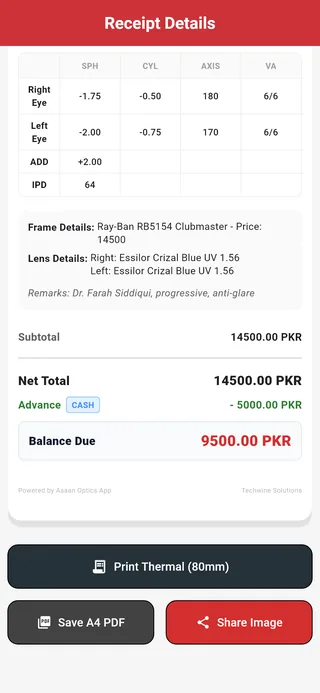
Find the customer in Search Patient, open the record and, in Receipt Details, tap Print Thermal (80mm).
4. Print from the dialog
Select your printer at the top of Android's print dialog, check the paper size, and print.
The Android app prints thermal receipts on 80 mm paper only. Save A4 PDF opens the same dialog with an A4 page, and Share Image sends a picture of the receipt instead. Repair receipts print on an A4 page with PRINT RECEIPT.
There is no iPhone or iPad app, so printing from iOS is not possible.
Troubleshooting
Start with a Windows test page (step 2 above). If Windows cannot print either, the fix is in the printer, the cable or the driver, not in Asaan Optics.
The paper comes out blank. What is wrong?
Thermal paper darkens on one coated side only. Turn the roll over so that side faces the print head; a fingernail scratch leaves a dark mark on the coated side. Ordinary paper rolls do not print on a thermal printer at all.
Why is the text cut off, or the receipt narrow with wide margins?
The paper width is set differently in the printer driver and in Asaan Optics. Set the same width, 80 or 58 mm, in the driver's Printing preferences and in Asaan Optics (Paper in Receipt & printer, or Paper Size in the Receipt Generator), then print a test.
Nothing prints from Asaan Optics. Where do I start?
Print a Windows test page. If it fails, check the power, paper, cable or Bluetooth pairing, and whether the printer shows as offline or paused in Printers & scanners. If the test page prints, open Receipt & printer in Sales & POS, choose the printer again and click Test print.
Why does the Windows print dialog open for every sale?
Receipt printer is set to “Ask every time (Windows print dialog)”, or the saved printer could not be reached, in which case Asaan Optics opens the dialog so the receipt is not lost. Choose the printer in Receipt & printer and click Save.
My printer is not in the Receipt printer list.
The list shows the printers installed in Windows on this PC. Install the printer's driver, check that it appears in Printers & scanners, then open Receipt & printer again. “No printers found on this PC” means Windows has no printer installed.
The Bluetooth printer does not appear in Android's print dialog.
Android needs a print service app that supports the printer. Install it from Google Play, turn it on under Printing in Android settings, pair the printer, then tap Print Thermal (80mm) again.
The printer does not cut, or feeds a long blank strip after the receipt.
Asaan Optics sends each receipt as a page, with no separate cut or cash-drawer command. The cut and the feed after the receipt are settings of the printer driver on Windows, or of the print service on Android.
Labels print across two labels or drift along the roll.
The label size in the printer driver does not match the labels loaded, or the size chosen in Asaan Optics. Set the same size in both, and calibrate the printer's label sensor as its manual describes.
Choosing a thermal printer
Asaan Optics works with any printer that Windows or Android can print to, so the choice is about how and where you will print. Check these before you buy:
- Roll width
- 80 mm for most counters. 58 mm printers are smaller and suit portable use, but the Android app prints 80 mm receipts only.
- Connection
- USB for a printer that stays next to the counter PC. Bluetooth if you want to print from the phone. Some printers have both.
- Windows driver
- Make sure the maker offers a driver for your version of Windows. Without one, Windows cannot print to it, and neither can Asaan Optics.
- Android print service
- For printing from the phone, check that a print service app on Google Play supports that model.
- Auto-cutter
- Optional. A cutter saves tearing each receipt by hand; the cut is set in the driver.
- Labels
- Barcode labels need a separate label printer. A receipt printer prints on continuous paper, not on individual labels.
Still not printing?
Send us the printer model, whether it is connected by USB or Bluetooth, whether you print from the PC or the phone, and a photo of what comes out. We reply on WhatsApp.
Where to go next
- Asaan Optics DesktopThe Windows software: prescriptions, stock, sales and staff.
- Asaan Optics mobile appAndroid: Scan Prescription, receipts, repairs and quick sales.
- All guides and articlesReading prescriptions, choosing optical shop software and more.
- Free optical toolsTransposition and other optical calculators.