What actually changes when the register goes
A paper register does three jobs in an optical shop: it holds each customer's prescription and order, it is the cash book, and it is the list of who still owes money. Moving to software means moving those three jobs, one at a time, without losing a day of trading. Stock is a fourth job that most registers never did properly, and it can wait until the first three are settled.
This guide is about the move itself: what to record, what to do with years of old customer cards, how to get staff to enter orders, and what a realistic first week looks like. It is written for a single shop in Pakistan with one or two people at the counter, but the order of work is the same for a larger one.
Step 1: Decide what every order must contain
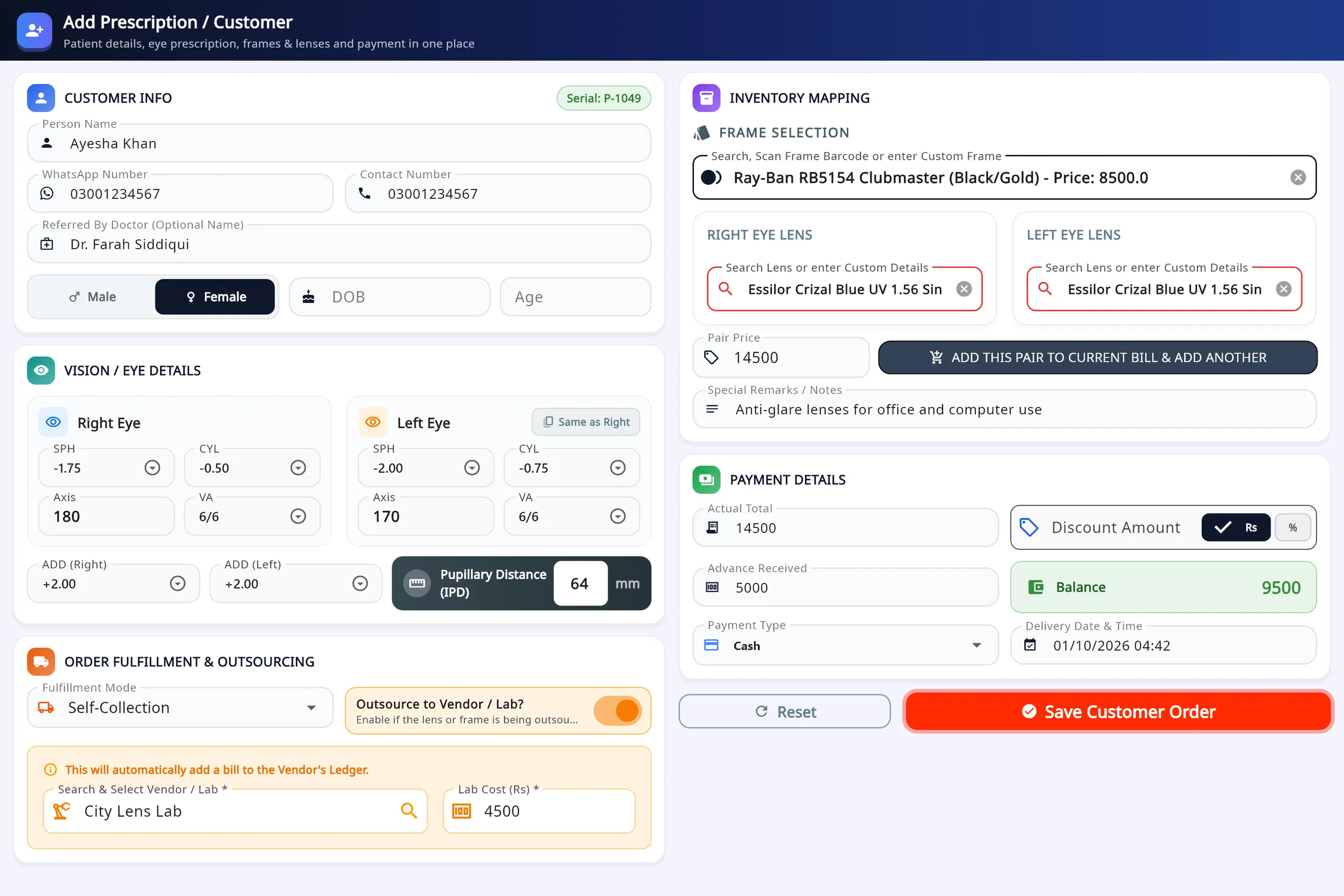
Before installing anything, write down the fields your shop will always fill in. If this list is agreed first, the software becomes a form to complete rather than a new thing to learn. A workable minimum for a spectacle order:
| Group | What to record | Why it matters later |
|---|---|---|
| Customer | Name and mobile number (the WhatsApp number if it is different) | It is how you find the record again and how the receipt reaches the customer |
| Prescription | SPH, CYL and AXIS for each eye, ADD, PD, and who wrote it | A repeat order or a remake starts from the numbers exactly as written |
| Order | Frame, lens type, any lab that is making the lenses | Settles disputes about what was ordered |
| Money | Total, discount, advance, balance, payment method | This replaces the cash book and the udhaar list |
| Dates | Order date and promised delivery date | Shows what is due today and what is late |
Two rules save a lot of trouble. Enter the prescription in the form it was written, plus cylinder or minus cylinder, and convert it only when the lab needs it. And never leave the mobile number blank "to add later": a record without a number is almost as hard to find as a page in a register.
If the abbreviations on the slip are unfamiliar to newer staff, the guide to reading an eye prescription explains each box.
Step 2: Migrate old customer cards in three piles, not all at once
The most common reason a shop gives up on software is an attempt to type in ten years of registers during the first week. It is not necessary. Sort the old records into three piles and treat each differently.
- Open business: enter before day one. Every order that is not yet delivered and every customer who still owes a balance. This is usually a few dozen records, and it is the only part of the old register the shop needs every day.
- Returning customers: enter when they walk in. When a customer from an earlier year comes back, find the old card, enter that prescription as a past order, then take the new one. The record builds itself around the people who actually return.
- Everything else: keep the paper. Label the old registers by year and store them dry. They remain your record for those years. Nothing is lost by leaving them on paper.
When entering old cards, copy what is written and nothing more. If an axis or a sign is unreadable, leave a remark saying so rather than guessing; a guessed number looks exactly as trustworthy on screen as a real one.
In the Asaan Optics Android app, Scan Prescription photographs a slip and fills SPH, CYL, AXIS and ADD from the picture. It helps with clearly printed slips, but handwriting and faint print can be misread, so every value still has to be checked against the paper before saving.
Step 3: Put stock in after the counter is working
Stock is the heaviest part of the move, so do it second and do it by category. Count one category on a quiet day, enter it, and start selling that category from the software before counting the next.
- Frames first. Record brand, model number, colour and size, the cost price, the selling price and a minimum quantity. Frames are individual items and are where most unexplained losses happen.
- Stock lenses next. Group them by type and power. Lenses ordered from a lab for a specific customer are not stock; record them on the order instead.
- Contact lenses and accessories last. Include the expiry date for contact lenses and solutions.
In Asaan Optics, stock is kept in the Windows desktop software, not in the phone app. Items can be added one at a time or brought in from an .xlsx sheet with Bulk Import, and each item can have a printed barcode label so it is scanned at the counter instead of typed. The steps are on the desktop software page; for the counting method itself, see how to manage frame inventory.
From the day a category is entered, every sale of it must go through the software, including the frame a regular customer takes "and pays tomorrow". One week of sales made outside the system and the counts are wrong again.
Step 4: Replace the handwritten slip
The receipt is the part of the change the customer sees. Decide on one format and use it for every order:
- A printed thermal receipt if you have a receipt printer at the counter. Check the roll width before buying paper in bulk. The thermal printer guide covers the driver, paper width and test print.
- A receipt sent on WhatsApp if most of your customers prefer it or you have no printer yet. Ask the customer first, and use a number that belongs to the shop rather than a personal one.
- An A4 or A5 page for customers who need a formal bill for an employer or a medical claim.
Whichever you choose, the receipt should show the order number, the amount paid, the balance and the delivery date. Those four lines answer most of the calls a shop receives after a sale.
Step 5: Change the habits at the counter
Software fails in shops because of habits, rarely because of the program. Four rules are enough.
- No order leaves the counter without an entry. The record is made while the customer is standing there, not from memory at closing time.
- Each person signs in as themselves. When every sale carries a name, mistakes can be traced and corrected without argument. In Asaan Optics Desktop the owner gives each staff member a login and chooses which screens they can open.
- The balance is collected through the record. When a customer pays the remaining amount, the payment is entered on that order, so the list of unpaid balances is always current.
- The cash is counted against the day's total. At closing, compare the drawer with what the software says was collected, and write down any difference the same evening.
Run the paper register alongside the software for the first week only, and only as a total: one line per day with the number of orders and the cash collected. If the two agree for six days, put the register away. Keeping both going for months doubles the work and teaches staff that the software is optional.
Step 6: Backup, power cuts and internet outages
Ask three questions of any system before trusting it with the shop's records: where are the records kept, what happens when the internet drops, and how do I get a copy out?
For Asaan Optics the answers are these. Records are kept on your shop account online, so a broken PC or a lost phone does not take the records with it; you sign in on the replacement device. When the connection drops, the desktop software saves new sales and orders in a queue on the PC and sends them when you press Pending Sync on the dashboard, which is a manual step. The Android app saves offline entries on the phone and sends them when it reconnects. An internet connection is needed to sign in.
Whatever software you use, add two habits of your own:
- Once a month, export the customer list and the sales list to Excel or PDF and keep the files somewhere other than the shop PC.
- After any outage, check that nothing is still waiting to be sent before you close for the day.
A small UPS for the counter PC and the printer is worth having where load-shedding is frequent. It gives enough time to finish the bill in hand and shut down properly.
A realistic first-week plan
| Day | Work | Done when |
|---|---|---|
| Before day 1 | Set up the shop name, address, currency and receipt format. Enter all undelivered orders and unpaid balances. | A test receipt looks right and the balance list matches the register |
| Day 1 and 2 | Enter every new order in the software. Keep the one-line daily total on paper. | Closing cash matches the software total |
| Day 3 | Add staff logins. Start recording repairs and expenses as well. | Every entry of the day carries a staff name |
| Day 4 and 5 | Count and enter frames. Print labels if you are using barcodes. | A frame sold at the counter reduces the count |
| Day 6 | Enter stock lenses, then contact lenses and accessories. | Low-stock items show up correctly |
| Day 7 | Compare the week's paper totals with the software. Export a copy. Store the old registers. | The two totals agree, or each difference is explained |
If the week is busy, stretch the stock days rather than the counter days. Orders and money have to be right from day one; stock can take a fortnight.
Common mistakes, and where to start
- Typing in old registers before taking a single new order in the system.
- Letting one person hold the only login, so nothing is entered when they are away.
- Entering stock once and then selling part of it outside the software.
- Assuming records are backed up without ever exporting a copy or testing a sign-in on a second device.
- Buying a printer, scanner and labels on day one. Start with the counter; add hardware when you know what you need.
Asaan Optics is our own software, so weigh this as you would any supplier's advice: the method above works with any optical shop system that records prescriptions, payments and stock. If you want to try it with ours, the Windows desktop software is free for its first 30 days and the Android app can be used without a plan for 30 entries every 30 days; the plans page sets out what each one includes.
Questions
- Do I have to type in all my old registers before I start?
- No. Enter only the orders that are not yet delivered and the customers who still owe a balance. Add older customers when they come back, and keep the remaining registers on paper, labelled by year.
- Should stock or customer orders go into the software first?
- Orders and payments first. They replace the register and the cash book from day one. Stock is the heaviest part of the move and is best added afterwards, one category at a time, starting with frames.
- How long should I keep the paper register running alongside the software?
- About a week, and only as a one-line daily total of orders and cash collected. If the paper total and the software total agree for six days, put the register away. Running both for months doubles the work.
- What happens to billing if the internet goes down?
- In Asaan Optics the desktop software saves new sales and orders in a queue on the PC, and you send them with the Pending Sync button once the connection is back. The Android app saves offline entries on the phone and sends them when it reconnects. An internet connection is needed to sign in.
- Can I manage stock from the phone app?
- Not in Asaan Optics. Frames, lenses and other stock are managed in the Windows desktop software. The Android app handles prescriptions, repairs and sales, and can sell items from the stock kept on the desktop.
More from the blog
- Best optical shop software in Pakistan: what to compare
- Asaan Optics Features & Product Updates
- How to Install & Use Asaan Optics Desktop App
- Offline-first optical shop software and billing app: what to check and how it works
Reference guides and free calculators: Resources and optical tools.