Why optical inventory is harder than ordinary shop stock
An optical shop holds a small number of expensive items in a very large number of variations. One frame model can come in four colours and three sizes. A single lens type exists in dozens of powers. Contact lenses add base curve, diameter and an expiry date. A paper register that says "1 black frame sold" cannot tell you which of those pieces left the shop.
The result is familiar: a customer asks for a model you believe is in the drawer, nobody can find it, and the register cannot say whether it was sold, misplaced or never delivered. The method below removes that doubt. It is ordinary retail practice adapted to frames and lenses, and it works with any system that keeps one record per item, including a spreadsheet.
Watch: how stock moves in Asaan Optics
Video, 1 min 28 s
Before you enter a single frame, it helps to know how optical inventory software thinks about stock. This explainer follows one frame through Asaan Optics, from the day it arrives to the day you reorder it: added with its prices and quantity, given a barcode, sold, counted down by itself and flagged when it reaches your minimum level.
Chapters
- 00:00Four kinds of stock
- 00:18One frame, delivery to reorder
- 00:40Barcodes and labels
- 00:55What the stock figures show
- 01:07Three habits for accurate stock
What the video covers
- The four kinds of stock, each with its own list: frames, standard lenses, contact lenses and accessories
- The life of one frame: add to stock, barcode and label, sale, quantity down by itself, low stock, restock with Add Quantity
- How an item gets its barcode number on saving, and how scanning the label finds it in Add Customer and in Sales and POS
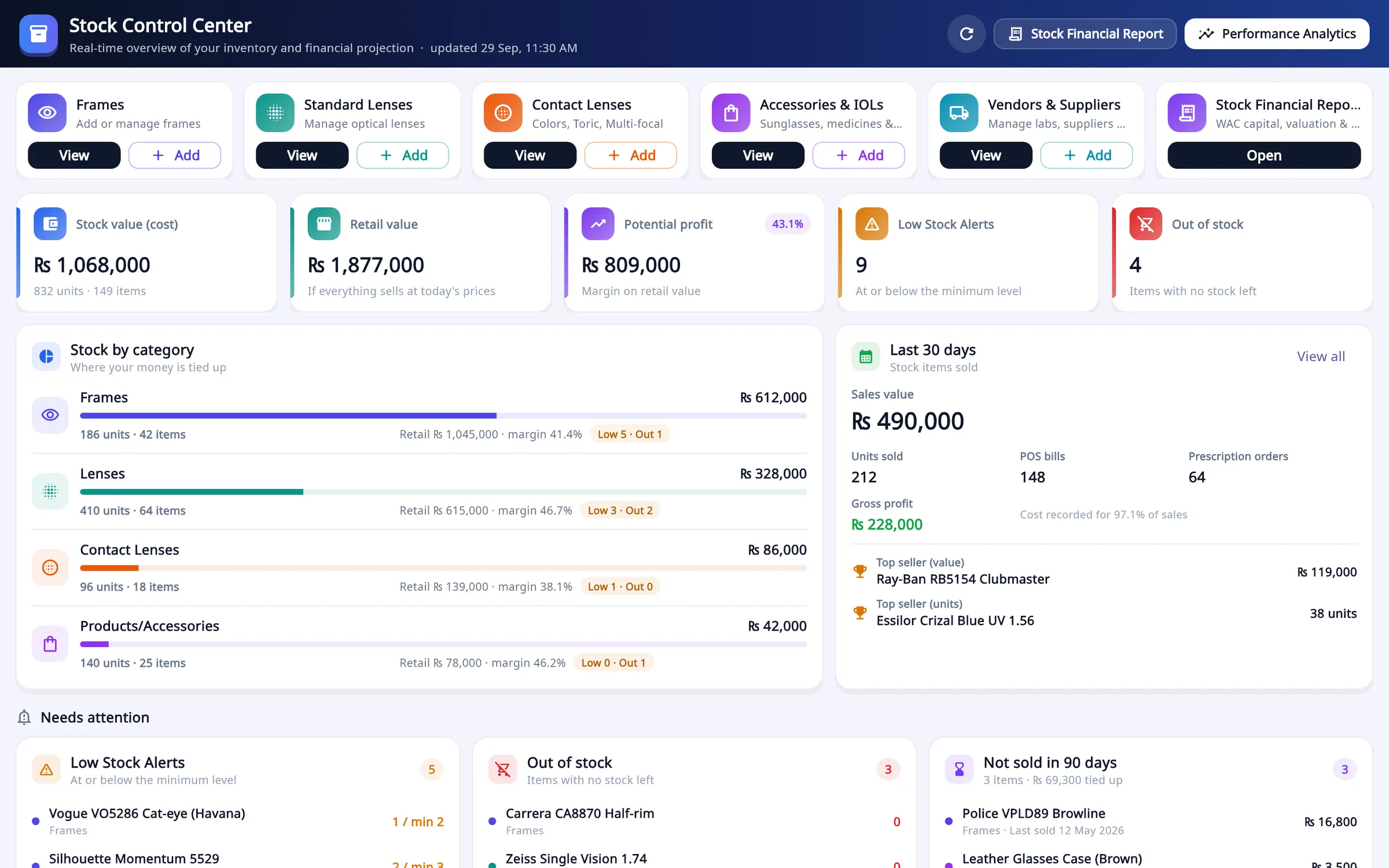
- What the Stock Control Center adds up: value at cost and at retail price, low and out of stock items, items not sold in ninety days
- Three habits: enter the real purchase price, set a minimum level for every item, add deliveries the same day
Transcript
Understand how stock moves in Asaan Optics, from the day an item arrives to the day you reorder it.
Stock Control holds four kinds of stock: frames, standard lenses, contact lenses, and accessories. Each kind has its own list, with the price and the quantity of every item.
Follow one frame. You add it to stock with its prices and quantity. The app gives it a barcode, and you can print a label. When the frame is sold, in a customer order or at the counter, its quantity goes down by itself. When the quantity reaches the minimum level you set, the app marks it as low stock, and you restock it with Add Quantity.
Every item gets its barcode number when you save it. From the list you open the Barcode Generator, choose the label size, and print. After that, scanning the label finds the item in Add Customer and in Sales and POS.
The Stock Control Center adds everything up. You see the value of your stock at cost and at retail price, the items that are low or out of stock, and the items that have not sold in ninety days.
Three habits keep the figures right. Enter the real purchase price, because the stock value and the profit are worked out from it. Set a minimum level for every item. And when a delivery arrives, add the quantity the same day.
Frames: one stock record for each model, colour and size
The rule that fixes most frame stock problems is simple: every combination of model, colour and size is its own stock item, with its own quantity and its own code. This code is the SKU (stock keeping unit).
What to record for each frame
- Brand and model number, exactly as printed inside the temple.
- Colour, using the maker's colour code where there is one. "Brown" is not enough when a model has three browns.
- Size. The marking on the temple or bridge, for example 52□18 140, means a 52 mm lens width, an 18 mm bridge and a 140 mm temple.
- Frame type and shape (full rim, half rim, rimless; round, square and so on), so you can answer "what do you have in a round metal frame?" without opening every tray.
- Cost price and selling price. Without the cost you cannot see profit or the value of what is sitting on the shelf.
- Minimum stock, covered in the section on reorder levels.
A SKU pattern that staff can read
If the supplier does not give you a code, build one from the parts you already recorded: brand, model, colour and eye size. For example TTN-2041-BRN-52. A readable code lets staff confirm they picked the right piece before the scanner does.
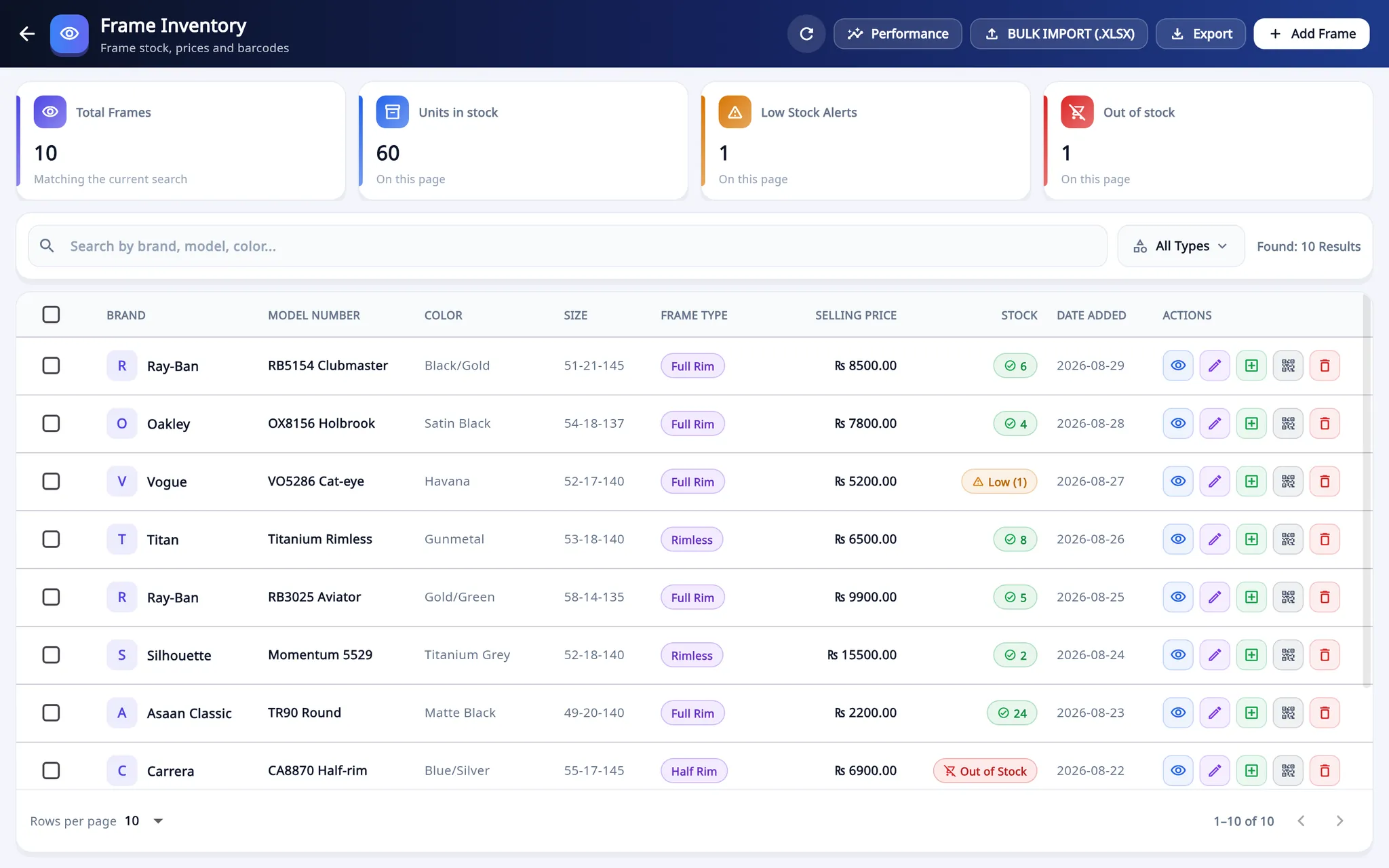
In the Asaan Optics desktop software, the Frames list in Stock Control holds these fields for each item: brand, model number, colour, size, frame type, shape, gender, minimum stock, barcode and price. There is no automatic variant generator: you add each colour and size as its own item, or prepare them in a spreadsheet and bring them in with Bulk Import (.xlsx).
Watch: add a frame to stock
Video, 1 min 40 s
A frame has to be in your stock before you can sell it on an order. This video shows how optical frame inventory is built up in Asaan Optics, one frame at a time: brand, model number, colour, type, shape and size, then the purchase price, the selling price, the quantity and the minimum stock level.
Chapters
- 00:00Why frames go in first
- 00:12Open your frame list
- 00:29Brand, colour, shape and size
- 00:43Purchase and selling price
- 00:59Quantity and minimum level
- 01:13Save and get a barcode
What the video covers
- Opening Stock Control and the Frame Inventory list, with green, amber and red stock colours
- Adding a frame with brand, model number, colour, frame type, shape and size
- Entering the purchase price and the selling price that stock value and profit are worked out from
- Setting the quantity and a minimum stock level so the frame is flagged as low in time
- Saving the frame, which gives it its own barcode and makes it available in customer orders
Transcript
Add a new frame to your stock, with its prices and its stock level, in about a minute. This is the dashboard of a demo shop. Every frame you sell should be in your stock first.
Stock Control shows what your stock is worth, and what is running low. Frames are the first card. Click View. Your frames are listed newest first. Green means in stock, amber means low, and red means out of stock.
Click Add Frame. Type the brand and the model number, then pick the colour. Add the frame type, the shape, and the size printed inside the temple.
Now the prices. Type what you paid for the frame, and the price you sell it for. Take care with these two. Your stock value and your profit are worked out from them, and the app will not save a selling price that is lower than the purchase price.
Type how many you have, and the minimum stock level. Do not skip the minimum stock level. When the quantity falls to that number, the frame is marked as low stock, so you can reorder in time.
Click Add Frame to save. The app gives the frame its own barcode. The new frame is at the top of the list, and it is ready to be chosen in a customer order. To print labels for it, use the barcode button on its row. The barcode labels tutorial shows how.
Lens stock: keep it by type and power
Lenses fall into two groups, and only one of them is stock.
- Stock lenses are finished lenses you keep in the shop, usually the single vision powers you dispense every week. These are inventory and need a record.
- Lab orders are lenses made for one prescription: higher powers, progressives, special coatings. These are not stock. They are a cost against one customer's order and a bill you owe the lab.
For stock lenses, the record is the lens type (material, index, coating) plus the power. Arrange the physical drawer the same way as the list: one lens type per drawer, sphere running in one direction and cylinder in the other. Then a gap in the drawer is visible at a glance, and a count takes minutes.
Count lenses as single pieces, not pairs. Most orders need two different powers, so a "pair" does not describe what is in the drawer.
In the desktop software, Standard Lenses carry type, power, stock and price. On the Add Customer form the right and left lens are picked from stock separately, and each one comes off the count when the order is saved. When a lab makes the lenses instead, switching on Outsource to Vendor / Lab and entering the lab cost adds a bill to that vendor's ledger, so lab work stays out of your stock figures and shows up where it belongs: in what you owe.
Contact lenses: base curve, diameter, power and expiry
A contact lens box is identified by more than brand and power. Two boxes of the same brand and power with different base curves are different products. Record brand, power, base curve, diameter and the expiry date printed on the box.
Three habits keep contact lens stock clean:
- Sell the earliest expiry first. Put new deliveries behind the boxes already on the shelf.
- Check expiry dates on a fixed day each month and pull anything close to its date to the front or return it to the supplier while it can still be returned.
- Keep less stock of slow powers. A box that expires on the shelf is a full loss, so order unusual powers when a customer needs them.
The desktop software keeps contact lenses in their own list with base curve, diameter and expiry date alongside stock and price.
Reorder levels: decide the minimum before you run out
A reorder level is the quantity at which you place the next order. Setting it once per item replaces the daily question "are we low on anything?" with a list.
A simple way to work it out:
- How many do you sell in a normal week?
- How many weeks does the supplier take to deliver?
- Multiply the two, then add about one week of sales as a safety margin.
Example: a lens power that sells 3 pieces a week, from a supplier who delivers in 2 weeks, needs 3 × 2 = 6, plus 3 for safety. Set the minimum to 9.
Frames work differently because most shops hold one or two pieces of each model and colour. Use a minimum of 1 for the models you always want on display, and 0 for one-off pieces you do not intend to buy again. Review the numbers when a season changes or a supplier becomes slower.
In the desktop software each item has a minimum stock field. When the quantity reaches that level the item appears under Low Stock Alerts, and the Stock Control Center groups low stock and out of stock items under "Needs attention".
Watch: low stock alerts and restocking a frame
Video, 1 min 39 s
Running out of a popular frame costs a sale. This video shows how optical inventory low stock alerts work in Asaan Optics: where the low and out of stock items are listed, how to add a delivery to a frame's stock, and the minimum stock level that decides when an item is flagged.
Chapters
- 00:00What Stock Control shows
- 00:10See what is running low
- 00:23Open the frame list
- 00:35Add the delivery
- 00:58Check the minimum stock level
What the video covers
- Reading Low Stock Alerts and Out of stock on the Stock Control Center
- The Needs attention list, with each item's quantity beside its minimum
- What the colours in the frame list mean: amber for low, red for out of stock, green for in stock
- Add Quantity: type only what arrived and check the before and after preview
- Where the Minimum Stock Level is, and why a frame is low at or below that number
- Why a minimum of zero means the frame is never marked as low
Transcript
See which items are running low, and restock a frame when a delivery arrives. Stock Control shows what you need to reorder, before a frame runs out.
On the Stock Control Center, five items are low, and two are out of stock. Needs attention lists them. This Persol frame has two left, and its minimum is two.
Six Persol frames have arrived. Click the row to open the frame list. Amber marks a low frame. Red means out of stock.
On the Persol row, click Add Quantity. Type the number that arrived. The preview shows the stock before and after. Type only what arrived, not the new total. The app adds it to the current stock. Then click Add Stock. The pill turns green, and the figures above the list change.
Why was the frame flagged? Open Edit Frame Details. This is the minimum stock level. When the quantity is at or below this number, the app marks the frame as low. Do not leave it at zero. Then the app never marks the frame as low. Go back to the Stock Control Center. The Persol frame has left the low stock list. Low Stock Alerts is down from five to four. Check this page often, and reorder in time.
Also watch: Optical Lens Stock: How to Add Lenses by Power and Coating, How to Set Up Barcode Labels for Optical Frames and Lenses.
Barcode labels: let the scanner choose the item
Most stock errors are picking errors: the right sale recorded against the wrong colour or size. A barcode on every piece removes the choice from the person at the counter.
- Label every piece when it arrives, before it goes on display. An unlabelled frame on the shelf will be sold without being recorded sooner or later.
- Use a temple label for frames. A narrow label wrapped around the temple stays readable and does not hide the frame front.
- Print the selling price on the label if your shop shows prices, so the label does two jobs.
- Reprint damaged labels immediately. A label that will not scan is the moment staff start typing names again.
The desktop software prints a barcode label for any frame, lens or contact lens, in sizes from 38 × 25 mm frame labels to 70 × 12 mm temple labels, or a custom size to match your label roll. A USB scanner that types like a keyboard reads the label into the search field on Add Customer or Create New Sale. If you still need to set up a receipt printer, see the guide to connecting a thermal printer.
Stock counts and shrinkage
Shrinkage is the gap between what your records say you have and what is physically there. In an optical shop it usually comes from four places: a sale that was not recorded during a rush, a frame put back in the wrong tray, a delivery entered with the wrong quantity, and theft. You cannot tell which one it was unless you count often enough to notice the gap while it is recent.
Count a little every week
A full annual count finds a missing frame months after anyone can remember it. A rolling count is easier and more useful:
- Divide the shop into sections: each display tray, each brand drawer, each lens type, the contact lens shelf.
- Count one or two sections every week, at a quiet time, so that everything is counted every two to three months.
- Count from a printed list that shows the item and its code but not the expected quantity. People who can see the expected number tend to find it.
- Compare the count with the record. Recount any difference once before changing anything.
- Write down each correction with the date and the reason, then correct the record.
Count the expensive and fast-selling items more often than the rest. A repeated difference in the same tray or on the same shift is a pattern worth looking into.
Stop the gaps at the source
- Every item that leaves the shop goes through a bill, including gifts, staff purchases and replacements under warranty.
- Check each delivery against the supplier's invoice before the pieces go on display.
- Give each person their own login, so a sale can be traced to who made it.
In the desktop software, stock goes down when an item is picked on a customer order or sold through Create New Sale, so the list follows the shelf as long as every sale is billed. The item lists can be exported to a spreadsheet to use as a count sheet. Each staff member can have a separate login, and the owner decides which screens that login may open.
Dead stock: find it early and decide
Dead stock is money on the shelf that is not coming back by itself. Frames date quickly, so a piece that has not sold in three months is unlikely to sell in the fourth without a change.
Once a month, list everything that has not sold for 90 days and choose one action per item:
- Move it. Put it at eye level or in the window for a month.
- Pair it. Offer it as the second pair or with a lens package.
- Mark it down to a price that still covers its cost.
- Return or exchange it if the supplier allows it.
- Stop reordering it. Set its minimum to 0 so it leaves the low stock list for good.
Look at the cost value of the dead stock, not only the number of pieces. Ten slow budget frames matter less than two slow premium ones.
The Stock Control Center lists items not sold in 90 days under "Needs attention". Product Performance Analytics shows, for each item, units sold, sales value, cost, profit, margin, stock left and the date it last sold, which is the information you need for the decision above. The Stock Financial Report gives unsold stock at cost and at retail for each category.
Where each step is done in Asaan Optics
| Practice | In the desktop software |
|---|---|
| One record per model, colour and size | Stock Control, Frames: add items one at a time or with Bulk Import (.xlsx) |
| Lens stock by type and power | Stock Control, Standard Lenses |
| Contact lenses with expiry | Stock Control, Contact Lenses: base curve, diameter, expiry date |
| Reorder levels | Minimum stock on each item; Low Stock Alerts |
| Barcode labels | Label button on each item; 38 × 25 mm to 70 × 12 mm or custom |
| Stock follows sales | Add Customer and Create New Sale take items off stock |
| Dead stock | "Not sold in 90 days" in the Stock Control Center; Product Performance Analytics |
| Lab work kept out of stock | Outsource to Vendor / Lab adds a bill to the vendor's ledger |
Three limits are worth knowing before you plan around the software. Stock is managed in the Windows desktop program only; the Android app sells from that stock but does not edit it. Stock is one list per shop account, so the program does not keep separate stock for each branch or move stock between branches. And a sale made while a device is offline reaches the shared stock list only after it has been sent, as explained in how offline billing works.
The method on this page does not depend on any one product. If you want to try it with the screens described here, the Asaan Optics desktop software is free for its first 30 days.
Questions
- How should I record frames that come in several colours and sizes?
- Give every model, colour and size its own stock record with its own quantity and barcode. A frame that exists in three colours and two sizes is six records, not one, because a customer who wants the brown 52 cannot be served by the black 54.
- How do I set a reorder level for a frame or lens?
- Multiply the units you sell in a week by the number of weeks the supplier takes to deliver, then add a small safety margin. An item that sells 3 a week with a 2 week delivery time needs a minimum of about 6 to 9. For frames kept as single pieces, use 1 for models you want to keep on display and 0 for one-off pieces.
- How often should an optical shop count its stock?
- Count a small section every week instead of the whole shop once a year. One tray, one brand or one lens power range a week takes a few minutes, covers the whole shop over a couple of months and shows a missing item while you can still find out what happened to it.
- What counts as dead stock in an optical shop?
- Stock that has not sold for a set period. The Asaan Optics desktop software uses 90 days and lists those items in the Stock Control Center. Review the list each month and decide for each item whether to move it, mark it down, return it to the supplier or stop reordering it.
- Can I manage stock from the Asaan Optics Android app?
- No. Frames, lenses, contact lenses, vendors and barcode labels are managed in the Windows desktop software. The Android app sells from that stock by scanning a barcode or picking an item, and each sale takes the item off the same stock list.
More from the blog
- Asaan Optics Features & Product Updates
- How to Install & Use Asaan Optics Desktop App
- Offline-first optical shop software and billing app: what to check and how it works
- Optical shop billing app and management software: how a bill is made in Asaan Optics
Reference guides and free calculators: Resources and optical tools.