
What it does
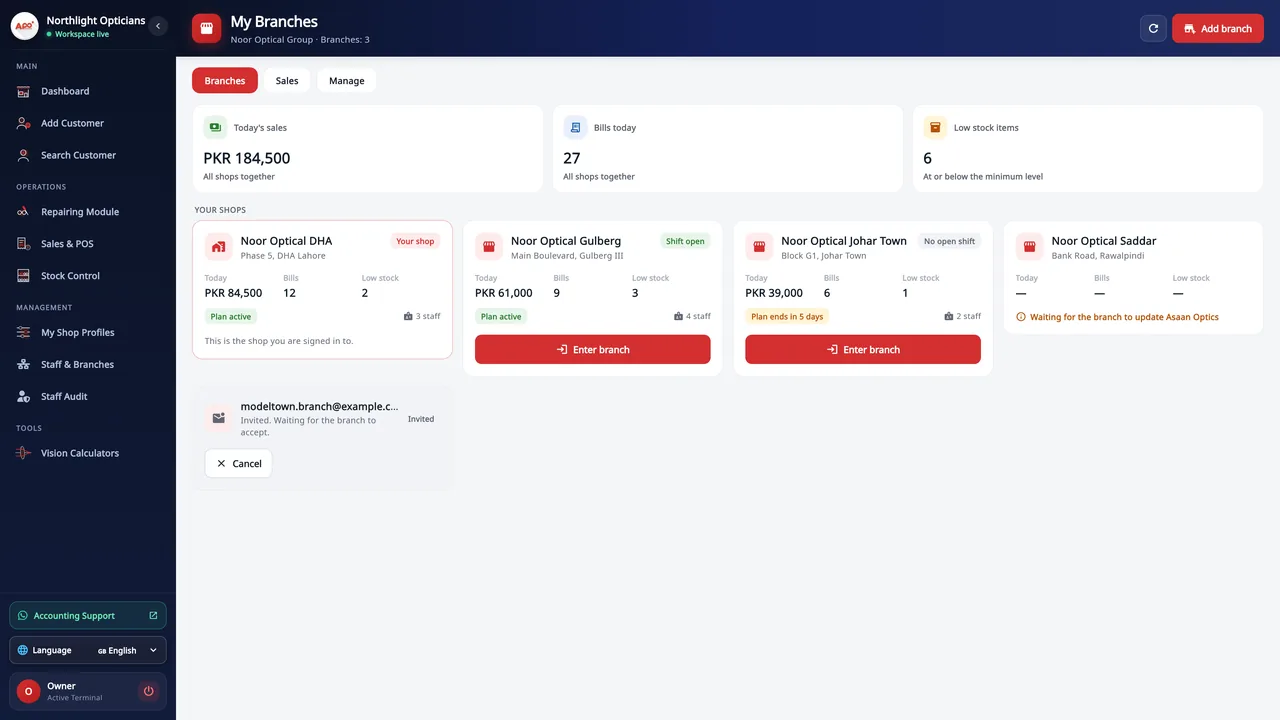
- Branches tab: one card per shop with today's sales, bills, low-stock items, whether a shift is open, the shop's plan and its staff count, and the totals of all shops together.
- Sales tab: today, yesterday, the last 7 days, this month or last month, each compared with the period before: money in, bills, average bill, expenses, sales by day, how customers paid, and the shops ranked.
- Enter branch: the app opens as that branch, with its customers, sales, stock and settings. A strip at the top says which branch you are in, with Back to my shop.
- Everything you do inside a branch is recorded under your name as main owner.
- Manage tab: invite a branch by its login email, rename or remove a branch, see who can do what, and the recent activity.
- Each branch keeps its own staff logins and permissions, its own stock and its own Asaan Optics plan. Amounts in different currencies are never added together.
- Stock stays with each branch; moving stock between branches is not part of My Branches.
How branches are joined
Make your shop the main shop
At sign-up choose a business with several branches, or later in Shop Settings, Organisation.
Invite a branch
In My Branches, Manage, enter the email the branch signs in with. You get a code to send to the branch.
The branch accepts
The branch owner enters the code in Shop Settings, Organisation, or chooses A branch at sign-up. Their staff and records stay as they are.
Confirm it
Press Confirm. The branch then appears in My Branches, ready to enter.
On Windows and on Android
- Windows desktop
- My Branches with the Branches, Sales and Manage tabs, and Enter branch. Branches are added and run from the desktop.
- Android app
- Each branch's phones keep working as before for that branch. My Branches itself is on the desktop only.
The plans are compared on the pricing page.
Questions
Is there an extra fee for branches?
No. Every shop pays its own Asaan Optics plan, as a single shop does, and there is no fee for linking branches or a limit on how many.
Can I see all branches' sales together?
Yes. The Branches tab adds up today's sales and bills of all shops, and the Sales tab compares periods and ranks the shops. Different currencies are shown separately.
What can I do inside a branch?
Everything the branch can do: customers, orders, sales, stock and settings. A strip at the top shows which branch you are in, and your actions are recorded as the main owner's.
Can a branch see my other branches?
No. A branch sees only its own shop. Only the main owner has My Branches, and a shop that is a branch cannot add branches of its own.
What does a branch need?
Its own Asaan Optics account. A branch can be confirmed once its PCs and phones run the current Asaan Optics version, so that its records are protected by signed sessions.
Can I move stock between branches?
No. Each branch keeps its own stock list. My Branches shows each branch's low stock so you can restock it.
Related
- Prescriptions and ordersBoth eyes, the frame, the lenses and the payment on one order, with several pairs on one bill.
- Stock and inventoryFrames, lenses, contact lenses and accessories with barcodes, minimum levels, stock value and vendor ledgers.
- Sales and POSCounter sales by barcode or search, discounts, payment types, expenses, receipts and exports.
- WhatsApp receiptsOne click opens the customer's WhatsApp chat with the receipt, ready-for-pickup or completed message already written.
- Barcode labelsPrint labels for frames, lenses and contact lenses and scan them at the counter.
- Staff shifts and auditShifts with a blind cash count, X and Z reports, manager PINs, staff logins and a staff audit.
- VAT, GST and ZATCA-format QRYour own tax label, rate and registration number, prices with or without tax, and a QR code on receipts.
- Repair jobsA serial number and a receipt for every repair, with the advance, the balance and the delivery date.
- AI SupportAsk how to do something in your own words and get the steps, with a button that opens the right screen.
- Eye examination (screening)Record a patient's eye examination on Android with distance and near vision, pinhole, colour and Amsler grid screening.
- Asaan Optics DesktopEvery screen of the Windows software.
- PricingPlans for the desktop, the phone or both.
- DownloadThe Windows installer and the Android app.
- Staff logins, shifts and auditGuide
- Plans: each branch pays its ownGuide