Before you start
Windows desktop only
Everything in this guide happens in the Windows desktop app. The Android app has no My Branches, no Enter branch and no Organisation screen: a phone always shows the shop account it is signed in with.
Every branch is its own shop account
A branch is an existing Asaan Optics shop with its own sign-in. If a branch has no account yet, it signs up first, like any shop.
Owner sign-in, not a staff login
My Branches appears in the menu only for the shop owner's account, once the shop heads a business. Staff never see My Branches.
No fee for branches
Every shop pays its own Asaan Optics plan. There is no extra fee for linking branches. Plans and prices.
A branch or another counter? Several PCs signed in to the same shop account share one stock list, and each counter keeps its own shifts: that is one shop with several counters, and needs no My Branches. A separate shop with its own stock is a branch.
Step 1: make your shop the main shop
- 1
At sign-up
The desktop sign-up asks how you work: One shop, Several branches (type your business name) or A branch (with an invitation code). The choice is applied after your first sign-in; an email account verifies its address first.
- 2
Or later, in My Shop Profiles
Open My Shop Profiles and go to the Organisation section. Under Run several branches?, type the Business name and click Make multi-branch.
- 3
My Branches appears
The app reloads and shows Your multi-branch business is ready. Open My Branches to add branches. The Organisation card now says that your shop heads the business.
A shop that is already a branch of another business cannot become a main shop (“This shop is a branch of …, so it cannot add branches of its own.”), and a shop can head only one business.
Step 2: invite a branch
- 1
Open My Branches, Manage
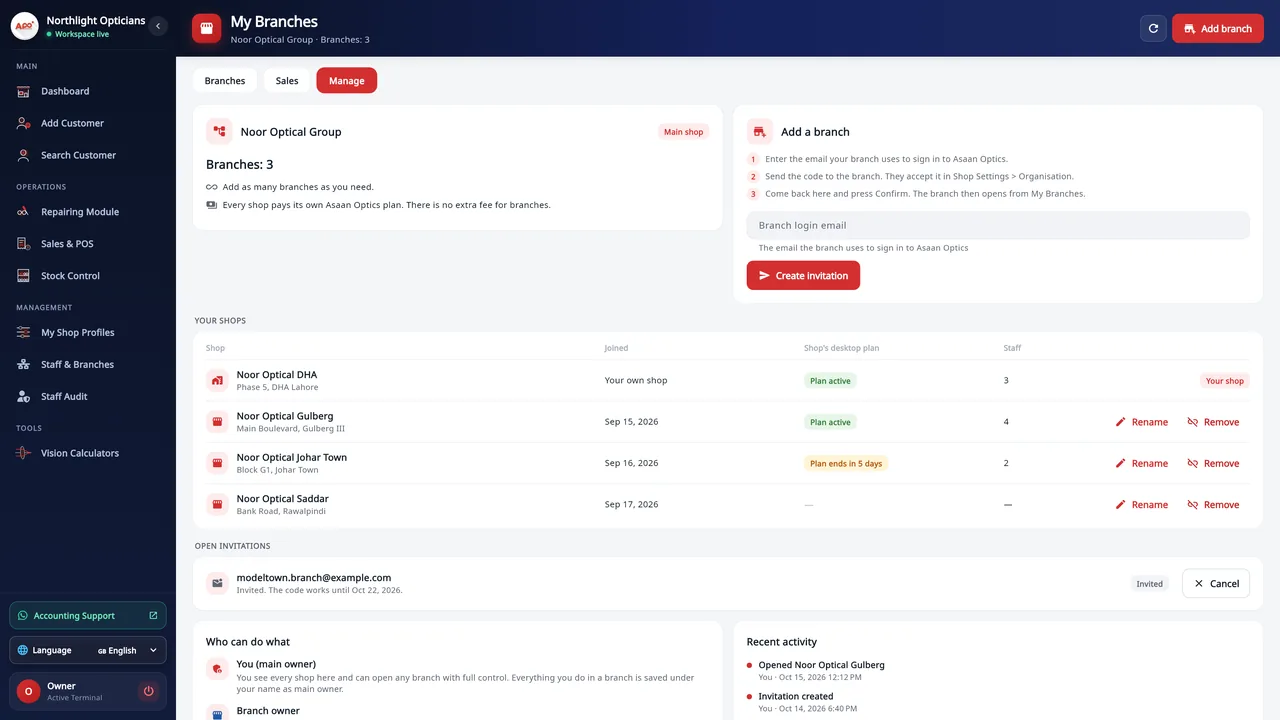
Click Add branch at the top of My Branches, or open the Manage tab. The Add a branch card lists the three steps.
- 2
Enter the branch's login email
Type the email the branch uses to sign in to Asaan Optics and click Create invitation.
- 3
Copy the code now
The code is shown only once, with a copy button. Send it to the branch owner, for example on WhatsApp. If it is lost, create a new invitation.
An invitation is valid for 7 days and appears under Open invitations until it is used or cancelled. You cannot invite your own account's email, and each email can have one open invitation at a time.
Step 3: the branch accepts
- 1
Open Organisation on the branch's PC
The branch owner signs in to the branch's own account on the Windows desktop and opens Shop Settings (My Shop Profiles), Organisation.
- 2
Find the invitation
An invitation sent to the shop's verified login email is already listed there. Otherwise paste the code under Have an invitation code? and click Check.
- 3
Read the warning, then accept
Before accepting, the app says what it means: the main owner “will be able to open your shop and see and change everything: sales, customers, stock and settings. Your staff and your data stay as they are.”
- 4
Sign in again to confirm it is you
A password account types its password again. A Google account must have signed in within the last 5 minutes; if not, the app asks you to sign out, sign in again with Google and accept within 5 minutes.
The card then says Accepted. Waiting for the owner to confirm. A shop that already belongs to a business, or heads one, cannot accept. At sign-up, a new shop can also choose A branch and enter the code there.
Step 4: confirm the branch
Back on the main shop's PC, the accepted invitation appears as a card on the Branches tab with Confirm this branch and Cancel.
- 1
Update the branch first
Confirm works only when every computer and phone of the branch runs the latest Asaan Optics and has signed in once. Otherwise the app shows This branch must update first: install the update on each of the branch's devices, sign in once on each, then press Confirm again.
- 2
Press Confirm this branch
The branch now opens from My Branches. From this point the branch's records are protected by signed sessions: its shop id alone can no longer open it.
Every day: the Branches and Sales tabs
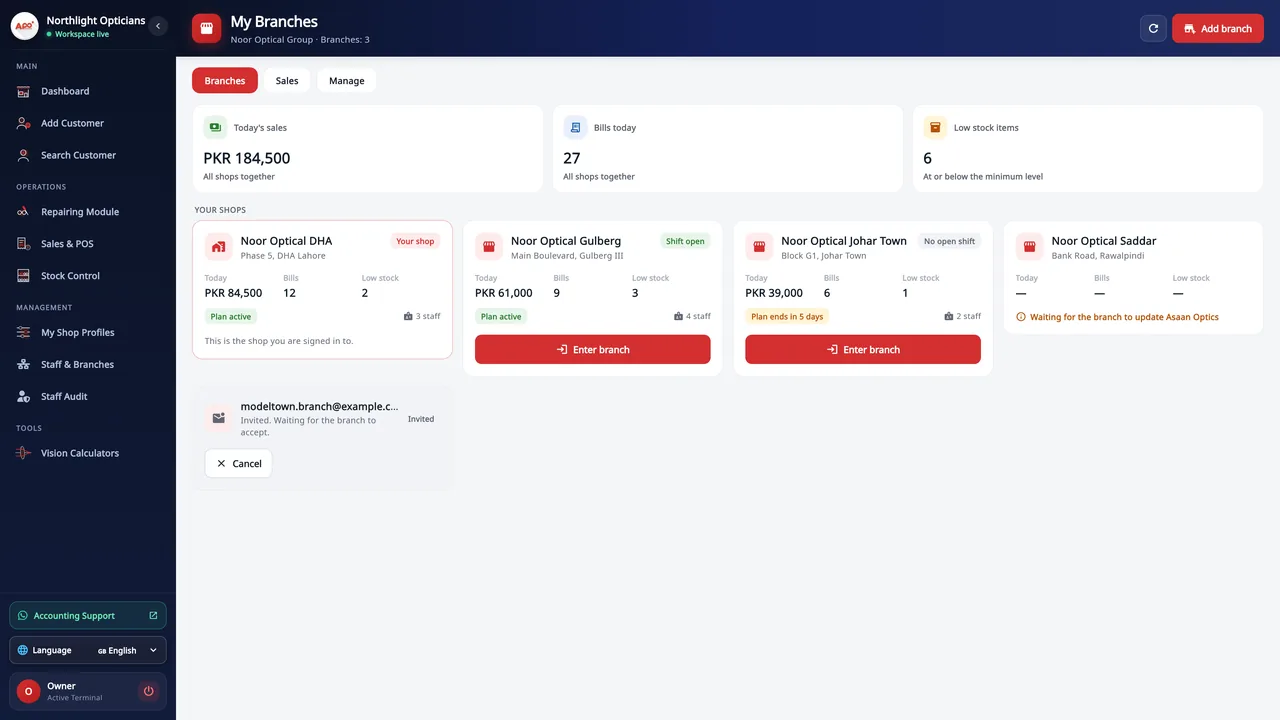
The Branches tab is the daily view. The header shows the business name and the number of branches (your own shop is not counted).
Three totals for all shops together: Today's sales, Bills today and Low stock items (at or below the minimum level).
Money in different currencies is shown side by side and never added together.
One card per shop: today's money, bills, low stock, the shop's plan, the staff count, whether a shift is open, and Enter branch. Your own shop is marked Your shop and has no Enter button.
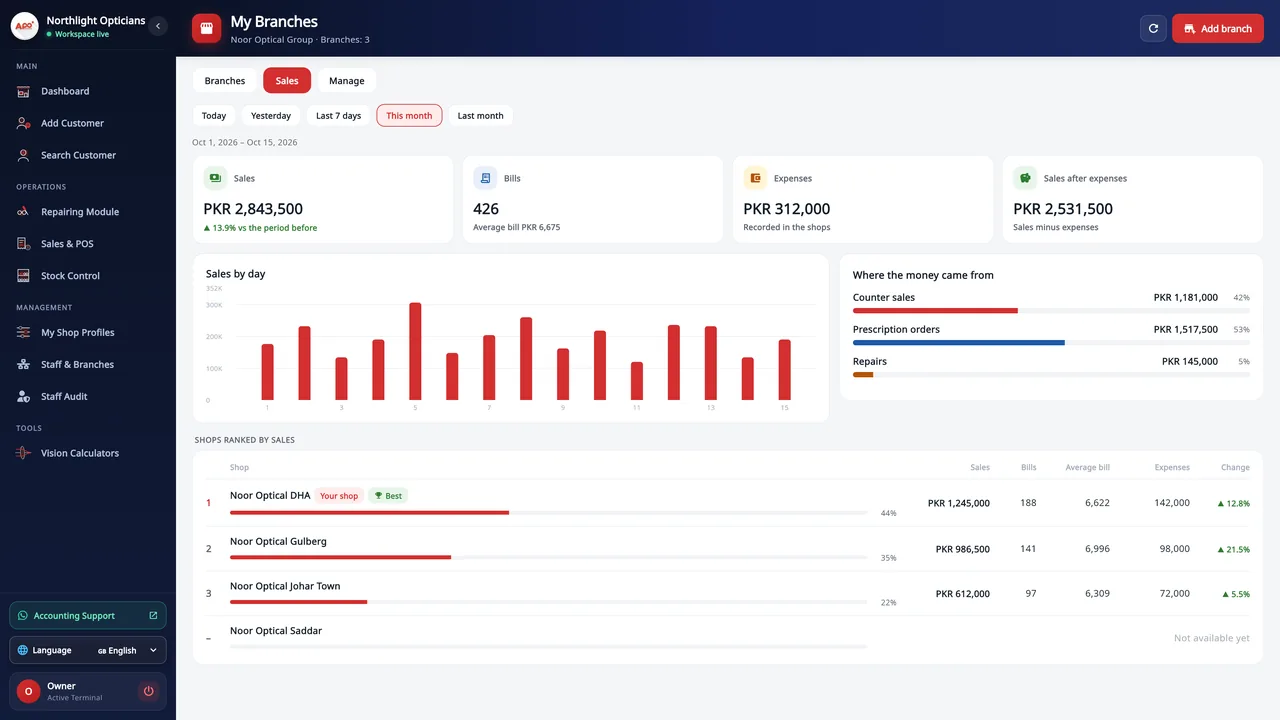
The Sales tab compares Today, Yesterday, Last 7 days, This month or Last month with the period before: sales, bills, average bill, expenses, sales after expenses, sales by day, where the money came from (counter sales, prescription orders, repairs) and the shops ranked by sales.
Enter a branch and come back
- 1
Click Enter branch
The app asks the server for a session for that one shop, then reloads as the branch: its customers, sales, stock, settings, currency, tax, staff permissions and desktop plan.
- 2
Work as that shop
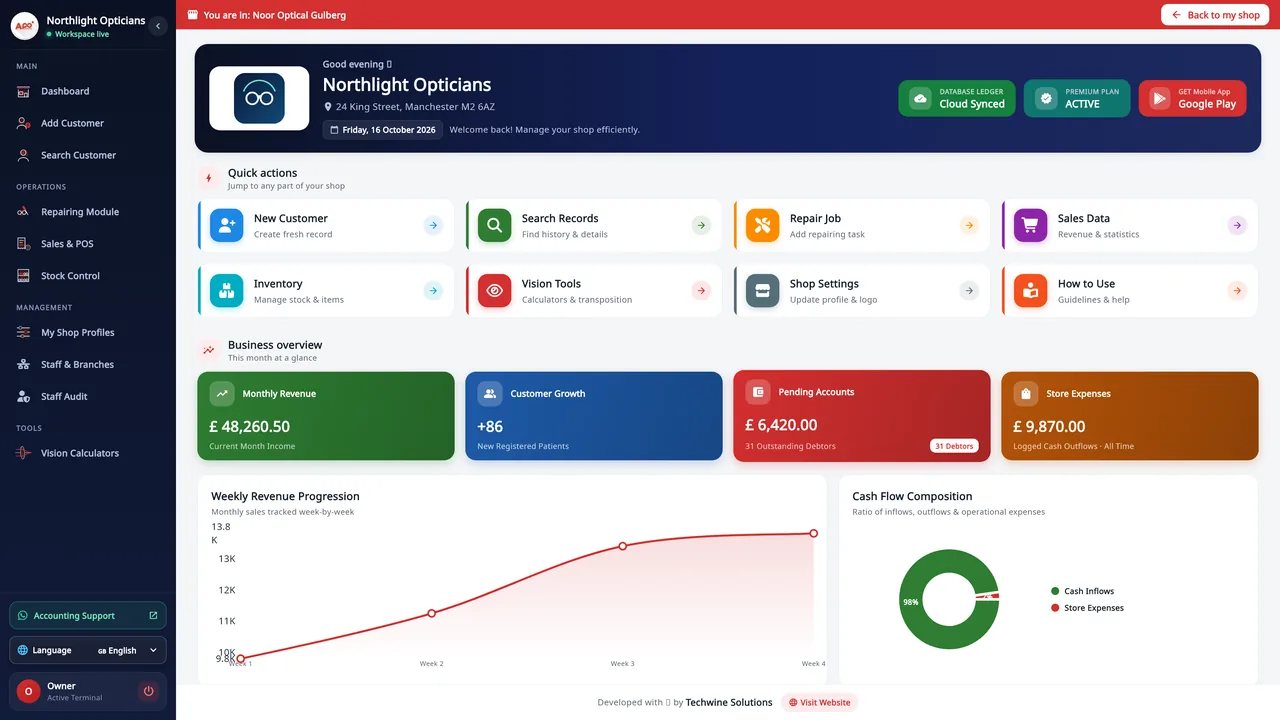
A red bar at the top of every screen says You are in: and the branch name. Everything you do in a branch is saved under your name as main owner.
- 3
Click Back to my shop
The bar's Back to my shop button ends the branch session and brings back your own shop's settings.
Inside a branch, My Branches and the Organisation section are hidden: the business is run from your own shop.
When the app restarts it always opens in your own shop, never silently inside a branch.
Entering a branch needs the internet. Offline, the app shows No internet connection. Please try again.
If the branch is removed or leaves, the app returns to your own shop by itself: Access to this branch has ended. You are back in your own shop.
Records waiting to be sent stay tagged with their own shop, so nothing recorded in one shop is sent for another.
When a branch card has no Enter button
| Message on the branch card | What it means | What to do |
|---|---|---|
| Waiting for the branch to update Asaan Optics | The branch has not been secured yet (its devices are not all on the latest app). | Update and sign in once on every PC and phone of the branch. |
| This shop is suspended | The branch's shop account is not in a normal state. | Ask the branch owner, or our support. |
| This branch cannot be opened right now | Any other reason. | Try again later, or ask our support. |
What each shop keeps for itself
Every branch keeps its own customers, sales, stock, staff, settings (name and address on receipts, currency, tax) and desktop plan. Inside a branch, the branch's plan applies.
There is no stock transfer between branches. Each branch's low stock shows in My Branches, so you can restock it.
Staff keep using only their own shop, with the permissions their owner gave them, and never see My Branches.
A branch owner works in their own shop as before, sees only that shop, and can leave the business at any time.
| Who | What they can do |
|---|---|
| You (main owner) | See every shop in My Branches and open any branch with full control. |
| Branch owner | Work in their own shop only; leave the business from Organisation. |
| Staff | Nothing changes: their own shop, with their own permissions. |
Rename, remove, leave
Rename or Remove a branch in Manage, Your shops. Remove asks first: “You will no longer be able to open it. Its data stays with the branch.” Any of your sessions inside that branch end at once.
Leave: a branch owner clicks Leave organisation in Shop Settings, Organisation; the main owner can no longer open that shop.
Cancel an invitation from its card on the Branches tab or its row under Open invitations.
Recent activity in Manage lists branches opened, joined, removed, left and renamed, and invitation events.
Questions
Can I use My Branches on the phone?
No. My Branches, Enter branch and the Organisation section are on the Windows desktop only. Each phone shows the shop it is signed in to: the main owner's phone shows the main shop, and a branch's phone shows that branch.
Is there a fee for adding branches?
No. Every shop pays its own Asaan Optics plan and there is no extra fee for branches.
Why does Confirm say the branch must update first?
Confirm works only when every computer and phone of the branch runs the latest Asaan Optics and has signed in once. Update each device, sign in once on each, then press Confirm again.
The invitation code is lost or expired. What now?
The code is shown only once and an invitation lasts 7 days. Cancel the old invitation and create a new one in Manage.
Can I move stock from one branch to another?
No. Each branch keeps its own stock list; My Branches shows each branch's low stock so you can restock it.
Who is recorded when I sell inside a branch?
You are, as main owner. Everything you do in a branch is saved under your name, in that branch's records.
Will the PC open inside a branch after a restart?
No. The app always starts in your own shop. Enter the branch again from My Branches.